Use Case: Creating AI-Augmented Workflows
This use case demonstrates how to use the Automation Assistant to create an end-to-end data pipeline. With a few conversational prompts, the Automation Assistant creates a Workflow that extracts a data table from an on-premise SQL Server and uploads it to BigQuery . The Automation Assistant automatically generates a folder structure, Connection objects, VARA objects, SQL Jobs and Python Jobs. The configuration also takes care of error handling and email notifications.
Note: The AI Augmented Workflow Creation feature is only supported by the Google Gemini LLM. If you plan to use this capability, ensure you select Gemini as your provider during configuration.
What You Will learn
By following this use case, you will learn how to:
-
Interact with the Automation Assistant using natural language.
-
Automate the creation of a multi-step data extraction and upload Workflow.
-
Refine the pre-configured Connection object for SQL Server.
-
Verify the implementation of SQL extraction and Python-based upload logic.
-
Execute and monitor the end-to-end Workflow.
Step-by-Step Guide
-
Initiate the request.
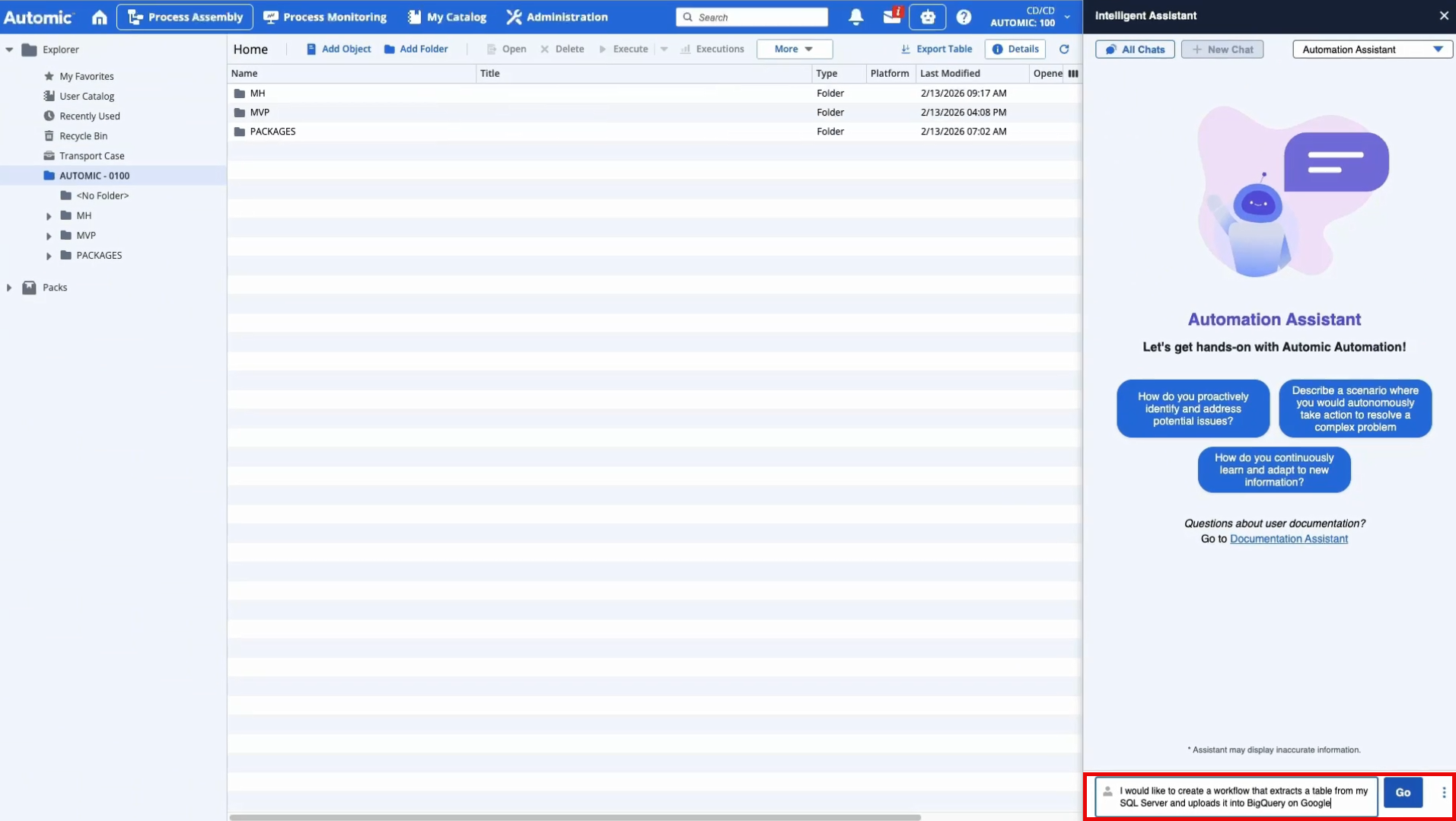
Open the Automation Assistant and enter your requirement in plain language. For example:
Create a Workflow that extracts a table from my SQL Server and uploads it into BigQuery on Google.
(Click to expand)
-
Provide contextual details.
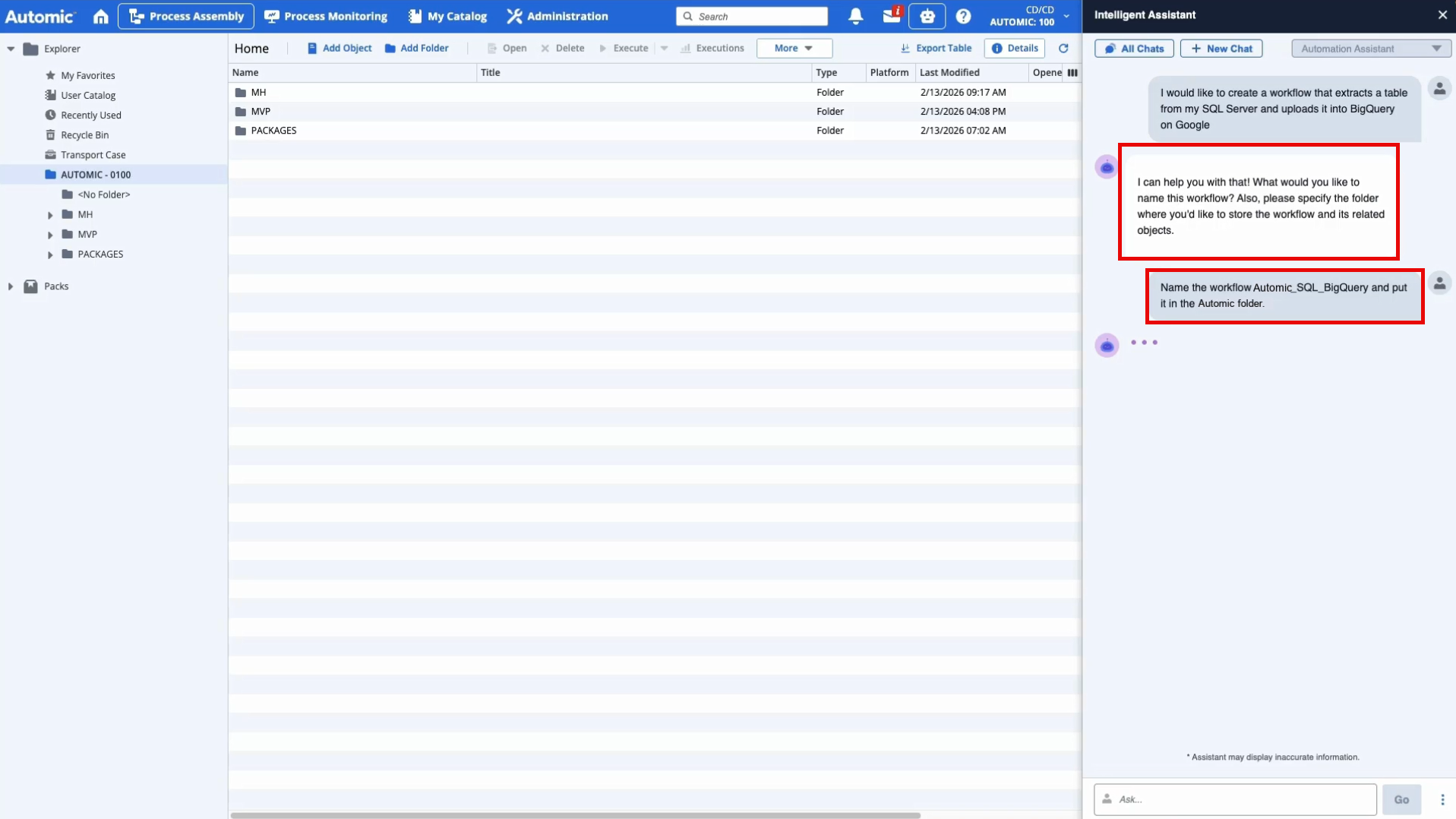
The Automation Assistant will ask clarifying questions to ensure the objects are created in the right location and follow your naming conventions. Provide the requested information:
-
Workflow Name: For example, Automic_SQL_BigQuery
-
Folder Location: For example, Automic folder
-
-
Review the suggested plan.
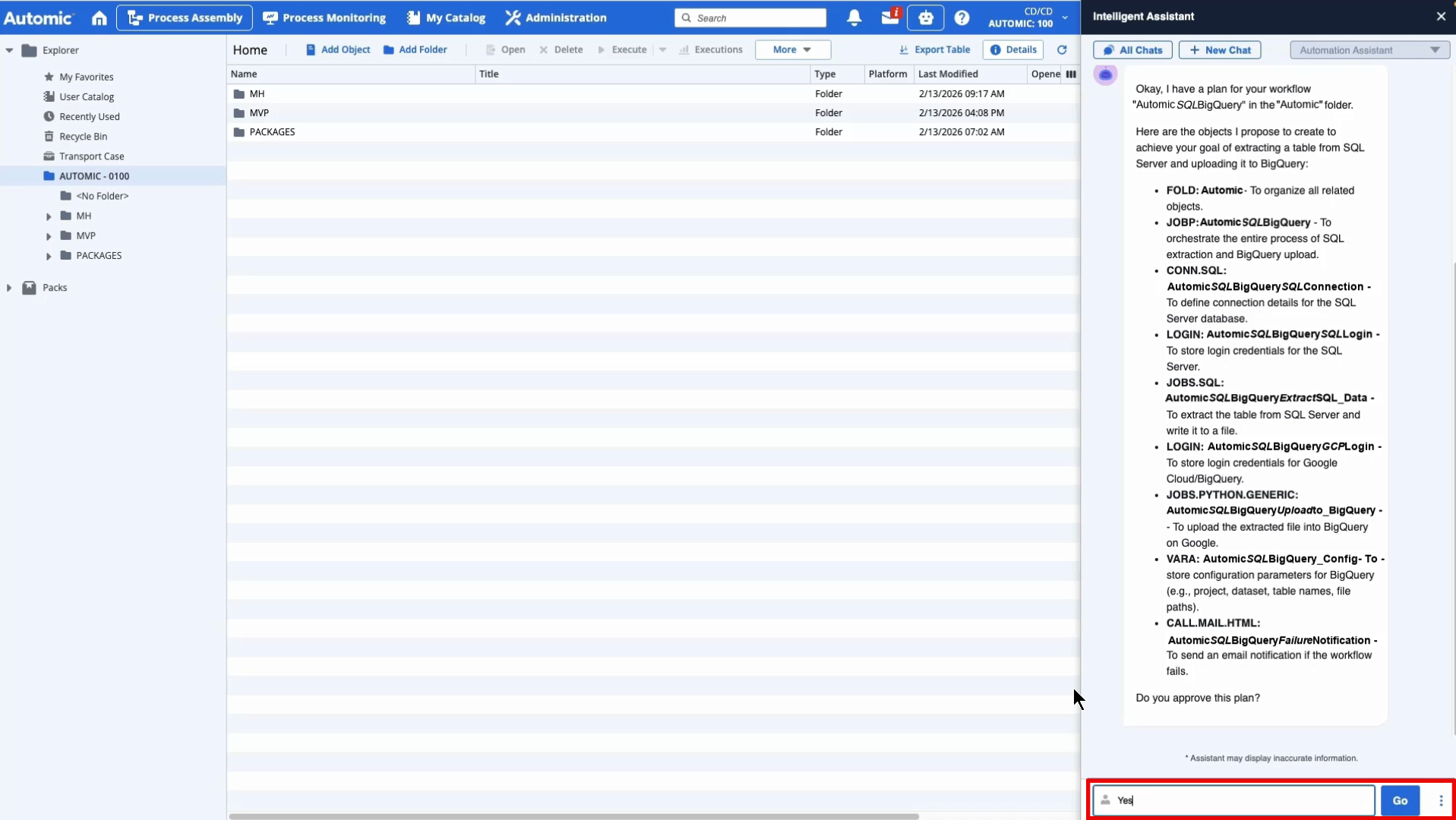
The Automation Assistant generates a detailed work plan for your approval. Review the proposed objects:
-
FOLD: A folder to organize the new objects.
-
CONN: A SQL connection object.
-
LOGIN: Login credentials for SQL and Google Cloud.
-
JOBS: An SQL job for extraction and a Python job for the BigQuery upload.
-
VARA: A VARA object for configuration parameters.
-
CALL: An email notification for failure handling.
-
JOBP: The master Workflow orchestrating these steps.
Click Yes to proceed.
-
-
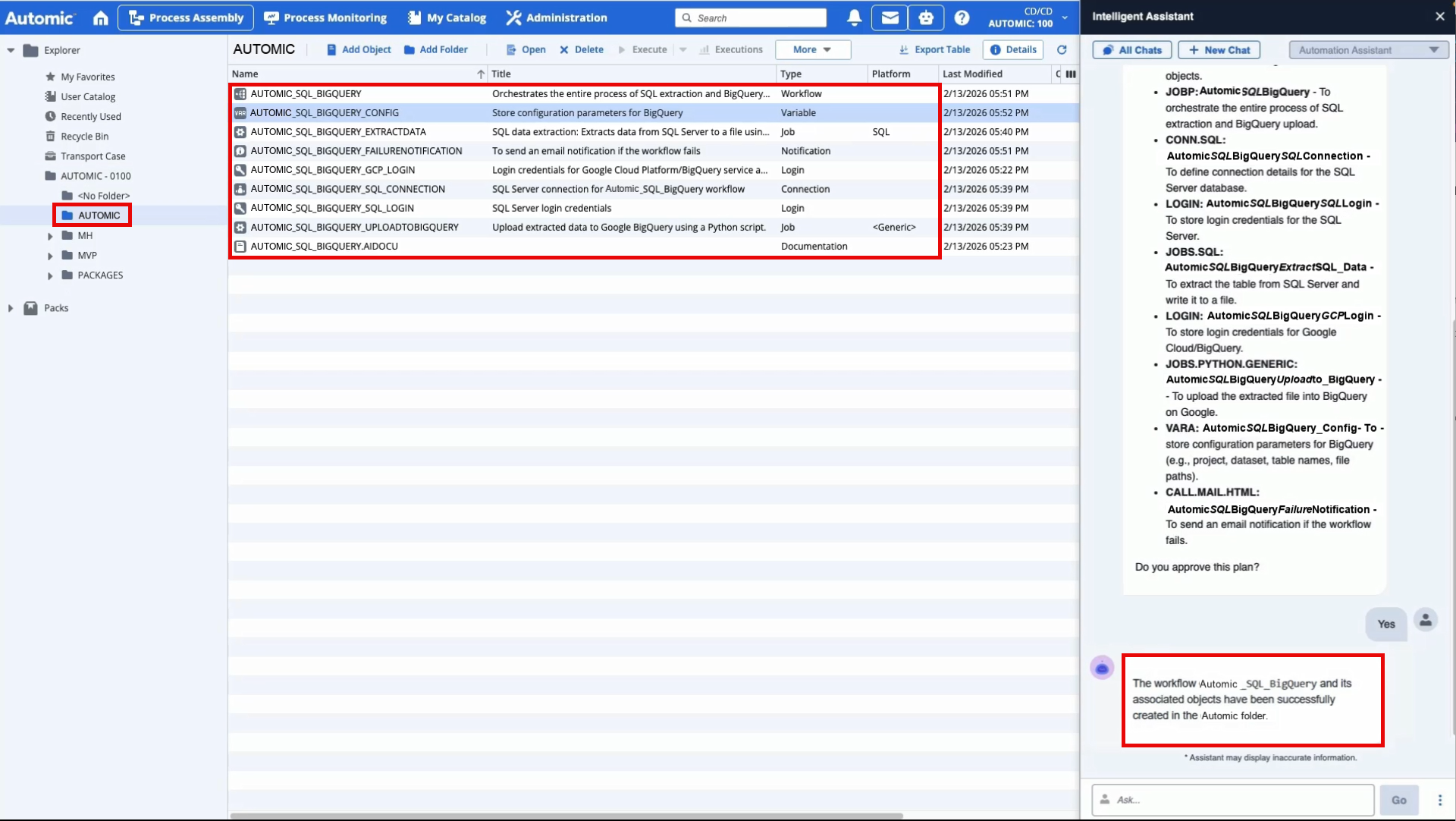
Once you have approved the suggested plan, the Automation Assistant will create all objects in the specified folder. A confirmation message will appear:
The Workflow Automic_SQL_BigQuery and its associated objects have been successfully created.
(Click to expand)
-
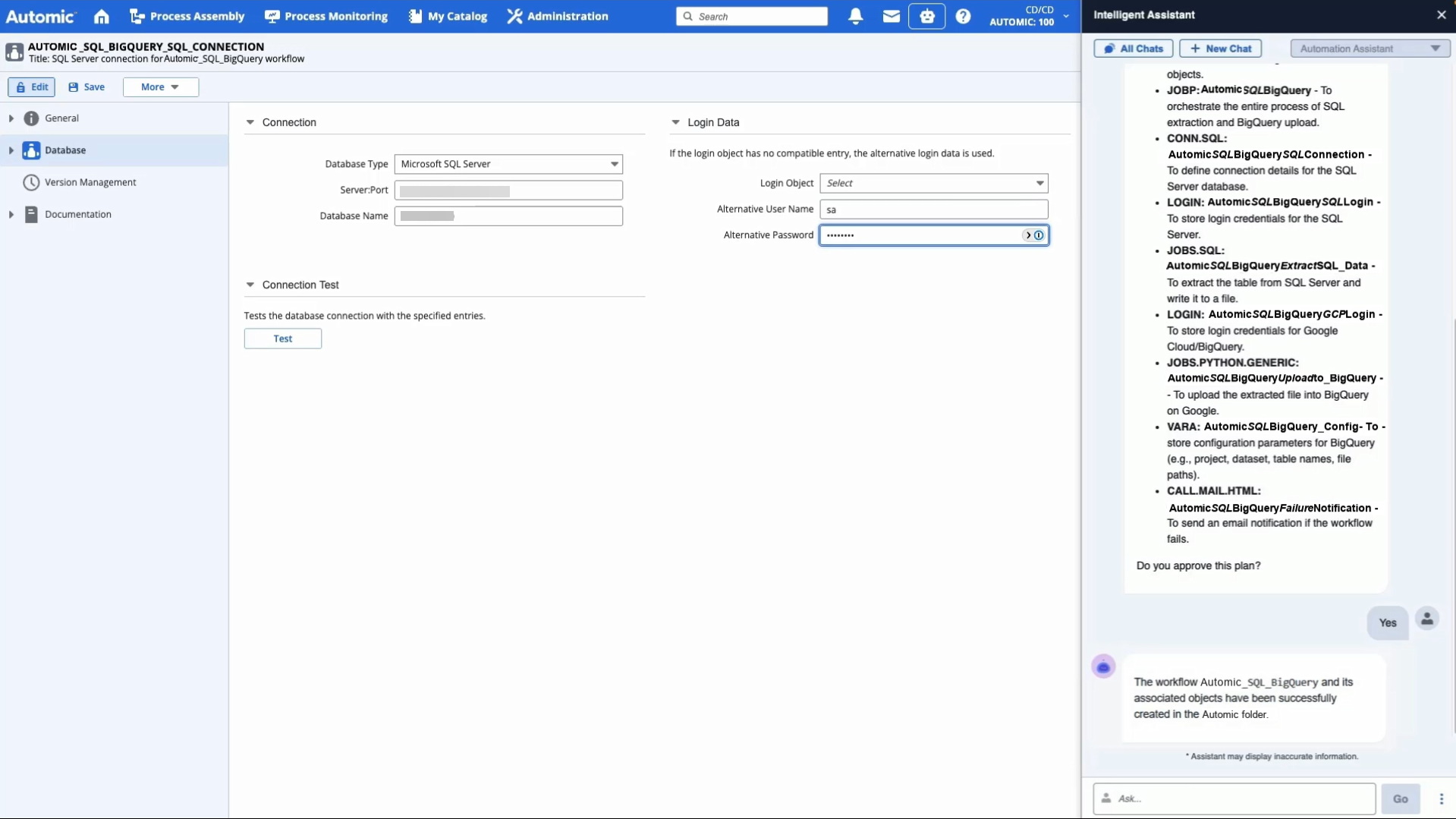
Review and fine tune the object definitions.
Navigate to the newly created folder to fine-tune the connection details:
-
Open the SQL Connection Object (CONN).
-
Enter the Server Name, Port, and Database Name (e.g., NORTHWIND).
-
Select the appropriate Login object or enter credentials directly.
-
Click Test to ensure the connection is successful.
-
-
Review the generated logic.
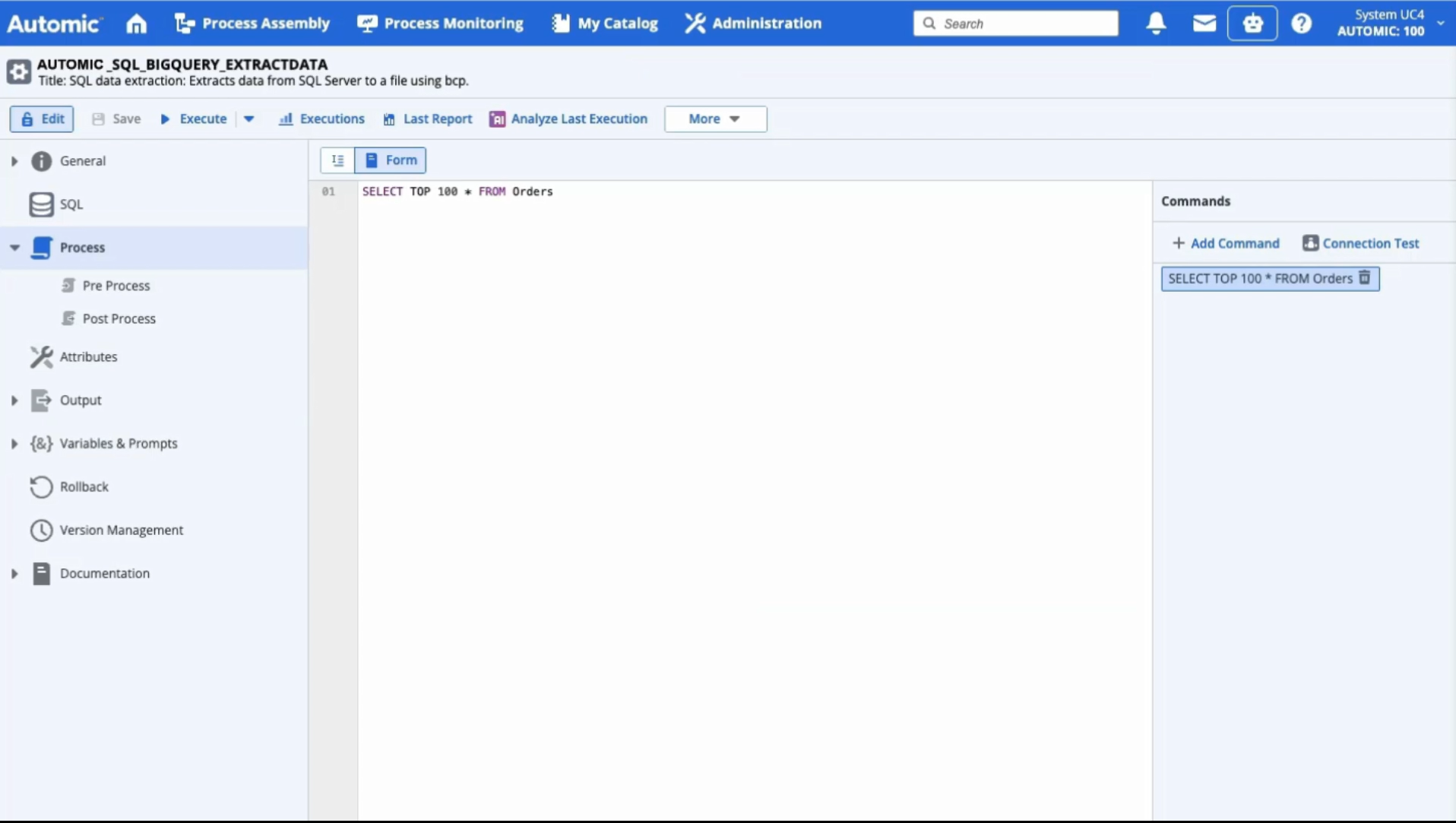
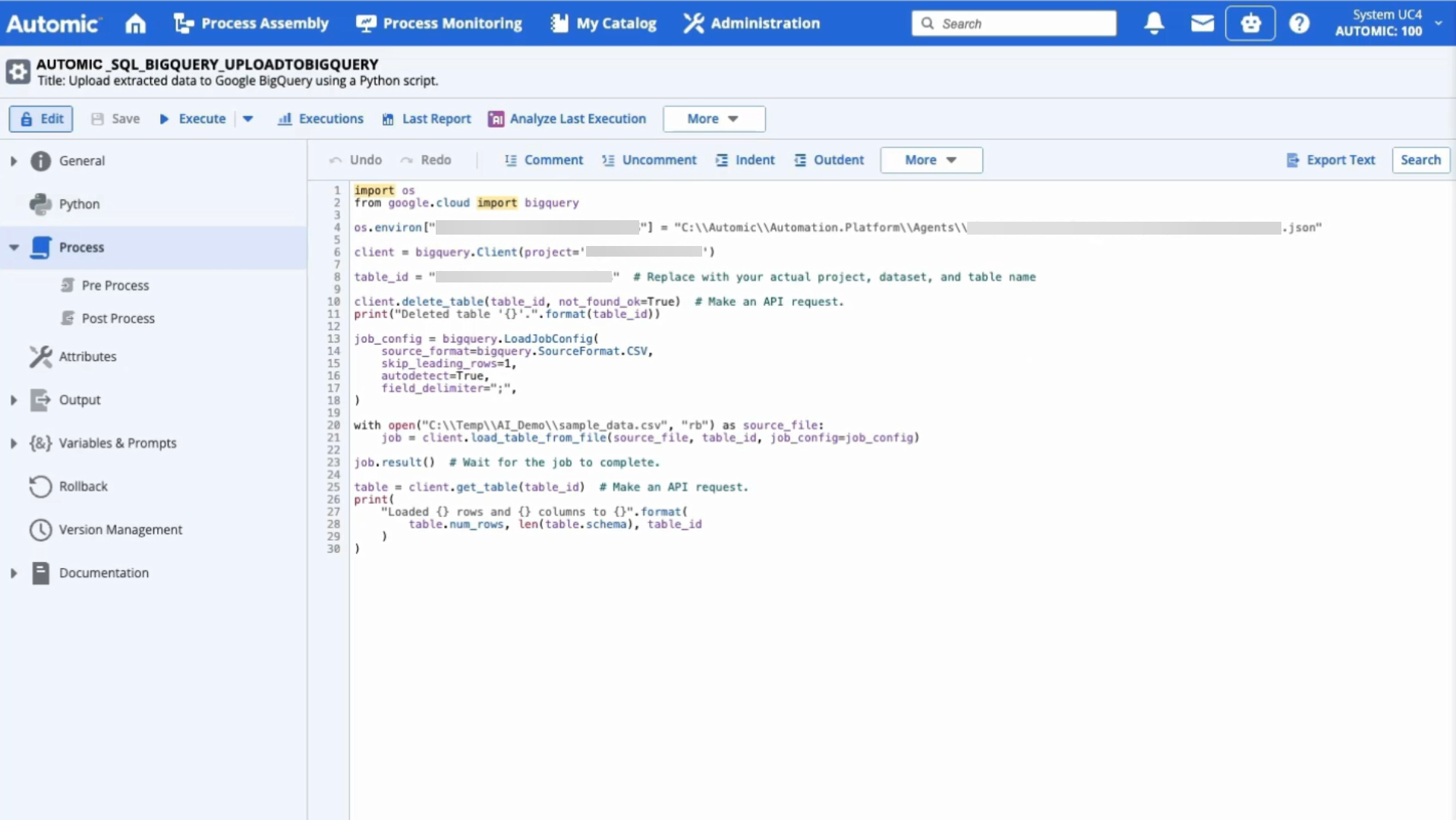
Optionally, inspect the auto-generated code within the Jobs:
-
SQL Extraction: Review the SELECT statement in the SQL Job.
-
Cloud Upload: Review the Python script in the BigQuery Job, which includes the necessary libraries and logic to handle the file transfer to GCP.
-
-
Run and monitor.
-
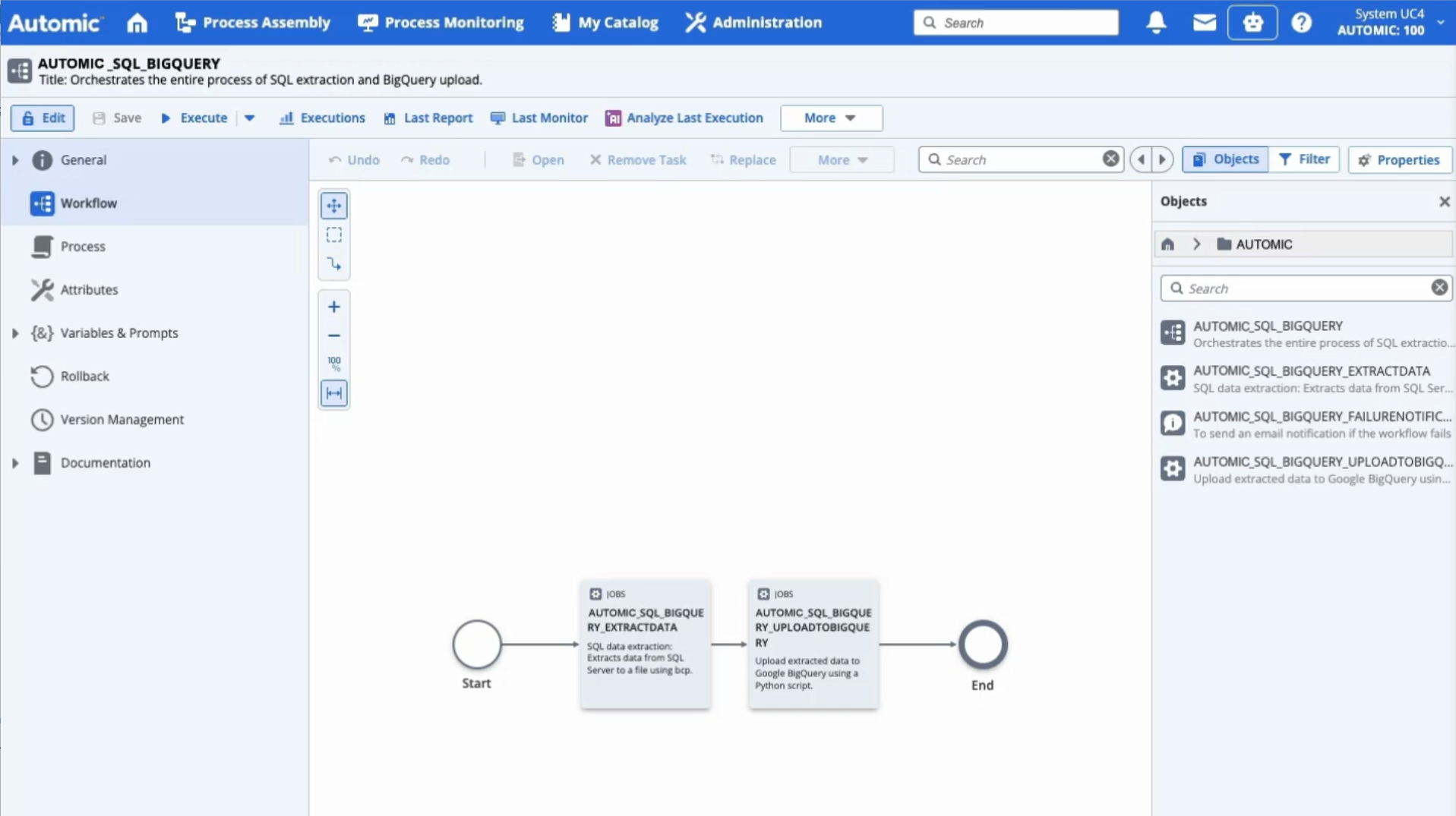
Open the Workflow.
-
Review the visual representation of the tasks.
-
Click Execute.
-
Open the Workflow Monitor to watch the execution in real-time. You can right-click on individual tasks to view the extracted data report or the Python execution logs to verify the successful upload.
-
Useful Links