Adding/Editing Jobstreams: Trimming
ICE PLAN
HERO
-
Context URLs
/*.*/AddJobstream_Trim
/*.*/EditJobstream_Trim
-
ice_TRIMMING_conceptual
Overriding the Default AutoTrim Parameters
-
ice_TRIMMING_Override_AutoTrim
-
https://docs.automic.com/documentation/webhelp/english/ALL/components/TERMA_DOCU/*.*/AAI%20Guides/Content/Jobstreams/Jobstreams_Trimming.htm
Trimming Jobs Manually
-
ice_TRIMMING_AddingTrimmingPoints
-
https://docs.automic.com/documentation/webhelp/english/ALL/components/TERMA_DOCU/*.*/AAI%20Guides/Content/Jobstreams/Jobstreams_Trimming.htm
The List of Trim Points
-
ice_TRIMMING_ListOfTrimPoints
-
https://docs.automic.com/documentation/webhelp/english/ALL/components/TERMA_DOCU/*.*/AAI%20Guides/Content/Jobstreams/Jobstreams_Trimming.htm
Removing Trim Points
-
ice_TRIMMING_Removing
-
https://docs.automic.com/documentation/webhelp/english/ALL/components/TERMA_DOCU/*.*/AAI%20Guides/Content/Jobstreams/Jobstreams_Trimming.htm
Revisit ICE here - add Jobstreams card, maybe others
Trimming is a function to optimize a jobstream definition by removing irrelevant jobs from the jobstream's definition, leaving only the jobs that are relevant to reaching the target job and meeting your SLAs. Trimming is not necessary for all jobstreams, bu you might want to consider it for very large jobstreams or in certain special cases where it would support better process monitoring and analysis. In these cases, a trimmed jobstream can let you focus on relevant execution details during monitoring and work with meaningful statistics during analysis.
When a jobstream is built, AAI traces all the target job's upstream processes to the very first job(s) that must execute in order for the target job to run and complete. These upstream processes are depicted as predecessors in the jobstream. For large jobstreams you might find that some jobs are not worth tracking in the jobstream because they are not relevant to the functional or scheduling context of the target job.
To ensure that AAI's analysis, calculations and predictions are meaningful, you can use the trimming function in the jobstream definition to exclude unwanted upstream predecessors from its calculations. As a result, the jobstream contains only the jobs that are relevant to the business process.
In large environments, a jobstream can contain thousands of upstream predecessor jobs. However, not all of them are relevant to the functional or scheduling context of the target job. For example, when predecessor jobs are executed in a frequency that does not correlate with that of the target job, this is usually an indication that they are not part of the same business logic and should not be part of the jobstream's runtime anaylsis.
To ensure that AAI's analysis, calculations and predictions are meaningful, AAI provides a Trimming function that excludes unwanted upstream predecessors from its calculations. As a result, the jobstream contains only the jobs that are relevant to the business process. AAI lets you trim jobstreams automatically and manually.
More from the video:
Trimming make it possible to scrub the data produced by operations(???) and the job scheduler so that AAI's analytics reflect the org's bus processes more accurately. AAI collects and analyzes runtime data for bus critical processes to build predictive models and support operations monitoring and SLA mgmt. A new JS collects runtime data for the critical job and by default all of its predecessors are collected. Some of the jobs need to be excluded from the process: polling, and orchestration processes and jobs with dependencies that run at different times or on diff frequencies. They're not relevant to the org's bus processes, they distort SLA calcs, trigger false positives for overruns, and in some cases cause "visual probls" in AAI's interfaces.
Trimming allows us to remove these problematic upstream dependencies from the collection process. Manual with trim points or automated with auto-trim feature.
Trim predecessors only: Useful for AutoSys situations
Trim pred and job: typically more useful for other scheduler types
trimming e.g., unrelated job that's scheduled at a different time, like hours or days before the rest begins.. (How does that happen? Why would it seem to be a predecessor when it's unrelated???)
AutoTrim
When setting up an AAI instance, your AAI administrator can configure it to automatically trim all jobstreams based on certain server parameters that are defined in the Config Tool. If so set up, they apply instance-wide by default to all jobstreams that are built after those parameters have been configured.
If the AutoTrimming function is enabled on the server, the AutoTrim section on the Add/Edit Jobstream dialogs (Trim tab) is also enabled. It displays the values defined on the server to trim jobs based on their frequency/repetitiveness. As a jobstream administrator, you can override the default auto-trimming parameters for this particular jobstream here:
typically, when the frequency of execution is > target job, this is an indication that it's not relevant, not part of the same bus logic, and dependent due to unrelated technical requirements. This can happen when job owners add extra dependencies. leaving operations unaware of them. Quite common are polling jobs. So we set value to 1.5 or 2 to remove high-freq jobs automatically.
Auto trim is ON by default on new jobstreams using the default settings. Can set values and turn on/off in ConfigTool. Particularly useful in AutoSys schedulers for repetitive jobs. However, for other schedulers, like Automic it ca be detrimental by removing necessary items.
Infrequency: less than targer. E.g., could be once a week consolidation process of data management, but that is not relevant to the original business process, and certainly not for its stats.
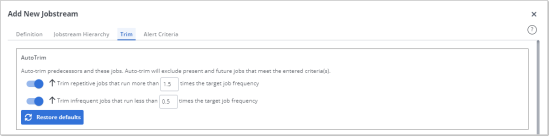
For more information about the default AutoTrimming options, see
If AutoTrimming is not enabled on the server, the AutoTrim section of the Jobstream dialog is disabled.
If the structure of the jobstream changes after configuring the AutoTrimming options (for example, jobs are added), AAI automatically applies the AutoTrimming configuration. If the new jobs meet the criteria, they will be automatically trimmed.
Manual Trimming
Regardless of whether AutoTrimming is enabled on the server or not, you can always define manual trim points for the jobstream.
Common Use Cases for Trimming
Most probably you have common pieces of code that are part of multiple applications. For example:
-
Nightly calculations of an annual percentage rate
-
Preparatory steps for running applications that check whether a database is online
-
Steps to check whether a particular server is up and running
If you include the jobs that execute such processes in multiple jobstreams, every time that AAI issues an alert associated with one of those jobs, you will receive alerts for all affected jobstreams. Also, these processes are probably irrelevant for the purpose of the SLA. Instead, you can trim the jobstreams and create a different jobstream with only the common code so that it can be monitored by itself. By doing so, you can focus on the parts of a jobstream that are relevant to the SLA. Furthermore, if something is wrong with this common part of the process, you will be alerted only once when the corresponding jobstream runs.
Signs That Trimming Is Needed
When predecessor jobs are executed in a frequency that does not correlate with that of the target job, this is usually an indication that they are not part of the same business logic.
Overriding the Default AutoTrim Parameters
If the AutoTrim function is enabled on the server, the AutoTrim section in the Trim tab is enabled and it displays the values that are set in the AAI Configuration Tool. You can override those values by specifying different ones here. These values apply as soon as the jobstream has been rebuilt, which happens as soon as you save your changes.
You have the following options to trim jobsteams:
-
Let's suppose that one of the predecessor jobs of a target job pulls data every minute to check whether a file exists on a specific directory; this job runs only if the file exists. This repetitive job is a purely technical process that has no relevance for the jobstream analysis and predictions and that would only clog the jobstream views.
The Trim repetitive jobs... option automatically removes these high-frequency jobs. The default value here is 1.5, which means that the predecessors that execute 1.5 times more often than the target job will be removed from the jobstream.
-
Let's suppose that the target job executes once a day. The target job has a dependency on a job that produces a report and that executes once a week. This predecessor has no impact whatsoever on the runtime values of the target job.
The Trim infrequent jobs... option automatically removes jobs that run less frequently than the target job. The default value here is 0.5, which means that the predecessor that execute half so often as the target job will be removed from the jobstream.
-
Restore defaults
Click this button to override your input in the AutoTrim section and restore the default values as defined in the Config Tool.
Disabling the AutoTrim Options
If you disable the AutomTrim options on this dialog, this means that you undo the trimming that AAI performed automatically based on the parameters define on the server. However, you must save your changes at this point so that AAI can rebuild the jobstream. Only then will AAI "know" that the previously trimmed jobs and predecessors are back in the jobstream.
You can also configure the auto-trim settings in AAI's Configuration Tool IS THIS TRUE? WHERE?
From Martins recording 20.07.2023
Common Use Cases
You have common code that is part of multiple apps (it calculates an annual % rate every night)-every app uses that calculation
when modeling js in AAI you want that piece of functionality covered by 1 single set of jobstreams - you dont want every app that uses that calculation to send alerts at different times. If there is a problem with that part of the process, you want to be alerted only once.
--> common code components can be factored out from application so that they have coverage only once
You have prep steps for running applications, for example
-
check that the DB is online
-
is a particular server up and running
-
is everything ok with the network
These steps can be time-consuming and they are irrelevant for the purpose of the SLA - you dont want them in your js because you need to focus on the running of the apps
Trimming Jobs Manually
No matter whether the system calculated AutoTrim function is enabled or not, you can always define trim points manually. The trim point is the job that you designate as the one as of which all the upstream dependencies will be removed from the jobstream. When defining manual trim points, you can decide what AAI will remove:
-
The designated jobs (trim points) and their predecessors
-
Only the predecessors (the designated jobs remain in the jobstream)
There are two starting points to trimming jobs from a jobstream definition manually, each having a slightly different steps, as described in the following sections:
-
When editing the jobstream definition
-
From the Gantt view of a run for the jobstream, which as the advantage of having visual support to understand the process when choosing trim points.
-
Adding Manual Trim Points from the Gantt view
This has the advantage of having visual support to understand the process when choosing trim points.
Unlike Auto-Trim settings, which can automatically revise the trim points based on the repetition and frequency settings, manual trimming is a fixed configuration. Keep in mind that, overtime, your manual trim points can become out of date. You have to be aware where manual trim points are set and return to revise them if needed. For example, if the structure of the jobstream changes (because perhaps jobs are added), you will have to come back to the jobstream definition and check if further manual trimming is necessary.
Adding Manual Trim Points When Editing a Jobstream
Use the following steps to add trim points for a jobstream run when editing the jobstream run.
To define Trim Points manually when editing a jobstream
-
In the Edit Jobstream [jobstream name] dialog, click the Trim tab.
You see any currently applied trimming settings, both Auto-Trim and manual trim points.
-
Click the Add Trim Points button.
-
In the Add trim point(s) view, where you search for and select jobs to trim, first select an option to indicate whether you want the jobs you select to also be trimmed out of the jobstream along with its predecessors or not:
-
Predecessors only
-
Predecessors and these jobs
-
-
Search the jobs in the current jobstream to find and select jobs as trim points.
-
In the Find Jobs dropdown, select a search criteria from one of the following:
-
Where job has start time:Select this to get a list of any jobs in the jobstream have a specific start time defined. Start times are often a good basis to use as your trim points.
Example:
The bulk of a particular batch starts on the close of business at 5:00 PM. At this time there are still earlier upstream dependencies that AAI picks up due to the default jobstream definition.
In this case, select the job in the jobstream that has the start time of 5:00 PM to trim the jobstream from this point. This way, the predecessor of this job are not included in the jobstream.
-
By job name: Specify whether the job name Contains, Starts with, or Ends with a portion of the job name you enter.
Note:The job name search is case-sensitive.
-
Where job has no run frequency
This is the case if you have jobs in the scheduler that AAI identifies as dependencies (they are part of the upstream jobs traced back to the target job) but that have never executed. Neither the scheduler nor AAI have run information about them. These jobs do not have any impact on the target job and on the SLA whatsoever and you can trim them.
-
Where job has varying run frequency
You can trim jobs based on the frequency with which they execute in the scheduler. You have the following options:
-
Do not show all the jobs in a flow
Let's suppose that you have the following dependency flow:
Job A --> Job B --> Job C
By specifying Job C as trim point, you trim all its upward dependencies (both Job A and Job B). Select this option to have AAI show only the jobs that are relevant for trimming. In this case, this would be Job C.
If you have complex dependency flows in your jobstreams, this option simplifies the representation of such jobstreams, helping you select the right job.
-
Repetitive: When you select this, you also need to add a repetition factor (in relation to the target job). For information, see Overriding the Default AutoTrim Parameters.
-
Less Frequent: When you select this, you also need to add a frequency threshold value (in relation to the target job). For information, see Overriding the Default AutoTrim Parameters.
-
Both: Select this option to trim both Repetitive and Less Frequent jobs.
-
Note:This is a simple filter and might not be able to show all the jobs that your want. That is not a problem. You can build your list of trim point jobs incrementally, adding jobs that match one criteria and then returning to add jobs based on another criteria, as described the next steps.
-
-
Click Search.
To help you understand the role and impact of the listed jobs, each job is listed with the following information:
-
Name: The name of the job as defined in its scheduler.
-
Parentage: The fully qualified path from the root object all the way down to a particular job. It lets you uniquely identify the job. This information is extremely important for schedulers that allow jobs to run more than once in multiple contexts (from different places and in multiple jobstreams). The parentage identifies the exact instance of the job. IWS, ESP, Tidal and Automic Automation allow jobs to run multiple times in different contexts. AutoSys does not allow this, therefore, in AutoSys parent and parentage are always the same.
-
Type: The type of job. This is scheduler-specific.
-
Date Time Condition: If the job has a fixed start time, this is the date and time for the start.
-
-
In the resulting list, select the job(s) that you want to include in the list of jobs to eliminate from the jobstream.
-
Click Add at the bottom of the dialog.
You return to the initial list view, where the selected jobs are now listed in the bottom half of the Trim tab. The Trimmed By column contains User for the jobs you selected.
-
-
Optionally, edit the list of trim points in the following ways:
-
Change the trim option for any of the jobs on the list by changing the selection in the Trim column between Predecessor and these jobs and Predecessor only.
-
Add other trim points, by clicking Add Trim Points and repeat the previous steps.
-
Remove jobs from the list by selecting the trim point job, select the checkbox next to the job, then click Remove Trim Point in the upper right.
-
-
Click Save.
AAI rebuilds the jobstream without the jobs you have trimmed out. You will no longer see those jobs on the Gantt view and they will not be considered in the statistics and predictions for the jobstream runs.
Adding Manual Trim Points from the Gantt view
On the Gantt view, you have a good visual representation of the flow or a jobstream run and you can see the run times on the Jobs Table. From this view, you can better notice whether there are jobs that are not relevant to the core process and how they are affecting the jobstream runs. You can confirm your analysis by switching to previous runs to determine whether they show the same pattern. Then you can add manual trim points directly from that view.
In one action on the Gantt view, you can add trim points at one job or more than one job for a jobstream. The steps for adding a trim points from one or multiple jobs from the Gantt view follow.
To add Trim Points from the Gantt view
To add one or more trim points manually from the Gantt view, do the following:
-
Start on the Gantt view of any run for the jobstream.
-
Locate the jobs that you want to set in the Jobstream Tree.
-
To add only one trim point: Click the three-dot, vertical ellipses (
 ) to the right of the job name to open the job action menu, and select Add Trim Point.
 -
To add multiple trim points: Select all the jobs that your want to add as follows:
-
Locate and select one of the jobs in the Jobstream Tree.
Checkboxes appear to the left of all the job names in the tree.
-
Click the checkboxes next to each of the jobs that you want to select.
-
Click the three-dot, vertical ellipses (
) to the right of one of the selected job names to open the job action menu, and select Add Trim Point.
Note:You cannot set a trim point for a job that is already defined as a trim point
 .
. -
-
-
Choose one of the options in the Select Trim Point(s) Type dialog for the where the trim point should be applied, then click Save:
-
This Jobs & Predecessors
-
Predecessors Only
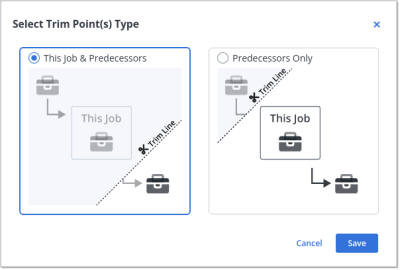
The Edit Jobstream [jobstream name] dialog for the jobstream opens on the Trim tab. The Trim Points list in the bottom half of the dialog show the jobs that are to be removed from the jobstream based on your selections on the Gantt chart.
-
-
Optionally, edit the list of trim points:
-
To change the trim option for any of the jobs on the list, change the selection in the Trim column between Predecessor and these jobs and Predecessor only.
-
To add other trim points, click Add Trim Points and follow the steps in Adding Manual Trim Points When Editing a Jobstream.
-
To remove a job from the list, select the checkbox next to the job, then click Remove Trim Point in the upper right.
-
-
When you are satisfied with the trim settings on the Trim tab, click Save.
The dialog closes and you see the Gantt view again.
AAI rebuilds the jobstream with the new start jobs that you defined. Not only are the run statistics calculated without the jobs that run before the start job, you will no longer see those jobs on the Gantt view.
The List of Trim Points
The Trim tab of the Edit Jobstream The list at the bottom of the dialog shows the jobs that will be removed from the jobstream through both the AutoTrim function or the manual trim points. For example:
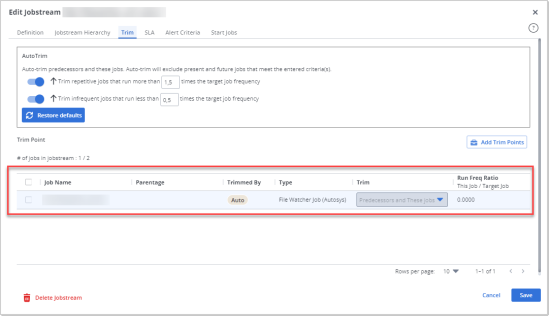
In this screenshot, the Trimmed By column displays Auto, indicating that the job and its predecessor have been removed automatically by the AutoTrim function. For manually added trim points, this column reads User.
To Trim the Jobstream
-
Select the checkboxes of the jobs that you want to trim.
The total number of jobs that remain in the jobstream after trimming the ones you have selected is displayed in # of jobs in jobstream.
-
In the Trim column you select whether both the job and its predecessor or if only its predecessors will be trimmed.
-
Click Save. This rebuilds the jobstream using the specified trim parameters.
When using the AutoTrim function, keep the following in mind:
-
It always removes both the jobs that meet the defined criteria AND their predecessors. This is not the case for manually defined trim point (see below).
-
Use this function with caution! It can remove processes that need to be taken into account for jobstream calculations.
Removing Trim Points
Trim points that have been defined automatically through the AutoTrim function cannot be removed. You can only remove manually defined trim points. Manually defined trim points read User in the Trimmed by column.
-
In the Trim Point list select a line. The Remove Trim Point button is displayed.
-
Click the button.
-
Click Save.
AAI rebuilds the jobstream and the removed jobs (trim points) and their predecessors are included in the jobstream going forward.
Difference Between Trimming and Setting the Start Job
Trimming a jobstream and setting the start job are two different functions. When you trim a jobstream, you eliminate jobs from the jobstream and, therefore, you actually tell AAI not to collect part of the jobstream data. AAI's analysis, calculations and so forth ignore the excluded jobs because they are no longer part of the jobstream. However, when you define custom start jobs, AAI does collect all the data from all the jobs that are part of the jobstream, also of those that run before the new start jobs.
See also