Once defined, this report will return process flows where an alias name is used.
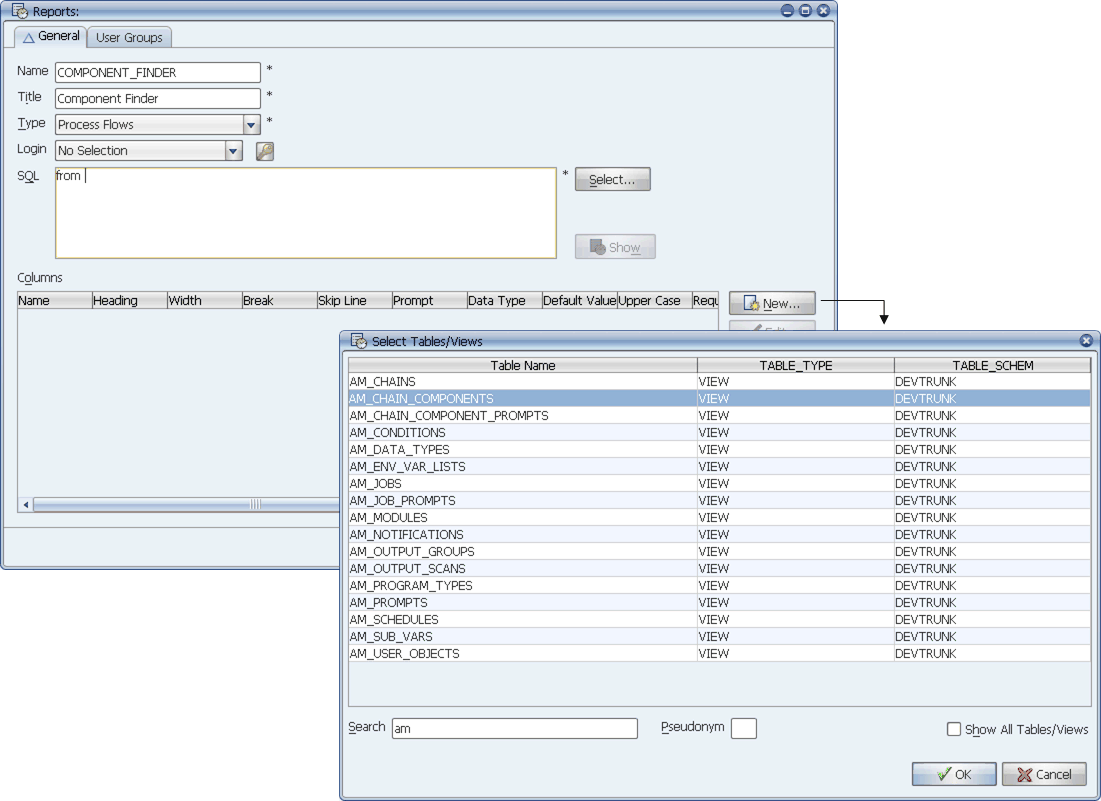
This example shows a simple report you can create using an Applications Manager modeling view.
If you want to know where a job is referenced in process flows, you can go to the Jobs Selector window, select the job and click Usage. But you might want slightly different information than that. You may want to know where the job is assigned as a process flow component under a particular alias name. Or perhaps you know that an alias name is used for a component in one of your process flows, but you don't remember which one. For cases like this, you can create a report to easily find the information you are looking for.
Once defined, this report will return process flows where an alias name is used.
Creating an Alias Usage Report
This example shows how to create a sample alias report that allows you to enter an alias name as a prompt value to return a list of process flows that include that alias. You can follow these instructions to create this report, or alter them slightly to create your own version. To create this report:
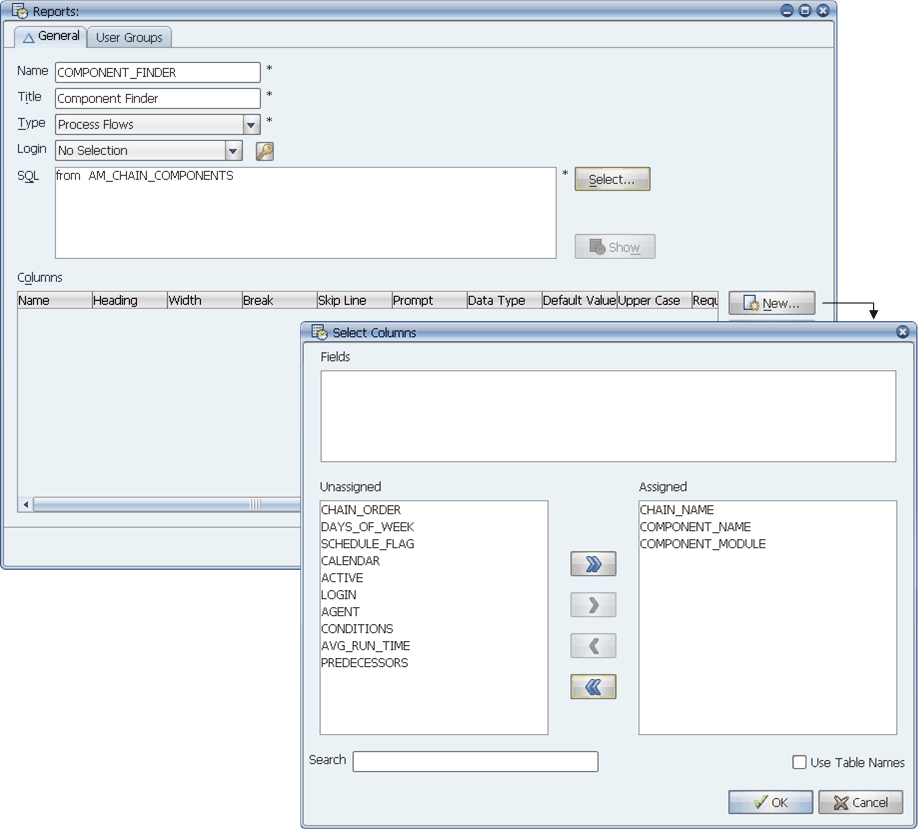
Select the CHAIN_NAME, COMPONENT_NAME, and COMPONENT_MODULE columns.
With the Applications Manager modeling views you don't need an extensive knowledge of the Applications Manager database table structure. Their columns closely match the field names used in the Applications Manager client.
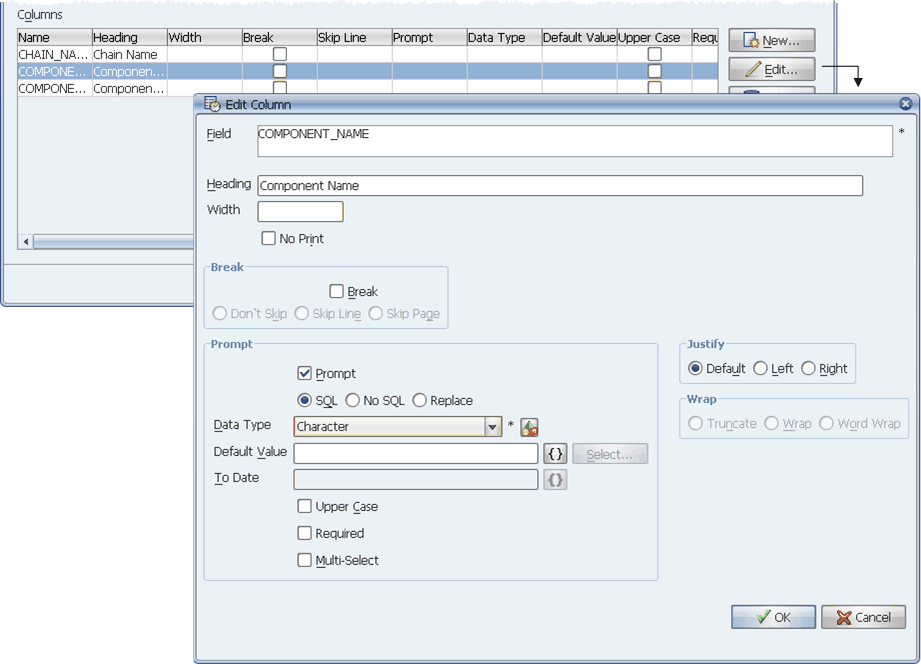
Edit the COMPONENT_NAME column and add a prompt.
In the image below, DELDEFAULT is entered as the prompt value. DELDEFAULT is an alias name for the SODELETE job when used in the SYSTEM process flow that ships with Applications Manager.
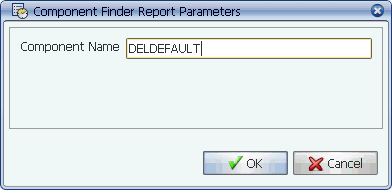
Respond to the prompt.
Output from the report is shown below.
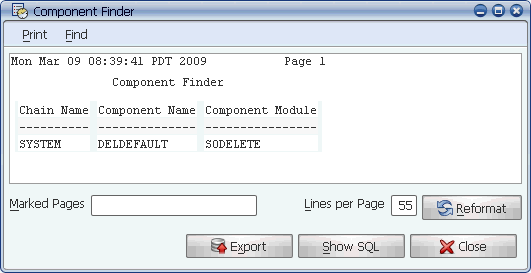
Report output for the DELDEFAULT alias name.