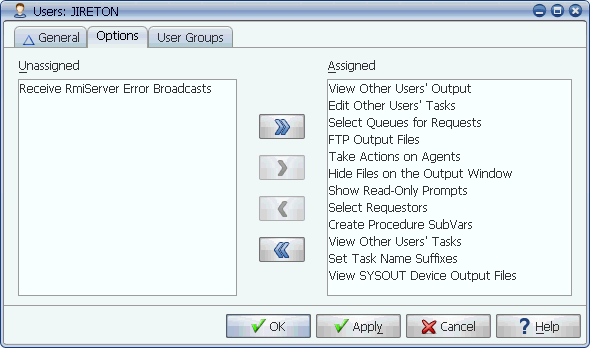
A User with several user options assigned
User options control user access to Applications Manager features such as the Hide feature in the Output window. They are assigned to users on the Options tab of the Users window.
The Applications Manager user options control user access to specific features. By default, no user options are assigned to a new user.
A User with several user options assigned
When you initially install Applications Manager, the script automatically creates the following Applications Manager users.
Assigning Options to a User
To assign options to a user:
| User Option | Description |
|---|---|
Allows the user to:
| |
Allows the user to:
| |
Allows the user to use database procedures when defining substitution variables. | |
When assigned, the user will have access to the File Transfer option when printing from the File Viewer window. | |
When assigned, the user will have access to the Hide button on the Output window. | |
When assigned, the user will be shown read-only prompts on the Submit and Task Details windows. Without this option, prompts without Allow Changes set will be read-only. | |
Allows the user to start, stop, idle, resume, or reset the automation engine or any agent from the Explorer window. The user does not need user group access to the agents. | |
Allows the user to add a suffix to job/process flow names when requesting them. This will prevent the requests from satisfying any predecessors since the name is changed. | |
When this user is logged into Applications Manager, any RMI errors will be displayed in a pop-up window as they occur. Additionally, if any RMI errors occurred since the last time the RMI server was started, the last ten errors will be displayed in a pop-up window each time the user logs on. If you have the DBA user group, you can clear the RMI errors without stopping the RMI server by selecting Clear RMI Errors from the View menu on the Applications Manager Desktop. | |
The user can select a different queue when submitting tasks on an ad hoc basis. | |
Displays output that is assigned to the SYSOUT output device on the Output window if the user does not have the View Other Users' Output user option described below. | |
Allows the user to view all tasks in the Backlog and History, but not edit them. | |
Output from all users will be listed in the Output window for this user. |
Assigning Users to User Options
In additions to being part of user objects, user options are a special object type that you can add to user groups like any other object to give all users in the user group those user options. You cannot add, edit, or delete user option objects like other Applications Manager objects.