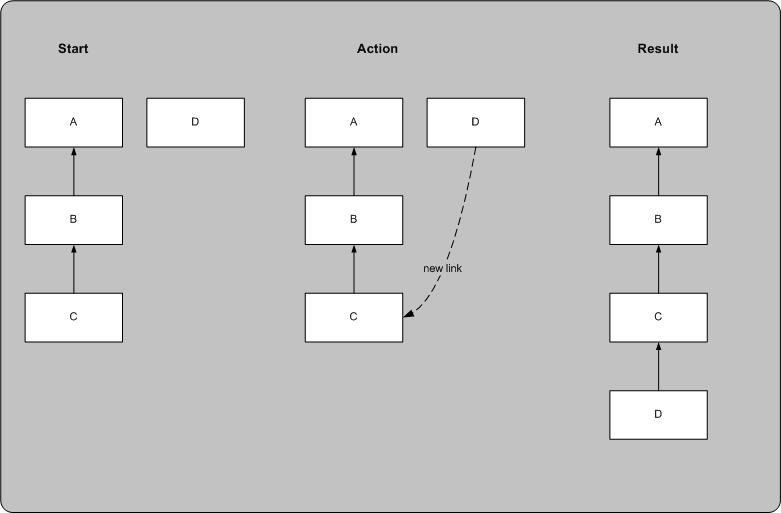
Adding a new internal link can change the position of the parent component.
You can add internal predecessor links to any object within the parent process flow.
When you add a component to a process flow, Applications Manager automatically creates Success predecessor and successor links based on the components selected or the drop location of the added component. After adding a component to a process flow, you may want to create additional links within the process flow, or to external references. This topic describes how to create additional internal links. For information on creating external links, see Adding and Editing External Predecessor Links.
Adding a new internal link can change the position of the parent component.
When you add a new internal predecessor link, it can change the position of the parent component. For example, if you add the link to a component that has no other link, the component will be moved to a position below the target component for the link. This is illustrated above.
Creating Links with the Mouse
To create links with the mouse:
Predecessors can originate from and/or be assigned to components in sub process flows.
If you are creating a predecessor link to a process flow, you must select the Complete, Success, Success only when FINISHED, or Success since last run type predecessor link. Success and Complete both mean that all of the components in the process flow must finish with any status.
As you move the mouse pointer, the link moves with the pointer.
Applications Manager draws the link.
If you want to cancel the add procedure, click on a blank spot in the process flow instead of a component or a group.
Creating Links with the Predecessor Definer Window
If you are working with a large process flow, or you want to add more than one predecessor link at a time, you can use the Predecessor Definer window. In the image below, the TEST_JOB component is selected in the From Jobs box, and DAILY_REPORT is selected as the To Job box. When you click Create predecessors, Applications Manager will draw predecessor links from the TEST_JOB component to the DAILY_REPORT component.
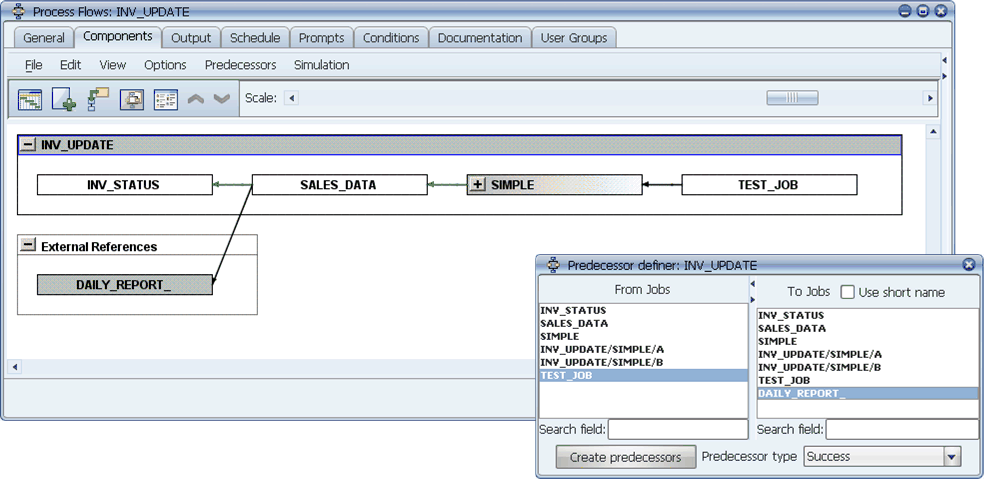
You can define more than one predecessor at a time using the Predecessor Definer window.
To display the Predecessor Definer window, click the Predecessor Definer icon in the menu bar.
To display only the component names in the To Jobs box, select the Use short name option. When not selected, this column shows the names of all parent process flows for the component.