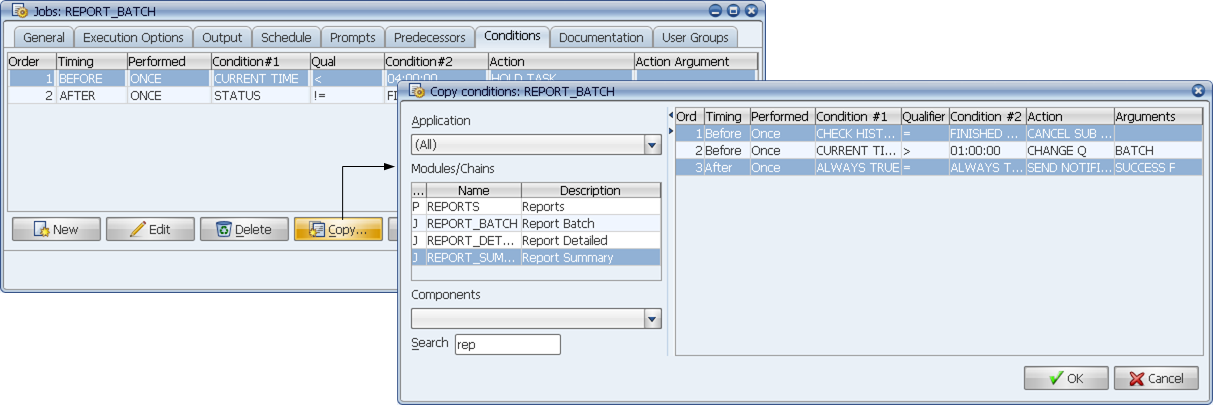
You can copy conditions between objects with the Copy button.
To copy conditions from a job, process flow, or process flow component, click the Copy button, select a job or process flow (and component it applicable), and select the conditions you wish to copy.
If you are creating a job or process flow, you can copy one or more conditions defined in another job, process flow, or process flow component rather than having to recreate the conditions from scratch.
You can copy conditions between objects with the Copy button.
Procedure
To copy conditions from one job, process flow, or process flow component to another:
Applications Manager displays the Copy conditions window shown above.
You can filter the list by selecting an application. Applications are groups to which jobs are assigned. Only the applications, jobs, and process flows assigned to you via user groups will be displayed.
You can type the first few letters of a job or process flow name in the Search field, and Applications Manager will filter the list. If two jobs or process flows start with the letter you type, Applications Manager highlights the first one.
If you want to copy conditions from a component in a process flow, select the process flow from the Jobs/Process Flows table, then pick the component name from the Components drop-down list.
To select multiple adjacent conditions, use Shift+click. To select multiple non-adjacent conditions, use Ctrl+click.
Applications Manager adds the conditions to the job, process flow, or process flow component.