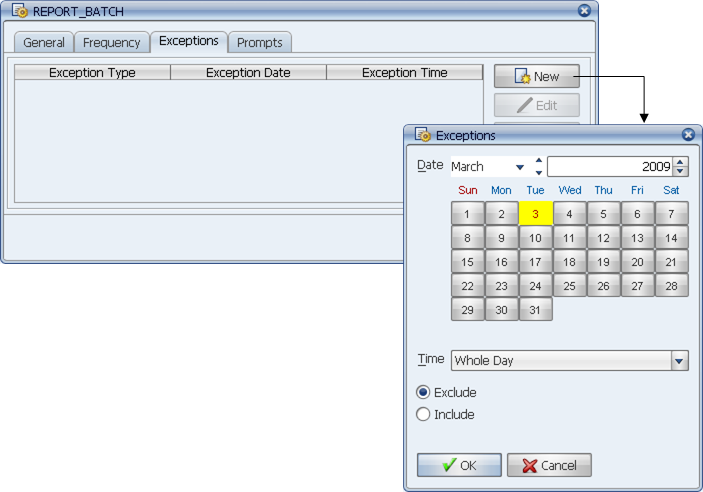
Add exclusion and inclusion exceptions on a schedule's Exception sub-tab
Using the Schedule's Exceptions tab, and the 12-month schedule display, you can exclude a regularly scheduled running of a job or process flow or include a new one.
Using a schedule's Exceptions tab, you can exclude a regularly scheduled running of a job or process flow, or include a new one.
Add exclusion and inclusion exceptions on a schedule's Exception sub-tab
Adding, Editing, and Deleting Exceptions from the Exceptions Tab
To add an exception to an existing schedule:
Applications Manager opens the Exceptions window.
The times available for the drop-down list are based on the times entered in the Start times field on the schedule's General tab.
Applications Manager adds the exception to the table.
You can select defined exceptions and update or delete them using the appropriate button.
Adding and Removing Exceptions from the Schedule Display Window
You can also add exceptions by highlighting one or more schedules and selecting the Display button on the Schedules tab. For more information, see Displaying Run Dates for Schedules.