Login Object (LOGIN) Login Object (LOGIN)
The Login object stores login information for agents. Jobs and file transfer use this data to access operating systems and applications. The steps for defining Login objects (LOGIN) are the same as any other Automic object. This section describes the settings that are specific to only Logins.
Object Definition
Object class: Passive object
Object type/Short name: LOGIN
Purpose/Background
Agents pass the login information defined in the Login object to the operating system or application in which jobs or file transfers are processed. This information is validated and
Some operating systems allow deactivating the login validation. Whether the login should be validated or not for these operating systems can be defined in the agent .ini file .
You can also use the following script elements to handle Login objects:
CREATE_OBJECT: Creates a new Login object.MODIFY_OBJECT: Changes the attributes of a Login object.REMOVE_OBJECT: Deletes a Login object.Defining Login Objects
A Login definition is made up of the following pages:
To Define the Login Information
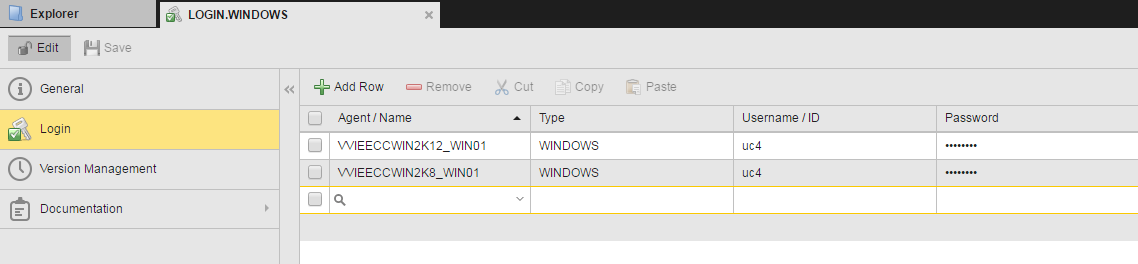
Click Add row on the toolbar to add a new row.
In the Agent/Name cell enter the name of the agent to which this login information will apply.
Do one of the following:
Select an existing agent from the dropdown list.
The adjacent Type cell automatically displays the platform of the agent.
Enter the name of the agent (or a part of it).
If it is already available, the "find as you type" function lists the hits right away.
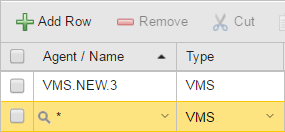
Enter "*" to apply this login to all agents of this type.
In this case, you must specify the type. The login information of this line then applies to all the agents/systems of the selected type.
In the Type cell enter the type of the agent (or a part of it). If it is already available, the "find as you type" function lists the hits right away.
In you have selected an existing agent, the type is predefined and you cannot change it.
The following special types are available here:
The administrator can define additional types for Login objects in the UC_LOGIN_TYPES variable. These types can be selected in the column when you either define "*" or any value for the name.
Enter a Username/ID that complies with the format requirements of the target system.
The table below provides information on the platforms that are available for selection by default as well as on some of the most common ones:
|
Operating system/Application |
Format |
Conversion to capital letters |
|---|---|---|
|
BS2000 |
User ID, account |
Entire field |
|
Database |
User name |
None |
|
JMX |
User name |
None |
| LDAP | domain\user ID | Windows: domains only Oracle Active Directory: none |
| SMTP user ID | none | |
|
MPE |
User ID.account [group name] |
Entire field |
|
NSK |
Group name.user ID |
None |
|
Oracle Applications |
User name |
None |
|
z/OS |
User ID |
Entire field |
|
OS/400 |
User ID |
Entire field |
|
PeopleSoft |
Operator ID |
None |
|
SAP (ABAP Engine/Business Intelligence) |
Client, user ID |
None |
|
SAP (Exchange Infrastructure) |
XI user ID |
None |
|
UNIX |
User ID |
None |
|
VMS |
User ID |
Entire field |
|
Windows |
Domains\user ID |
Domains only |
Passwords cannot include commas, regardless of the platform you use.
| Platform | Special Features |
|---|---|
| MPE/JMX |
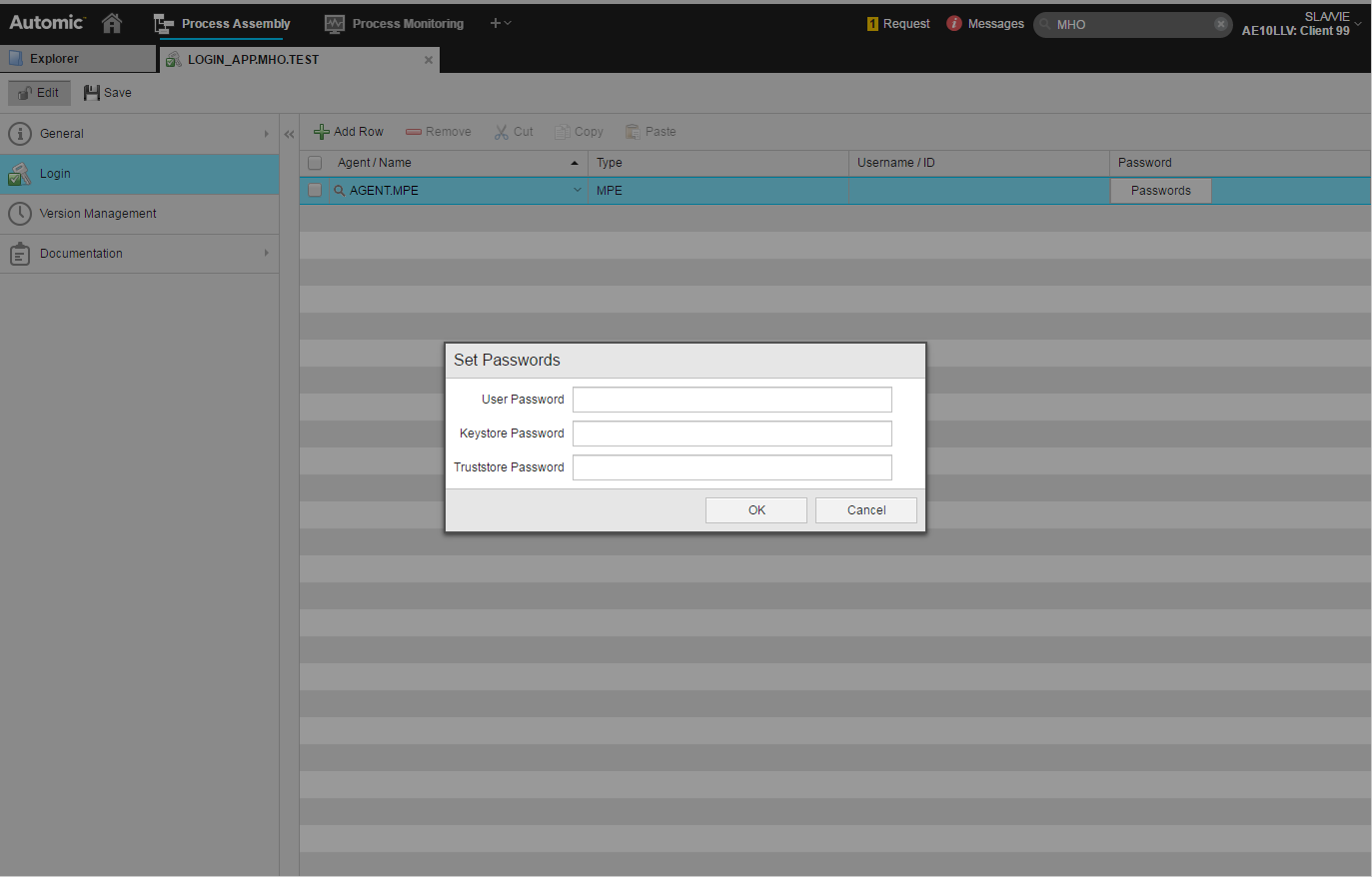
Usually, you need to specify one password. However, if you use WebSphere version 6 with activated administrative security, you must specify three passwords, namely User password, Keystore password and Truststore password.
The screenshot above illustrates the Set Passwords dialog that opens up when defining a Login object for MPE agents. The same applies for JMX objects. |
| Oracle Applications | In Login objects, you need to specify an internal OA user that is used for processing jobs. In addition, you must specify an OA database user in the ERP_LOGIN object. |
| Windows |
You can specify "*OWN" as domain when logging in to Windows. The Windows job is then processed with a local login authorization. Windows agents require particular rights to process jobs that must be assigned to the user who starts the agent. |
See also:
 Example Using "*" as login