Configuring Analytics
This section provides the essential information required to maintain the Analyticsenvironment. It covers datastore optimization for PostgreSQL performance and a directory of Log Files for troubleshooting.
This page includes the following:
Datastore Optimization (PostgreSQL)
To maintain optimal performance as a PostgreSQL datastore administrator, it is critical to reclaim storage occupied by dead tuples. These are data fragments that remain present even after they are deleted or updated, and they are not physically removed until an optimization action is performed.
Maintenance Requirements
Consider the following requirements:
-
Frequency: It is recommended to perform optimization daily during off-peak hours.
-
Required Action Pack: Ensure the
-
Installation: If the action pack is not listed in the Explorer sidebar, then you need to download it from our marketplace at https://marketplace.automic.com/ and install it. For instructions about installing an action pack, see Working with Packs and Plug-ins.
How to use the Datastore Optimize Action
To use the Analytics datastore optimize action:
-
In the Process Assembly locate the Analytics Datastore Optimize action in the PCK.AUTOMIC_ANALYTICS folder.
-
Click on the PCK.AUTOMIC_ANLYTICS.PUB.ACTION.DATASTORE_OPTIMIZE to open the job.
-
Click on the PromptSets tab in the explorer. You should see a PromptSet for Psql settings and Overwrite Agent. Ensure that you configure these correctly according to the requirements.
Example: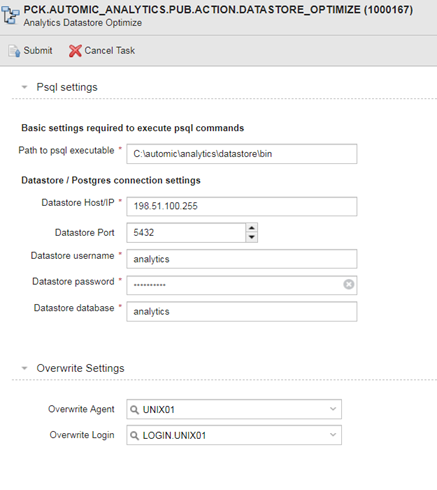
-
Click Execute from the main toolbar to start the optimization job.
-
Click Executions from the main tool bar to see if the job ended OK.
-
Right click on the job and select Open Report from the context menu.
-
The detailed report lists three tables have been optimized: ah_cleaned, ara_execution, and laslm_cleaned.
-
To verify the results log into PostgreSQL admin (pgAdmin). Click Tables in the explorer tree, then select Statistics from the menu bar.
Note: In PostgreSQL you will see the results in the Last vacuum and Last analyze columns of the statistics table.
Example: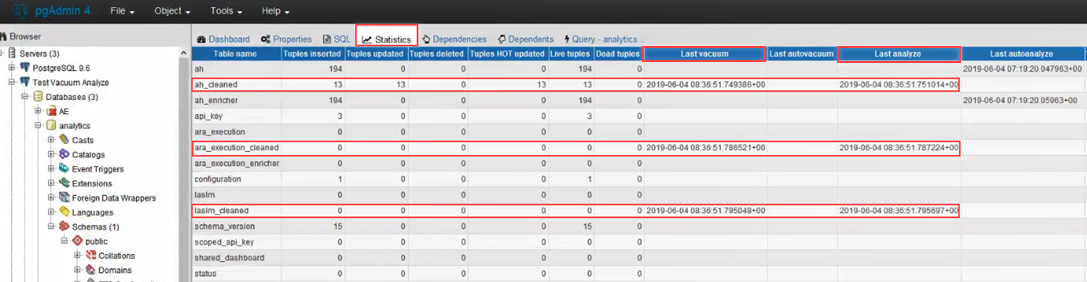
Analytics Log Files
Use these directory locations for troubleshooting individual components:
Backend Logs
Directory: <Automic>/Automation.Platform/Analytics/Backend/temp
-
analytics_backend.log: Primary backend operations.
-
ia_log_xx.text: Information access logs.
-
tomcat-logs: Embedded server logs.
Datastore (PostgreSQL) Logs
Primary activity logs and configuration settings for the Analytics Datastore are located in the following directory: <Automic>/External.Resources/postgresql/data
-
pg_log: This file contains the main database activity logs.
-
postgresql.conf: Use this file to adjust log levels, rotation settings, and output destinations.
Note: Changes to this file should be made with caution as they affect database performance.
-
Log Maintenance: To prevent log files from consuming excessive disk space, refer to the official PostgreSQL Log File Maintenance guide for rotation and archiving best practices, see: https://www.postgresql.org/docs/current/static/logfile-maintenance.html
See also: