Use Case: AI-Powered Incident Analysis and Resolution with Automic Automation
In IT Service Management, quickly identifying and resolving incidents is critical to maintaining operational efficiency. However, the initial analysis of an incident, such as searching for duplicate issues, identifying patterns across previous resolutions, and consulting knowledge base (KB) articles, is often a manual and time-consuming task for support professionals.
By integrating AI Agents directly into Workflows through AI Jobs, you can automate this initial analysis. This results in faster incident resolution times and consistent data enrichment within ServiceNow.
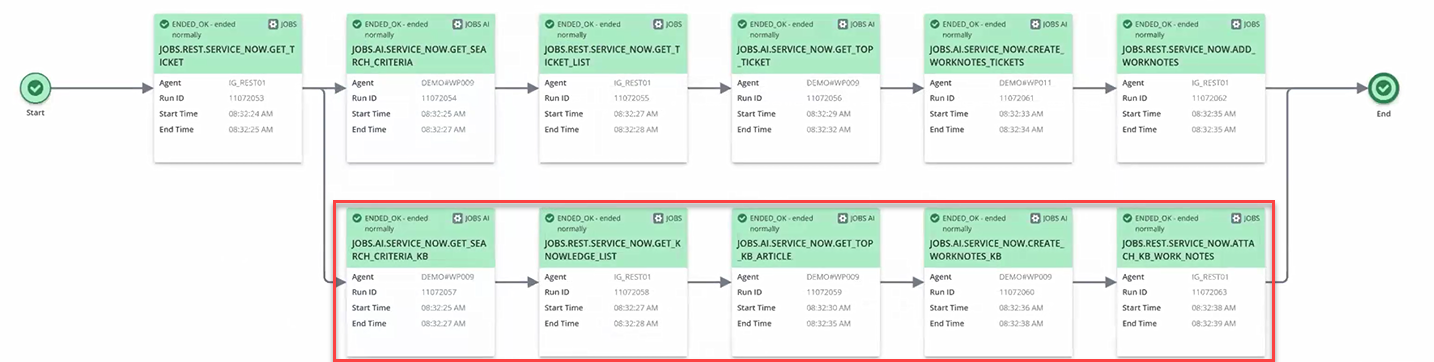
This example shows an AI-powered Workflow that has been designed to analyze ServiceNow incidents and perform pre-resolution steps.
What Will You Learn?
-
How to build AI Agents directly from Automic Automation to streamline complex IT processes.
-
How to configure AI Jobs to interact with Large Language Models (LLMs) for tasks such as extracting key information, summarizing data, identifying correlations, and proposing actions.
-
How to integrate Automic Automation AI Jobs with external systems like ServiceNow using REST API Jobs to retrieve and update information.
-
How to manage conversation context across multiple AI Jobs within a Workflow, allowing for sequential and related AI interactions.
-
How to leverage system and user prompts within AI Jobs to define the AI's role, instructions, and context for specific queries.
-
How to automate the enrichment of service incidents with AI-generated work notes, providing comprehensive insights and proposed diagnostic steps.
-
The requirements for running AI Jobs, including their execution on the Automation Engine and dependency on the Automation.AI component.
What Does this Example Cover?
A new incident related to Automic Automation is opened in ServiceNow. Thanks to the ServiceNow/Automic Automation integration, as soon as this incident is created, a Workflow in Automic Automation is triggered. This example explains this Workflow, which orchestrates a series of REST Jobs and AI Jobs to analyze the incident and perform pre-resolution steps automatically.
This is the Workflow:
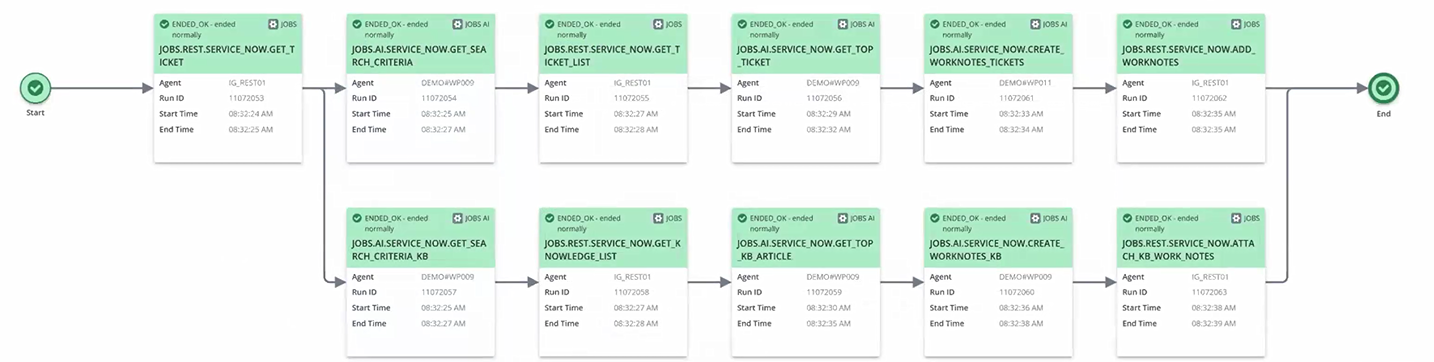
Overview
-
Retrieve ticket information.
The Workflow begins with a REST Job that connects to ServiceNow to extract the full details of a newly opened incident (e.g., Short Description and Long Description). This information is passed to the next Jobs as variables.
-
Generate search criteria.
An AI Job receives the ticket text. The User Prompt instructs the LLM to analyze the incident description and extract the top single keywords that best represent the issue. The System Prompt defines the AI’s role as an assistant for incident analysis. The resulting keywords are stored in a variable (e.g., &SEARCH_CRITERIA#).
-
Search for similar incidents
A REST Job uses the generated search criteria to query ServiceNow for historical incidents that share similar keywords. The result is a list of potential duplicates or related cases.
-
Identify top match.
The list of potential matches is fed into another AI Job. This Job is configured to use the Conversation Settings to maintain context from the previous analysis. The LLM evaluates the list, compares the incidents to the current ticket, and selects the most relevant match. It also calculates a confidence score (on a scale of 1–10) indicating how likely it is that the incidents share the same root cause.
-
Consult knowledge base.
A parallel or subsequent set of Jobs performs a similar search within the ServiceNow Knowledge Base. An AI Job analyzes the retrieved KB articles to identify specific diagnostic steps or potential remediation actions relevant to the current incident.
-
Enrich Incident with Work Notes.
An AI Job summarizes all findings: the identified similar incident, the confidence score, and the suggested steps from the KB articles. It generates a comprehensive summary formatted for a ServiceNow "Work Note".
-
Post Work Notes to ServiceNow.
A REST Job takes the AI-generated summary and attaches it to the original ServiceNow incident, ensuring that the human agent has a "ready-to-go" analysis as soon as they open the ticket.
Prerequisites
-
The Automation.AI is installed and configured.
-
An AI Connection object is configured and assigned to the AI Jobs.
-
The REST Agent Integration is available.
-
The user that executes the AI Job needs the Enable the Automation Assistant privilege.
Building AI Agents to Analyze and Resolve Incidents in ServiceNow
-
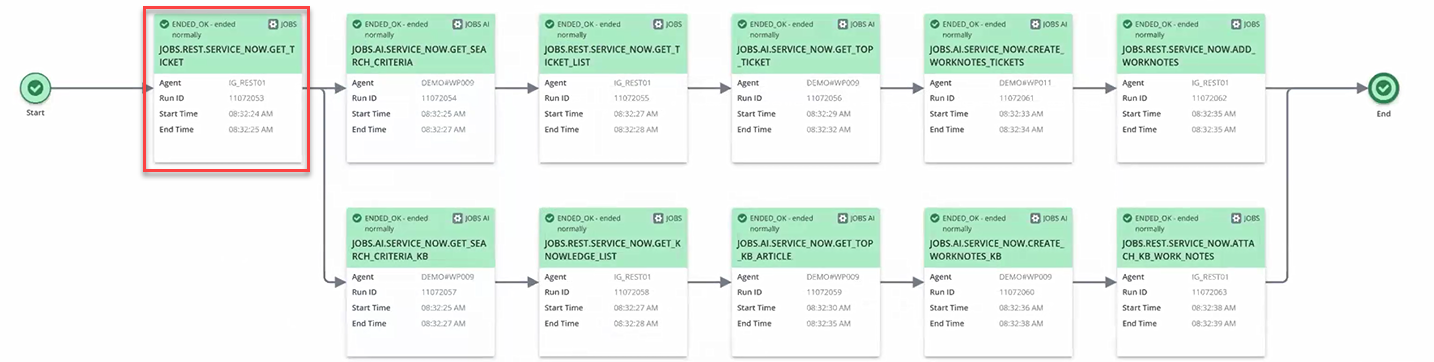
Retrieve ticket information.
The Workflow begins with a REST Job that retrieves detailed information about the newly submitted incident from ServiceNow. This Job uses the ServiceNow REST API to get the incident's description and other relevant fields, which are crucial for the subsequent AI analysis.
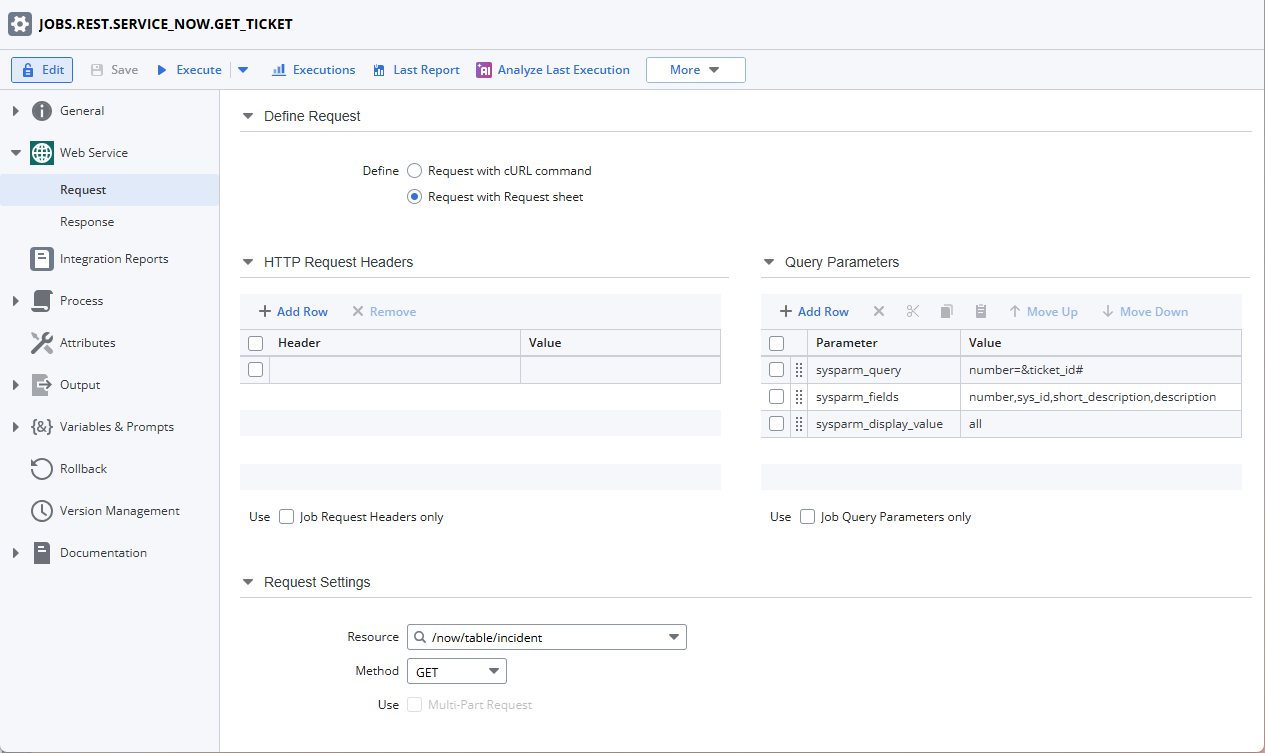
The REST Job Request is configured as follows:
-
Query Parameters (Parameter/Value)
-
sysparm_query/number=&ticket_id#
-
sysparm_fields/sysparm_fields
-
sysparm_display_value/all
-
-
Request Settings
-
Resource: /now/table/incident
-
Method: GET
-
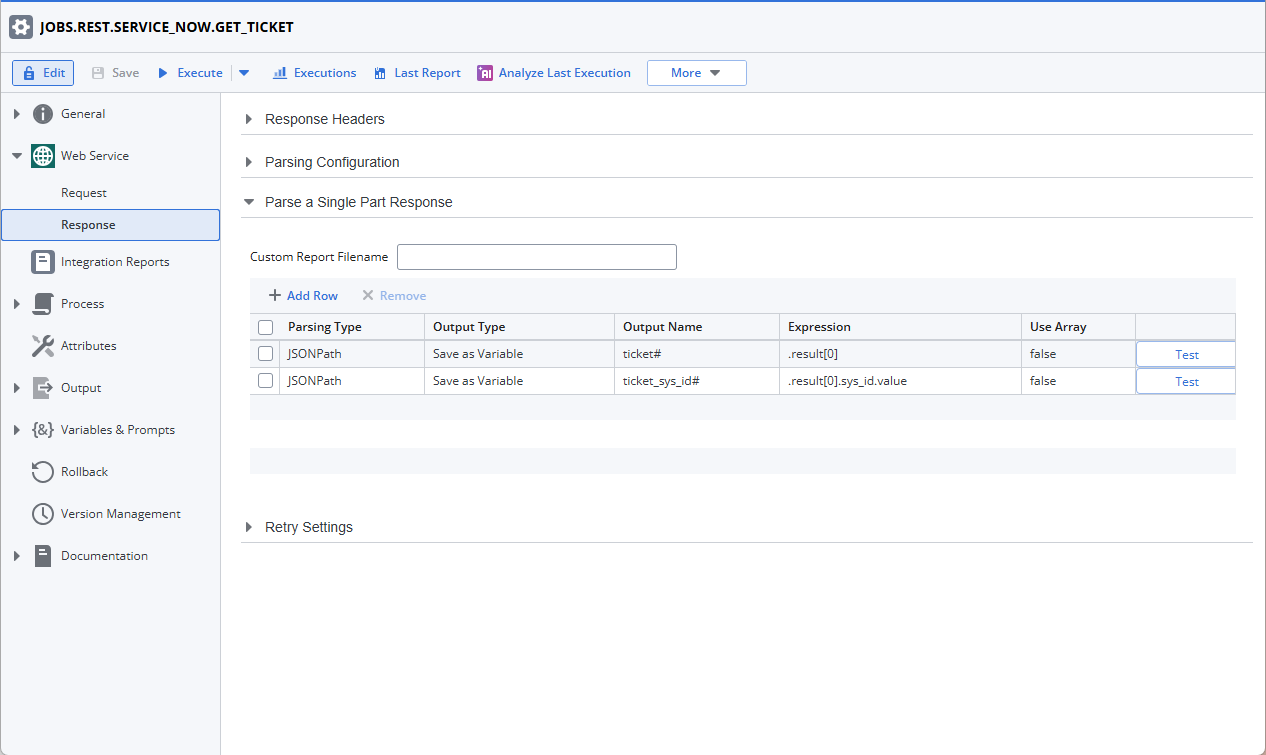
In the REST Job Response, Parse a Single Part Response is configured as follows:
-
Parsing Type JSONPath has Output Type Save as Variable with Output Name ticket# and Expression .result[0], no arrays are used.
-
Parsing Type JSONPath has Output Type Save as Variable with Output Name ticket_sys_id# and Expression .result[0].sys_id.value, no arrays are used.
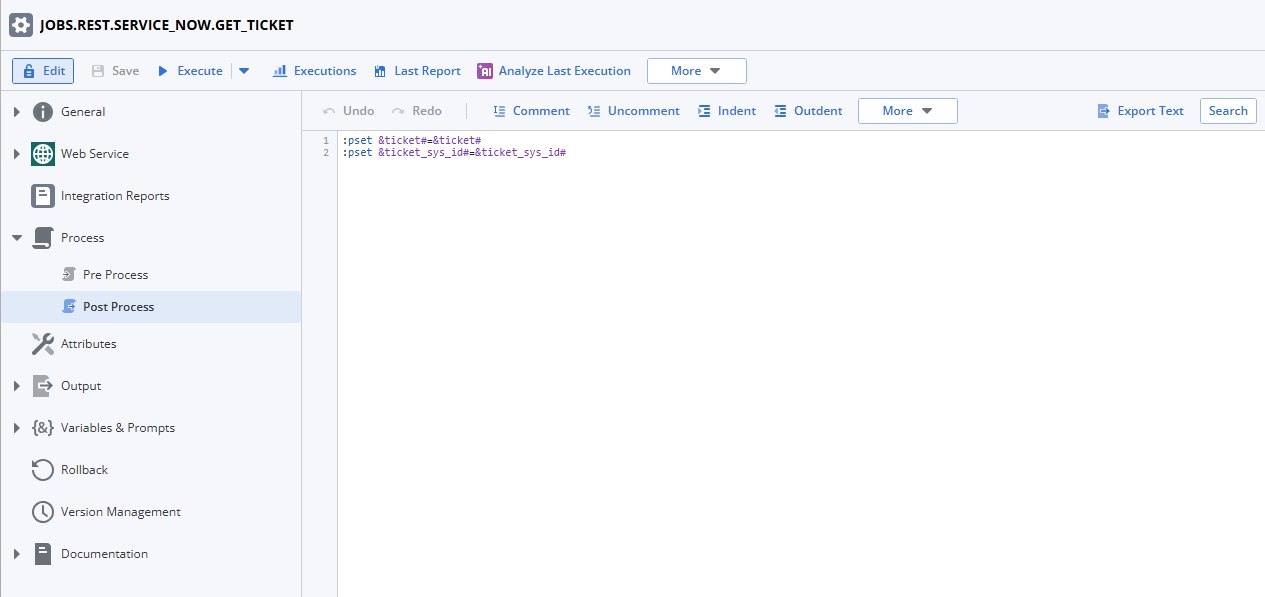
To make the retrieved information available to subsequent tasks, it is published through :PSET on the Post Process page:
:PSET &ticket# = &ticket#
:PSET &ticket_sys_id# = &ticket_sys_id#
-
-
Generate AI-powered search criteria for similar incidents with an AI Job.
The previous REST Job passes the ticket information on to this AI Job, which in turn passes it on to the LLM. The AI Job contains the query. The query is build based on the
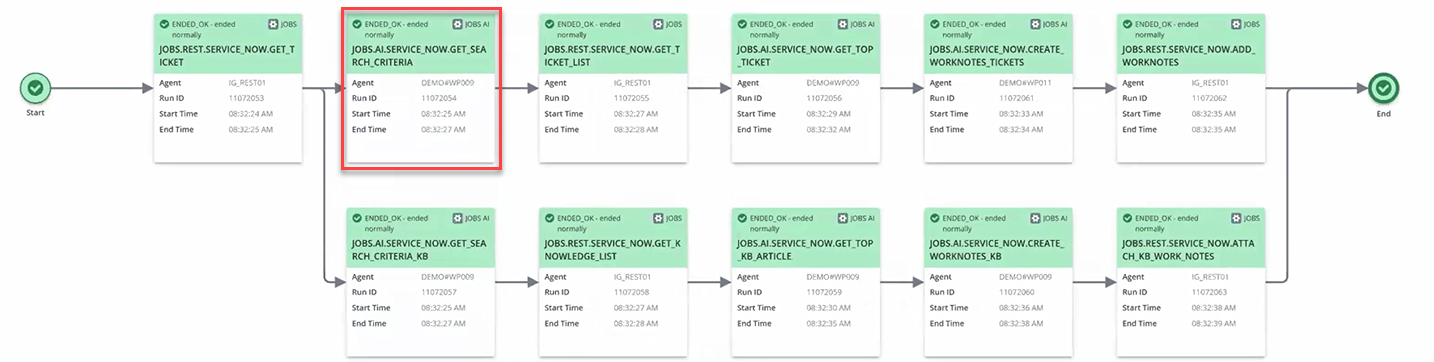
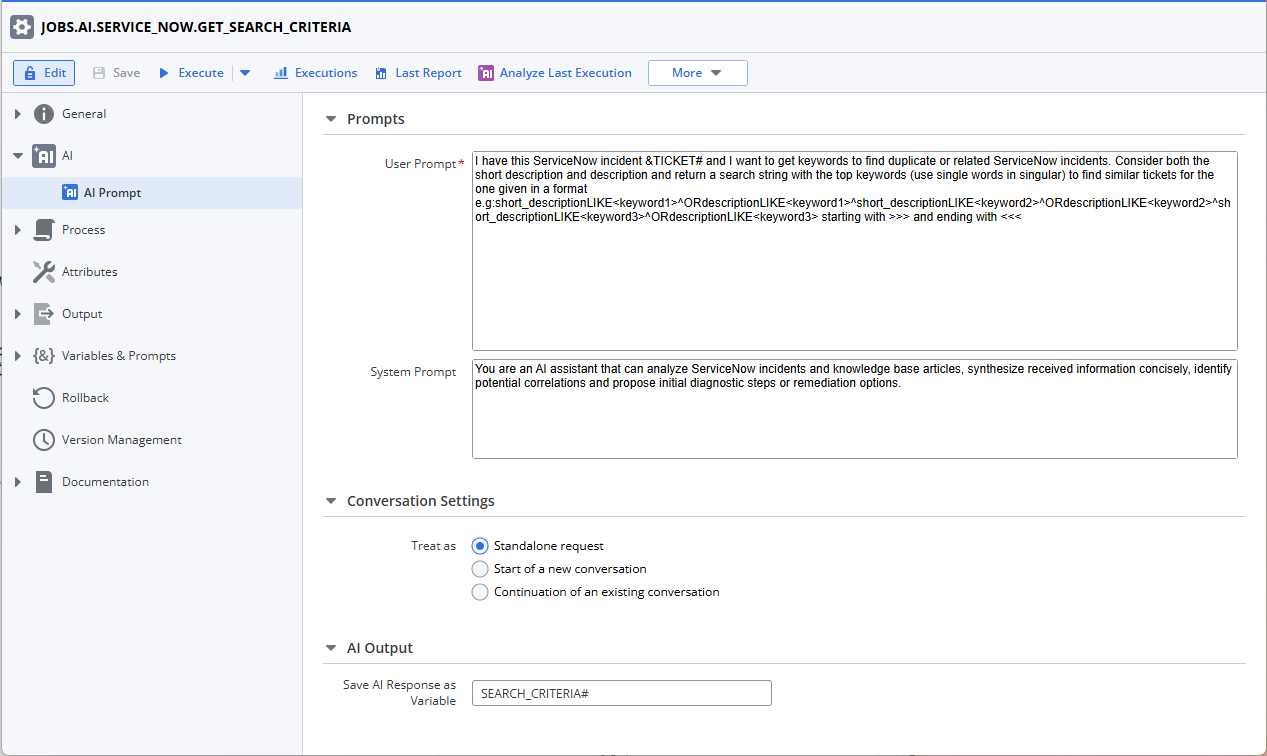
An AI Job is used here as a standalone request to analyze the incident formation retrieved by the previous REST Job. Here's how you can configure it:
-
Specify the System Prompt
For example: You are an AI assistant that can analyze ServiceNow incidents and knowledge base articles, synthesize received information concisely, identify potential correlations and propose initial diagnostic steps or remediation options.
-
Specify the User Prompt
I have this ServiceNow incident &TICKET# and I want to get keywords to find duplicate or related ServiceNow incidents. Consider both the short description and description and return a search string with the top keywords (use single words in singular) to find similar tickets for the one given in a format e.g: short_descriptionLIKE<keyword1>*ORdescriptionLIKE<keyword1>*short_descriptionLIKE<keyword2>*ORdescriptionLIKE<keyword3>*ORdescripitonLIKE<keyword3> starting with >>> and ending with <<<
The AI Job interacts with an LLM to generate optimal search criteria, such as keywords, that can be used to find related incidents.
-
Save the generated query or keywords as a variable within this AI Job
-
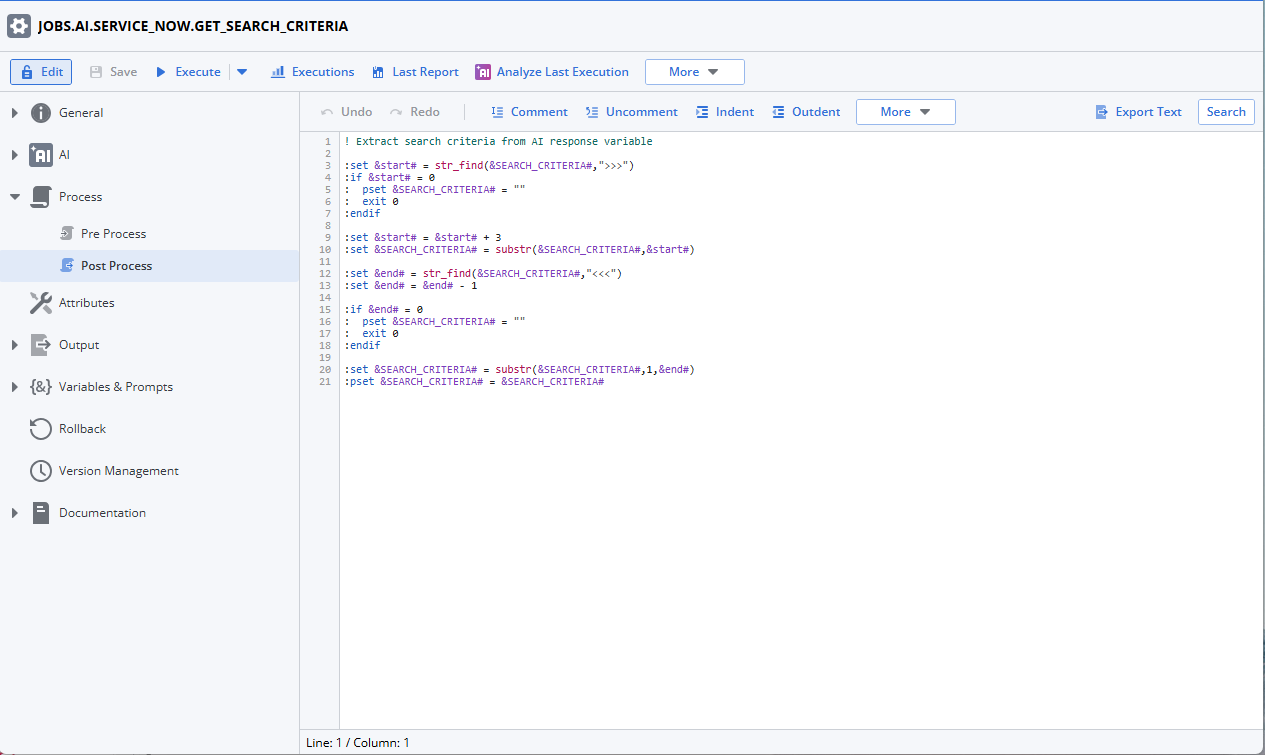
To make this variable available to subsequent Jobs in the Workflow, it must be explicitly published using a mechanism like :PSET. You do this on the Post Process page.
The script extracts a specific substring from the &SEARCH_CRITERIA# variable. It identifies the content enclosed between the delimiters ">>>" and "<<<". First, it searches for the opening delimiter; if not found, &SEARCH_CRITERIA# is cleared ans the script terminates. Otherwise, if proceeds and searches for the closing delimiter; if not found or if it invalid, the &SEARCH_CRITERIA# variable is also cleared. If both delimiters are found and valid, the script isolates and assigns the text found strictly between them back to &SEARCH_CRITERIA#.
! Extract search criteria from AI response variable
:SET &start# = str_find(&SEARCH_CRITERIA#,">>>")
:if&start# = 0
:PSET &SEARCH_CRITERIA# = ""
:exit 0
:endif
:SET &start# = &start# + 3
:SET &SEARCH_CRITERIA# = substr(&SEARCH_CRITERIA#,&start#)
:SET &end# = str_find(&SEARCH_CRITERIA#,"<<<")
:SET &end# = &end# - 1
:if &end# = 0
:PSET &SEARCH_CRITERIA# = ""
:exit 0
:endif
:SET &SEARCH_CRITERIA# = substr(&SEARCH_CRITERIA#,1,&end#)
:SET &SEARCH_CRITERIA# = &SEARCH_CRITERIA#
-
-
Search for similar incidents using a REST Job.
This REST Job takes the published search criteria (for example, &SEARCH_CRITERIA_WF#) from the previous AI Job. It then queries ServiceNow (or another incident management system) to retrieve a list of incidents that match the AI-generated criteria.
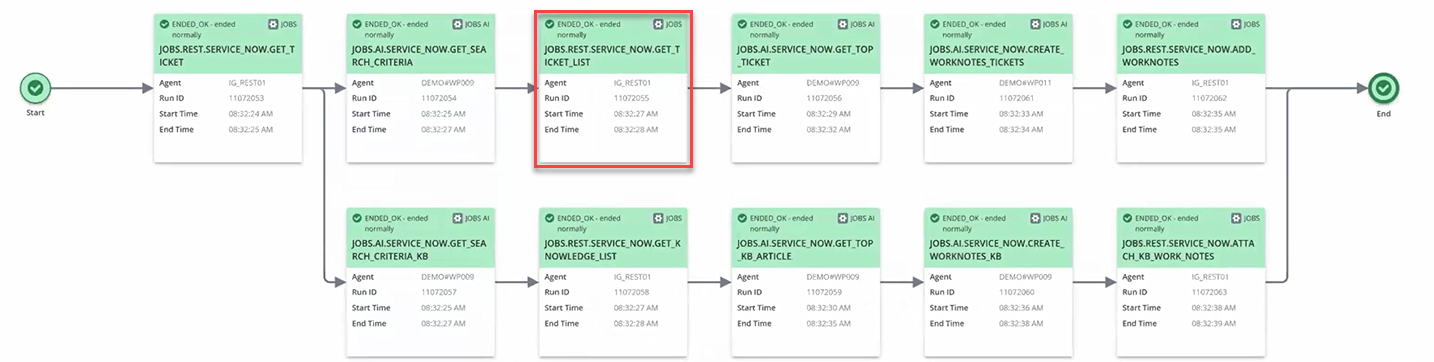
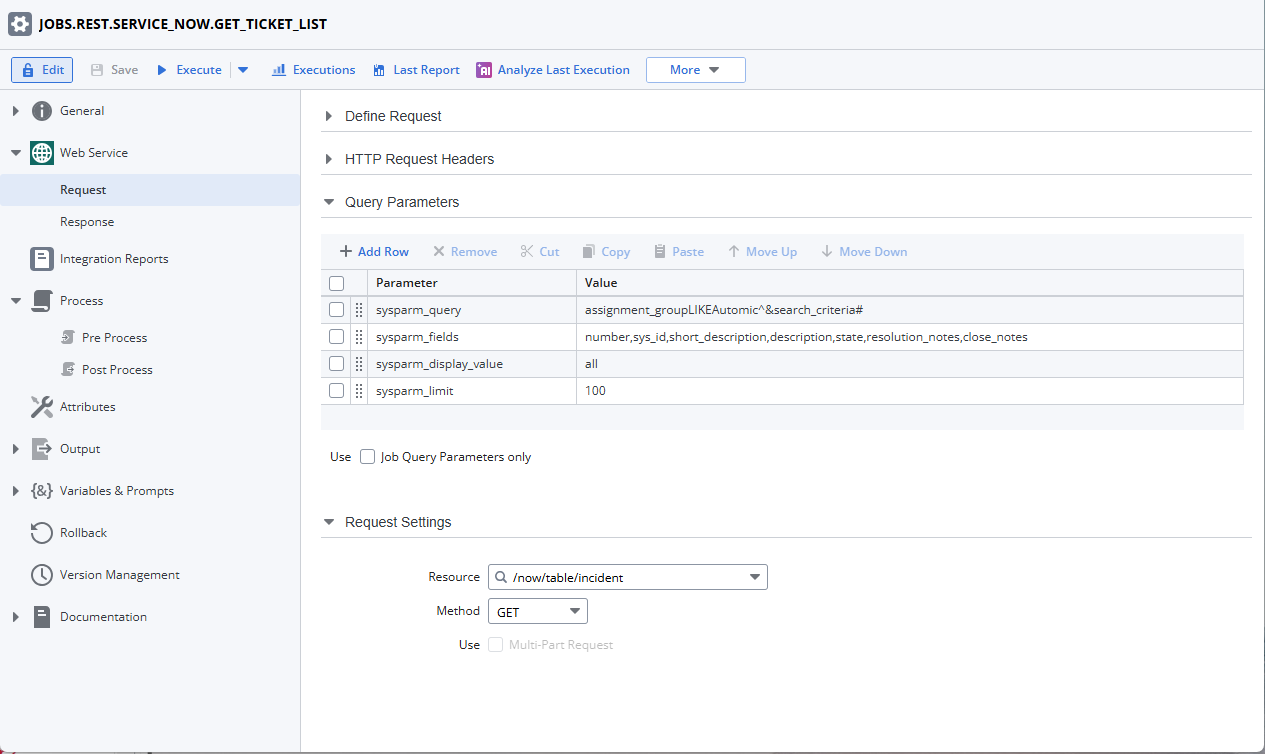
The Request is configured as follows:
-
Query Parameters (Parameter/Value)
sysparm_query/assignment_groupLIKEAutomic^&search_criteria#
sysparm_fields/number,sys_id,short_description,description,state,resolution_notes,close_notes
sysparm_display_value/all
sysparm_limit/100
-
Request Settings
Resource: /now/table/incident
Method: GET
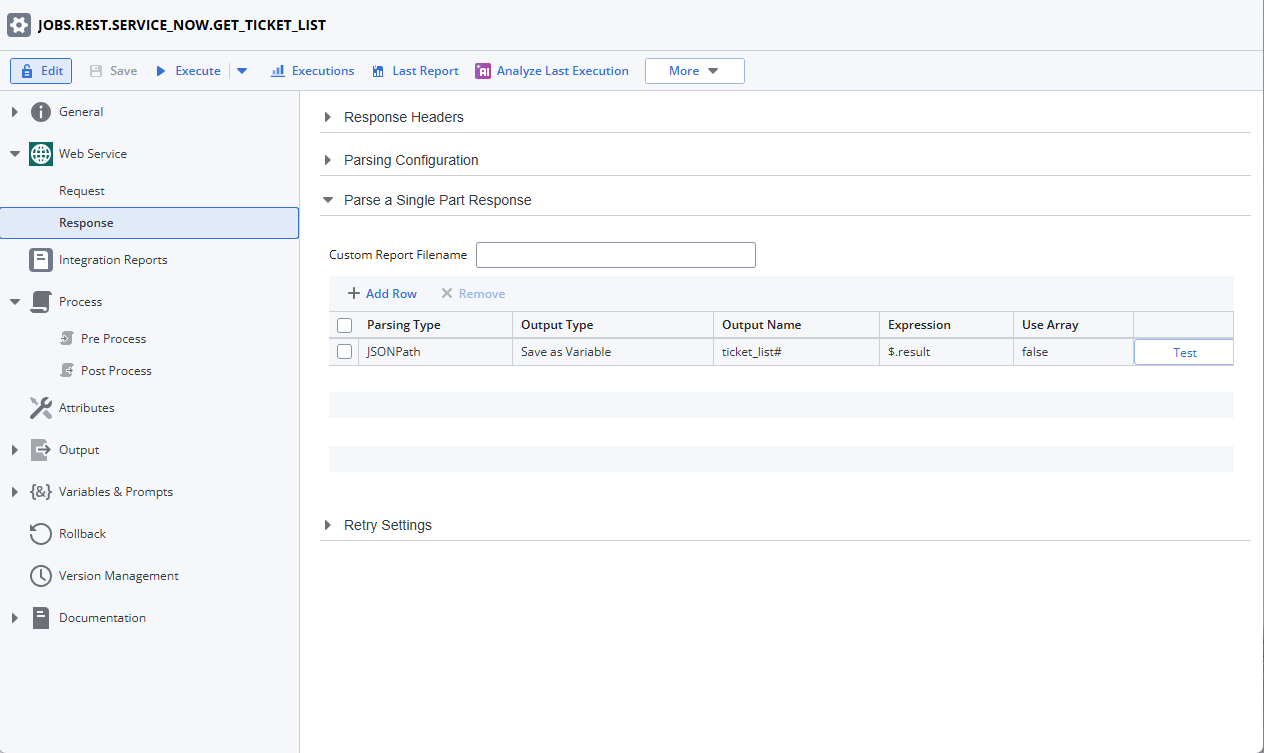
The Response is configured as follows:
-
Parse a Single Part Response
JSONPath/Save as Variable/ticket_list#/$.result/false
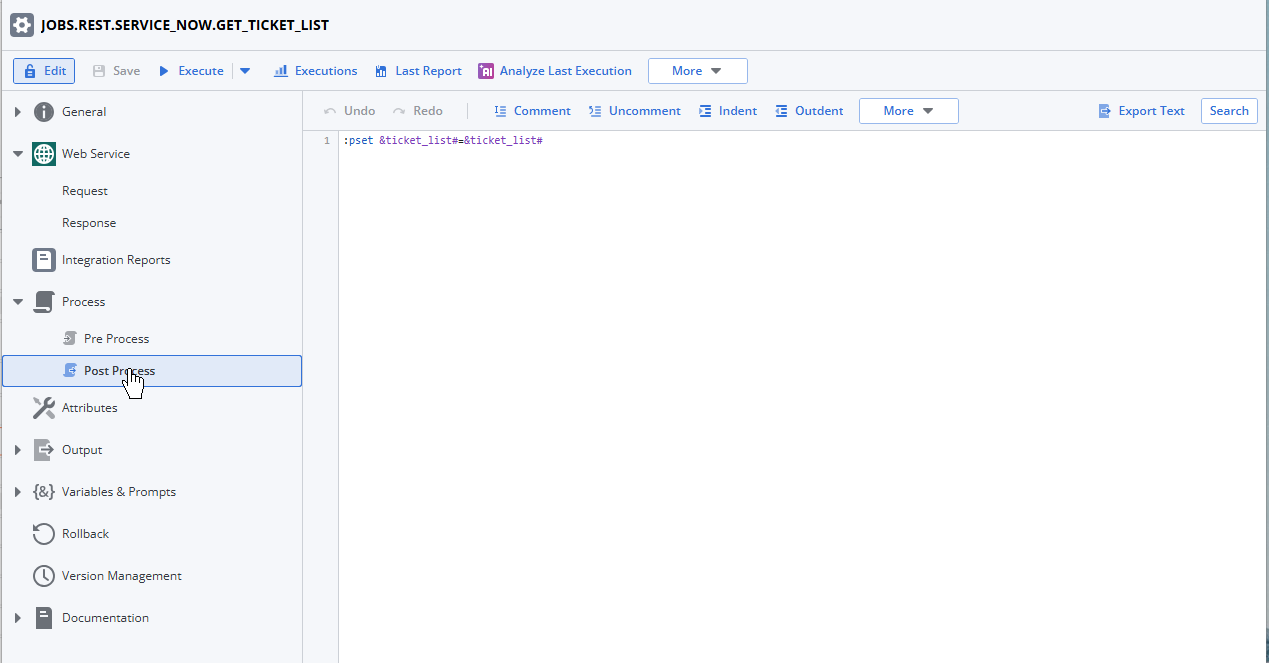
To make this variable available to subsequent Jobs in the Workflow, it must be explicitly published using a mechanism like :PSET. You do this on the Post Process page. This script publishes the variable as a placeholder.
:PSET &ticket_list# = &ticket_list#
-
-
Identify the most similar incident.
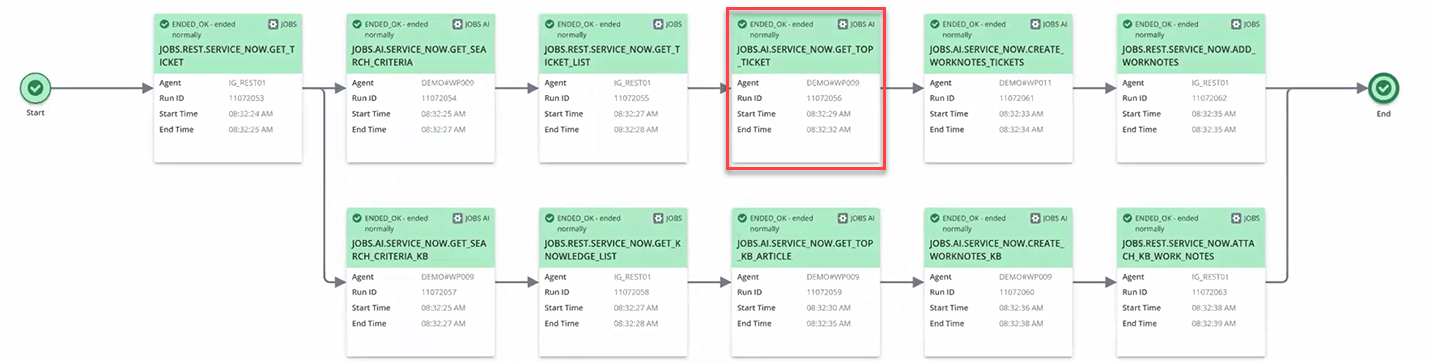
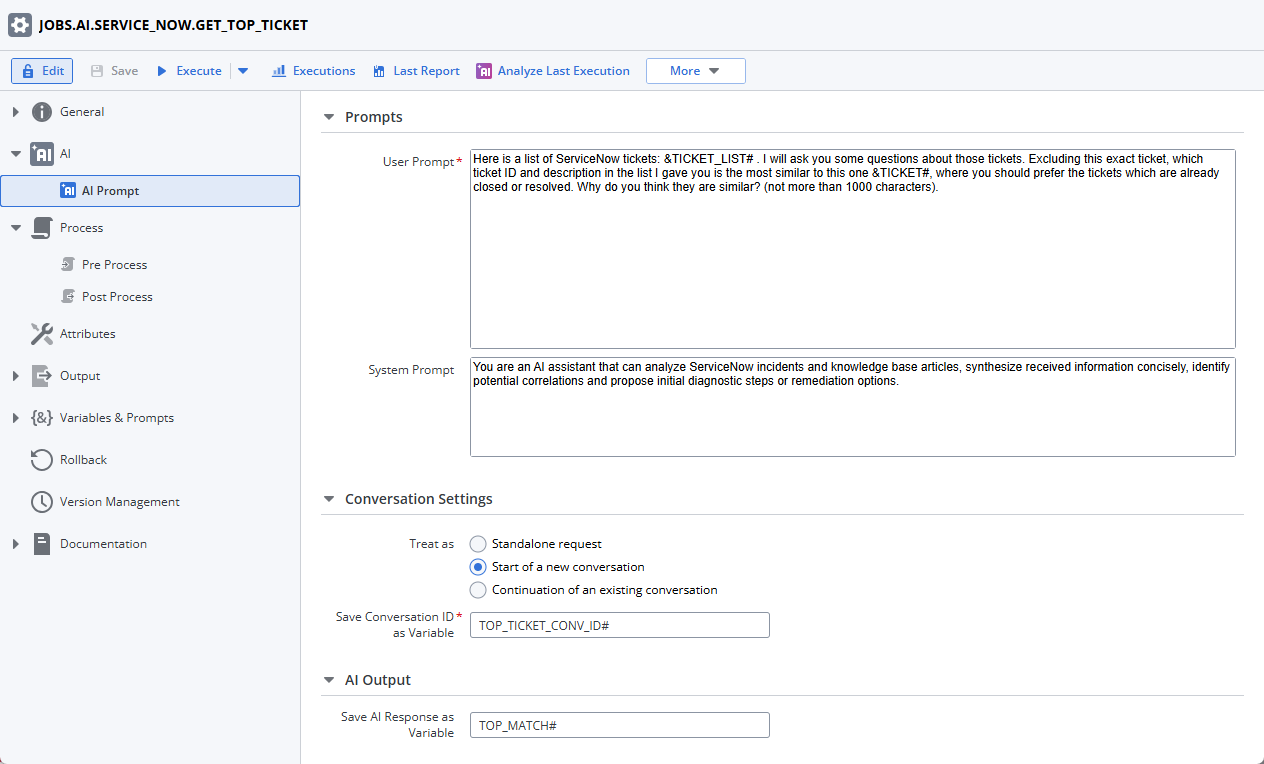
Another AI Job is used here, but this time it's configured as the start of a new conversation. This is essential for maintaining context when multiple AI interactions build upon each other. Here's how you can configure it:
-
Specify the User Prompt
Here is a list of ServiceNow tickets: &TICKET_LIST# . I will ask you some questions about those tickets. Excluding this exact ticket, which ticket ID and description in the list I gave you is the most similar to this one &TICKET#, where you should prefer the tickets which are already closed or resolved. Why do you think they are similar? (not more than 1000 characters).
-
Specify the SystemPrompt
You are an AI assistant that can analyze ServiceNow incidents and knowledge base articles, synthesize received information concisely, identify potential correlations and propose initial diagnostic steps or remediation options.
-
To keep the context of this conversation with the LLM for subsequent Jobs, save the Conversation ID as variable, in our case TOP_TICKET_CONV_ID#.
-
Save the output delivered by the LLM as a variable for further use, in our case TOP_MATCH#.
The identifier of the most similar incident and its confidence score are saved as variables and, if needed, published for use by later Jobs. The Conversation ID of this AI Job might also be saved and published to continue this specific AI thread.
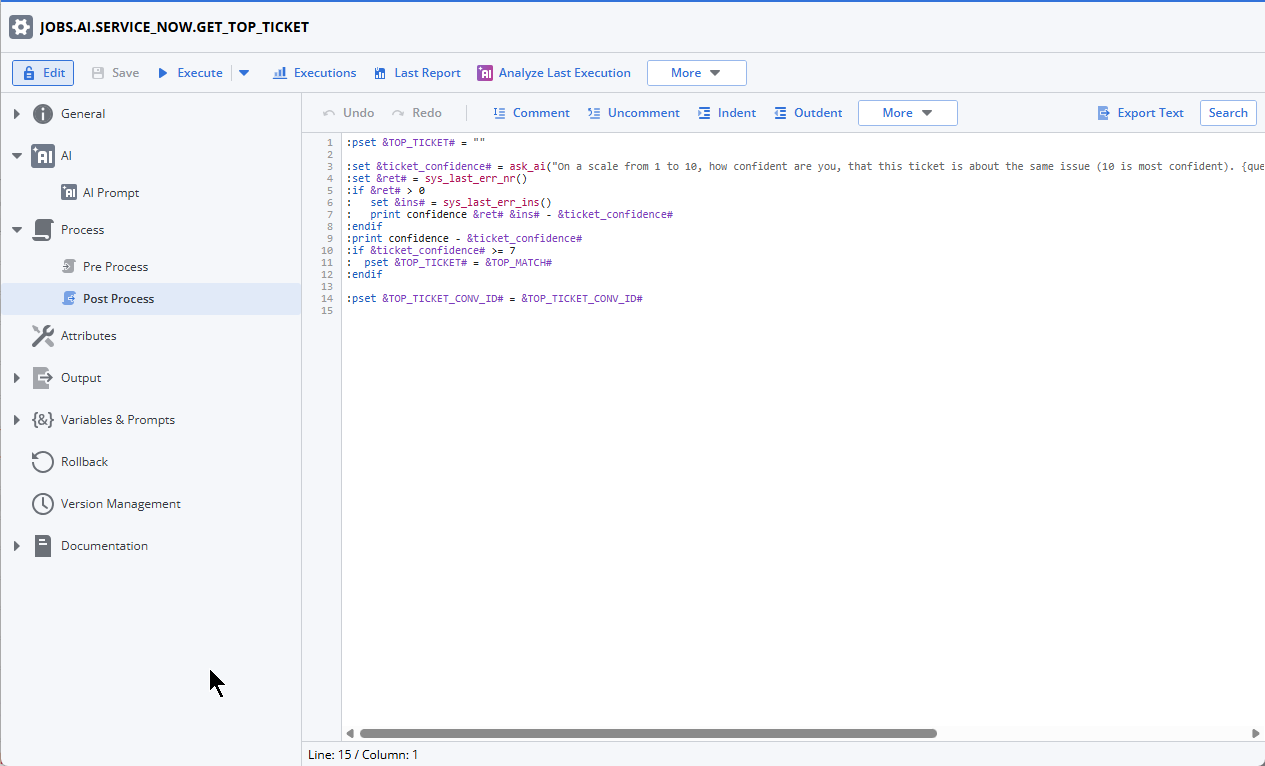
On the Post Process page, the script uses the ASK_AI function to determine the level of confidence (on a scale from 1 to 10) that a ticket is related to a specific issue. It initializes a variable &TOP_TICKET# and then calls the AI, storing the numerical confidence score in &ticket_confidence#. The script includes error handling to catch and report any issues during the AI call. Finally, if the &ticket_confidence# is 7 or higher, it updates the &TOP_TICKET# variable with the value from &TOP_MATCH#, indicating a strong match. The conversation ID &TOP_TICKET_CONV_ID# is also managed.
:PSET &TOP_TICKET# = ""
:SET &ticket_confidence# = ask_ai("On a scale from 1 to 10, how confident are you, that this ticket is about the same issue (10 is most confident). {query}",,"return the number only without any other characters",&TOP_TICKET_CONV_ID#)
:SET &ret# = sys_last_err_nr()
:if &ret# > 0
: SET &ins# = sys_last_err_ins()
: printconfidence &ret# &ins# - &ticket_confidence#
:endif
:print confidence - &ticket_confidence#
:if &ticket_confidence# >= 7
: PSET &TOP_TICKET# = &TOP_MATCH#
:endif
:PSET &TOP_TICKET_CONV_ID# = &TOP_TICKET_CONV_ID#
-
-
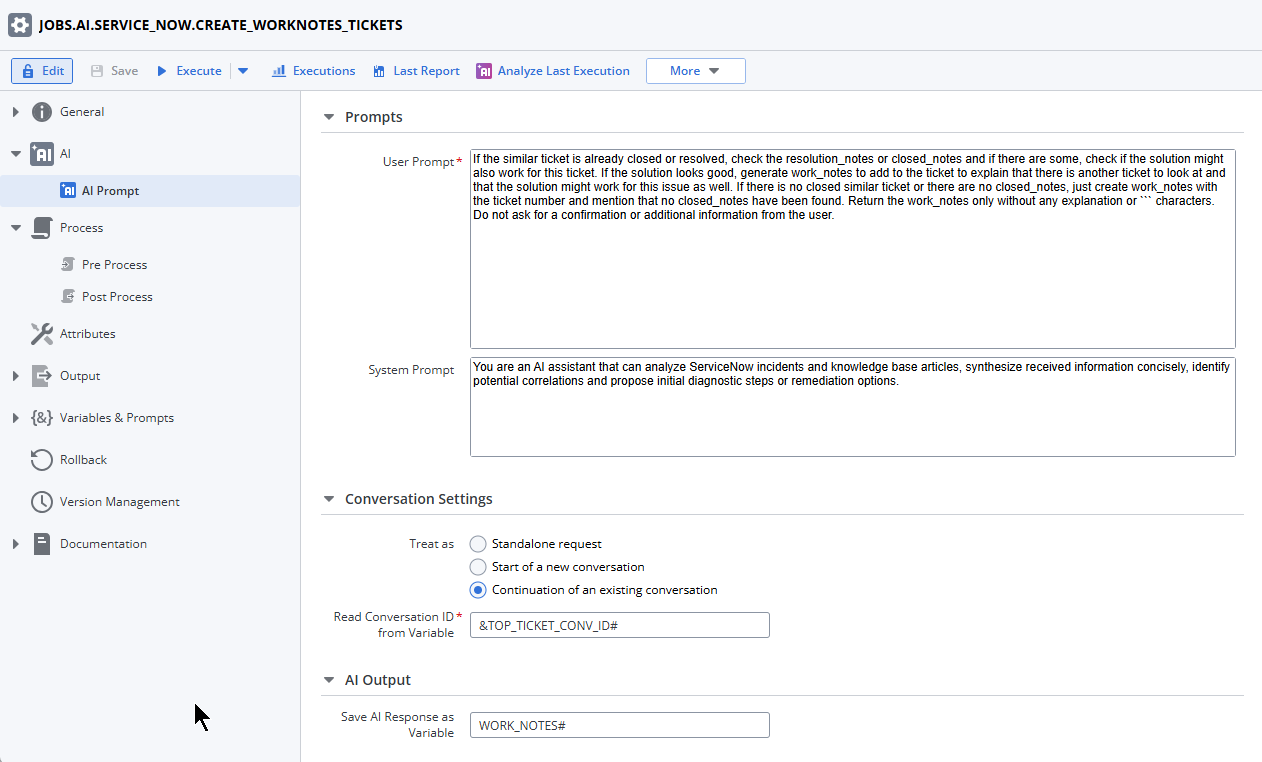
Create AI-powered work notes based on the identified similar incident.
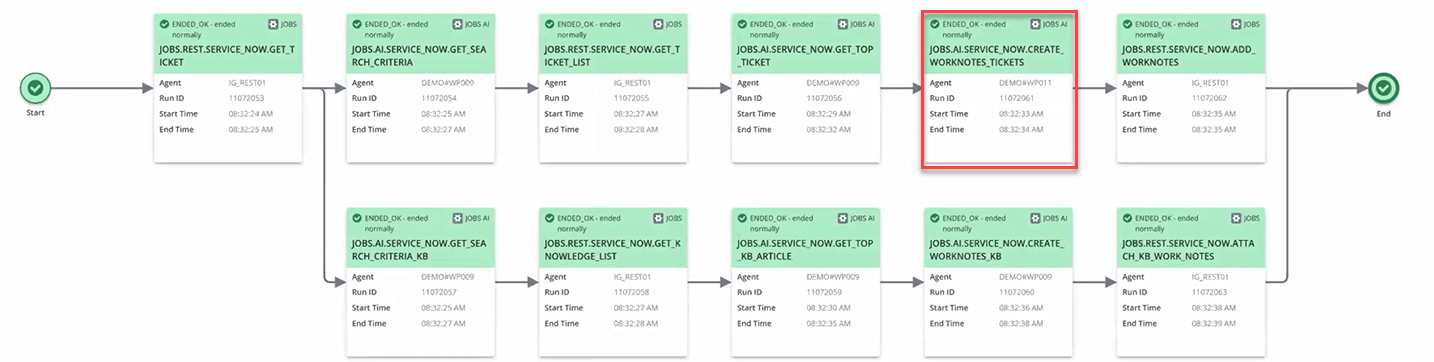
An AI Job (potentially continuing the conversation from the previous AI Job by passing the Conversation ID) uses the details of the most similar incident. Its purpose is to generate a comprehensive set of work notes that explain why the identified incident is relevant, outline the initial diagnostic steps taken, and summarize the findings. These work notes are saved as a variable. Here's how you can configure it:
-
Specify the User Prompt
If the similar ticket is already closed or resolved, check the resolution_notes or closed_notes and if there are some, check if the solution might also work for this ticket. If the solution looks good, generate work_notes to add to the ticket to explain that there is another ticket to look at and that the solution might work for this issue as well. If there is no closed similar ticket or there are no closed_notes, just create work_notes with the ticket number and mention that no closed_notes have been found. Return the work_notes only without any explanation or ``` characters. Do not ask for a confirmation or additional information from the user.
-
Specify the System Prompt
You are an AI assistant that can analyze ServiceNow incidents and knowledge base articles, synthesize received information concisely, identify potential correlations and propose initial diagnostic steps or remediation options.
-
This Job is the continuation of the conversation initiated by the previous AI Job (name here ). To keep the context of the conversation, enter the Conversation ID as variable, in our case TOP_TICKET_CONV_ID#.
-
Save the output delivered by the LLM as a variable for further use, in our case WORK_NOTES#.
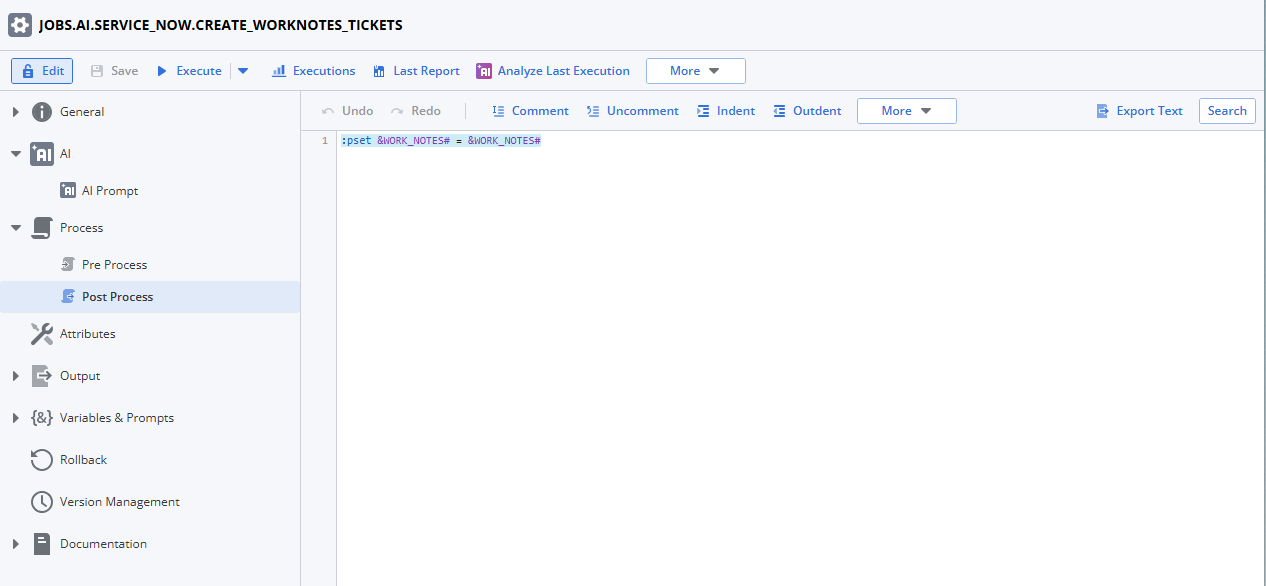
To make this variable available to subsequent Jobs in the Workflow, it must be explicitly published using a mechanism like :PSET. You do this on the Post Process page. This script publishes the variable as a placeholder.
:PSET &WORK_NOTES# = &WORK_NOTES#
-
-
Update the ServiceNow incident with AI-generated work notes.
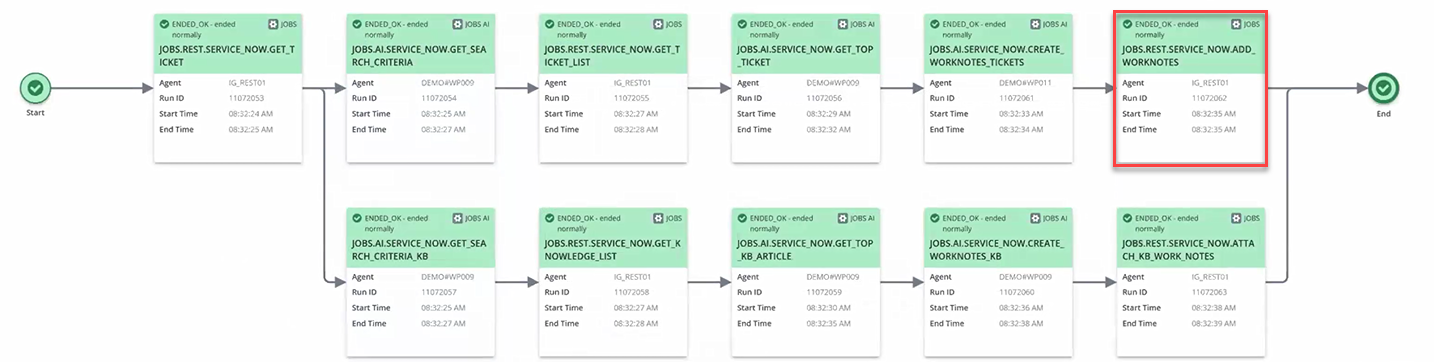
A final REST Job takes the AI-generated work notes from the previous AI Job. This job then updates the original ServiceNow incident, adding the detailed work notes to provide the IT operations team with a head start on resolution.
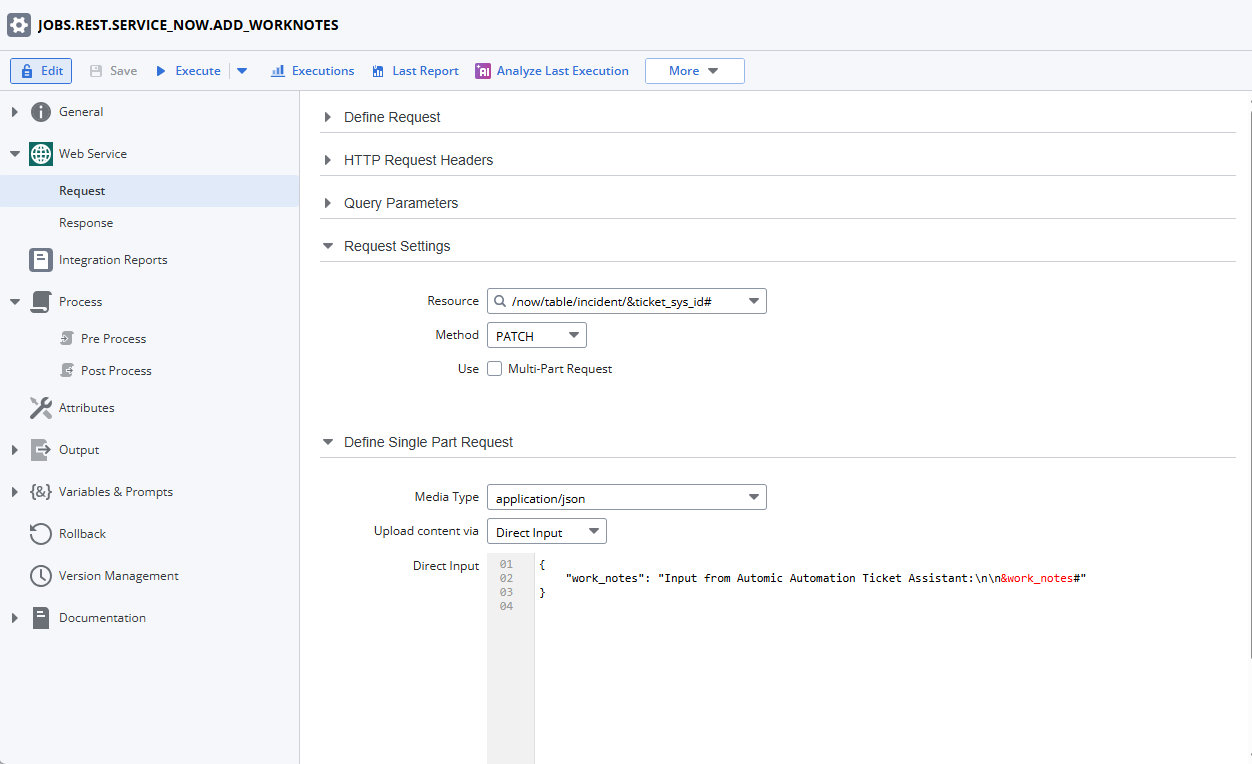
The Request is configured as follows:
-
Request Settings
-
Resource: /now/table/incident/&ticket_sys_id#
-
Method: PATCH
-
-
Define Single Part Request
-
Media Type: application/json
-
Upload COntent via: Direct onput
-
Direct Input
{
"work_notes": "Input from Automic Automation Ticket Assistant:\n\n&work_notes#"
}
-
On the Pre Process page, clean and reformat the &work_notes# string variable.
:SET &cr# = HEX_2_STRING("0D")
:SET &lf# = HEX_2_STRING("0A")
:SET &work_notes# = str_sub(&work_notes#,'"',"")
:SET &work_notes# = str_sub(&work_notes#,"'","")
:SET &work_notes# = str_sub(&work_notes#,"&cr#","")
:SET &work_notes# = str_sub(&work_notes#,"&lf#","\n")
-
-
(Optionally) Repeat for knowledge base articles.
The same sequence of steps (Generate AI-Powered Search Criteria, Search for Knowledge Base Articles using REST, Identify the Most Relevant Article using AI, Create AI-Powered Work Notes, Update Service Now Incident) can be implemented in parallel or sequentially to also find and integrate insights from knowledge base articles into the incident.
Important Considerations for AI Jobs
-
Variable Scope
As happens with all other Jobs, variables defined within an AI Job (for example, &LOCAL_SEARCH_CRITERIA_AI#) are local to that Job. To pass these values to other Jobs or to the Workflow, they must be published to the Workflow scope using :PSET.
-
Conversation Context
For sequential AI interactions (for example, building upon a previous AI's response), you must manage the Conversation ID. This ID, once obtained from the first AI Job in a conversation, should be stored in a Workflow-level variable (via :PSET) and then passed to subsequent AI Jobs that are configured as a "continuation of an existing conversation".
-
System Requirements
AI Jobs run on the Automation Engine and do not require an Agent. However, they need the Automation.AI component to handle requests to LLMs.
-
LLM Variability
Different LLM vendors may implement features and efficiencies differently. While Automic Automation provides the integration, it is recommended to consult the specific LLM provider's documentation for best practices and performance characteristics.
Useful Links
-
REST Jobs, see the Automic Automation / REST Agent Integration documentation
-
Watch the Video: AI-Powered Incident Analysis and Resolution