Task Boxes in Workflows
When designing Workflows, you first add objects to it. Objects that have been added to the Workflow editor are called tasks. Selected tasks are encircled by a thick line and display start and end arrows. These arrows are the connector points from/to which you can link. Task boxes display the most important attributes of the object.
Examples of task boxes and description of their content:
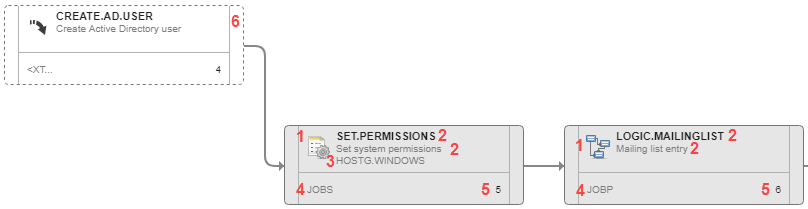
- External dependency. This is a task that does not run in Automic Automation but that must end on the external system so that its successor, a task in Automic Automation, can start.
- Object icon and short name of the object type. For example, JOBS for Jobs or JOBP for Workflows.
-
Object name.
- Object title.
- Name of the Agent on which the object is executed.
- Task number. This is the order of the object in the Workflow sequence, where the START node is always the first task. For more information, see
- Icons indicating which properties have been configured for the task.
For more information, see:
- Understanding the Object Types in Automic Automation
- Name, Title, and Alias
- Task Execution Order in Standard Workflows
Tooltips
Hover the mouse over a box to display a tooltip that contains information about the object.
Example of a tooltip:
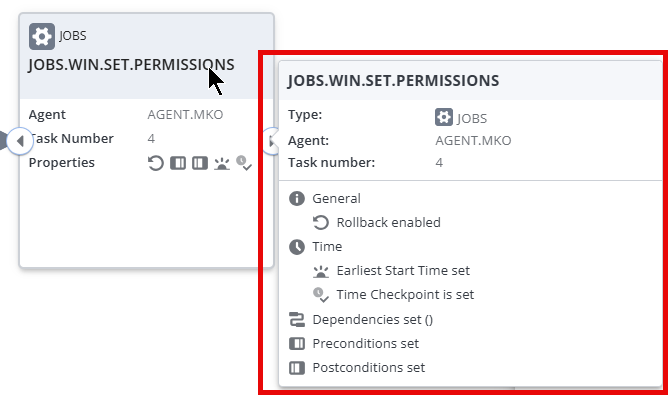
The tooltip is divided in three sections:
- Object name.
-
Object details: Object type, Agent on which it runs and position in the Workflow.
-
Properties that contain configurations.
If any of the task properties contains configurations, they are displayed here. For example: Breakpoint set, Rollback enabled, Requires user input, Execution Settings set, Contains Variables, and so forth.
If the task is configured to execute depending on the status of one or more predecessors (in the Execute this task if section of the Time and Dependencies tab), the tooltip shows the selected status. If there is more than one status dependency, the tooltip displays the first one on the list and indicates how many more are defined.
The START and END nodes also have tooltips. They provide information about the status of the Workflow.
See also: