Defining OCI Start Integration Job Properties
Automic Automation Start Integration jobs allow you to start and monitor OIC integrations on your OIC application from Automic Automation.
To start an integration successfully, you have to define all the relevant parameters. Optionally, you can also define other properties and parameters that you want to pass to the integration in JSON format.
On the Start Integration Job page, you define the parameters relevant to run the job on your OCI environment.
-
Connection
Select the OCI Connection object containing the relevant information to connect to the application.
To search for a Connection object, start typing its name to limit the list of the objects that match your input.
-
Integration Name
Select the relevant integration. The integration name also includes the integration version separated by a pipe character using the format <Integration name>|<Integration version>.
Click the browse button next to the field to open a dialog that shows all available integrations. From there, you can select the relevant name and version. Starting with v21.1, a new "Is Scheduled" column is included in the picker dialog. True indicates standard integrations, while False indicates App-driven integrations, which can be used with the new App Driven checkbox.
You can use the filter function to narrow down the list of integrations. To do so, enter the installation name (or part of it) in the Integration Name field, and apply the filter.
By default, the search returns 50 results. However, you can modify by defining a different amount on the Maximum Results field.
Note:The system returns a maximum of 200 entries. If you set the Maximum Results to a larger number, the system still returns 200 entries and corrects the value defined to 200.
-
App Driven
(Optional) Check this box to trigger app-driven integrations in OCI that have different endpoints, and monitor their execution. Once selected, you will need to fill in the following fields:
-
App Endpoint
The base URL of the app-driven integration.
-
HTTP Method
This specifies the HTTP method supported by OCI. Currently, only GET and POST requests are supported. Using other HTTP methods will cause the job fail with an exception.
-
POST
This method requires you to define an integration payload. -
GET
With GET, the payload field becomes hidden.
-
-
Rest Trigger Endpoint
Every controller has its own specific endpoint, for example, echo. -
Integration Version
By default, this is 1.0
-
-
Integration Payload
Allows you to pass arguments created at runtime to OCI in JSON format.
Select one of the options available:
-
None (default)
Select this option if you do not want to pass any parameters to OIC.
-
JSON
Use the JSON field to enter the JSON payload definition.
Important!There are many options available to define the JSON payload. For more information and examples of the JSON definition, see Defining the JSON for OCI Start Integration Jobs.
-
File Path
Use the JSON File Path field to define the path to the JSON file containing the attributes that you want to pass to the application. Make sure that the file is available on the Agent machine (host).
Note:The Pre-Process page allows you to define the settings of the Jobs using script statements. These statements are processed before the Start Integration job is executed, see Setting OCI Job Properties Through Scripts.
-
Defining the JSON for OCI Start Integration Jobs
This section gives you examples of how you could define the JSON field when defining a Start Integration Job. You have different options available.
Simple JSON Definition
The first option to define the JSON field is a simple payload definition. To do so, make sure you define the parameters that you want to pass to OIC.
Example
{
  "parameters": [
    {
      "name": "schedule_parameter_1",
      "value": "false"
    }
  ]
}
Where schedule_parameter_1 is the integration that you want to start.
Using Variables
You can also use variables in the payload definition.
Example
In the JSON field, enter the following:
&JSON_VARIABLES#
If the variable is not defined yet, you must define it now. You do it on the Variables page of the Start Integration Job definition:
(Click to expand)
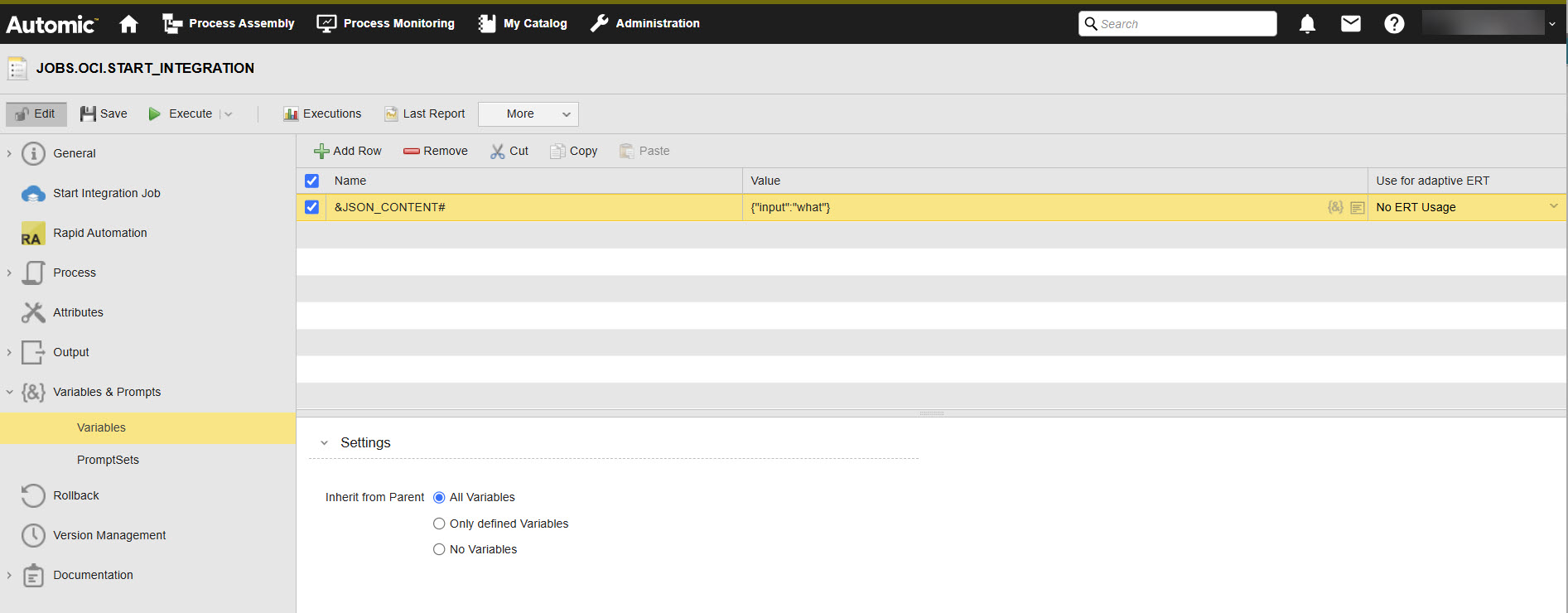
When you execute the Job, the variables will be replaced with the value you have just defined. This is visible in the Agent log (PLOG), see Monitoring OCI Start Integration Jobs.
Start Integration Job in a Workflow
You can also use the JSON field if you want to include a Start Integration Job in a Workflow and you want to use Automation Engine variables in it.
Example
In the Workflow, a Script object (SCRI) with the variable definition relevant for said value and time precedes your Start Integration Job:
(Click to expand)
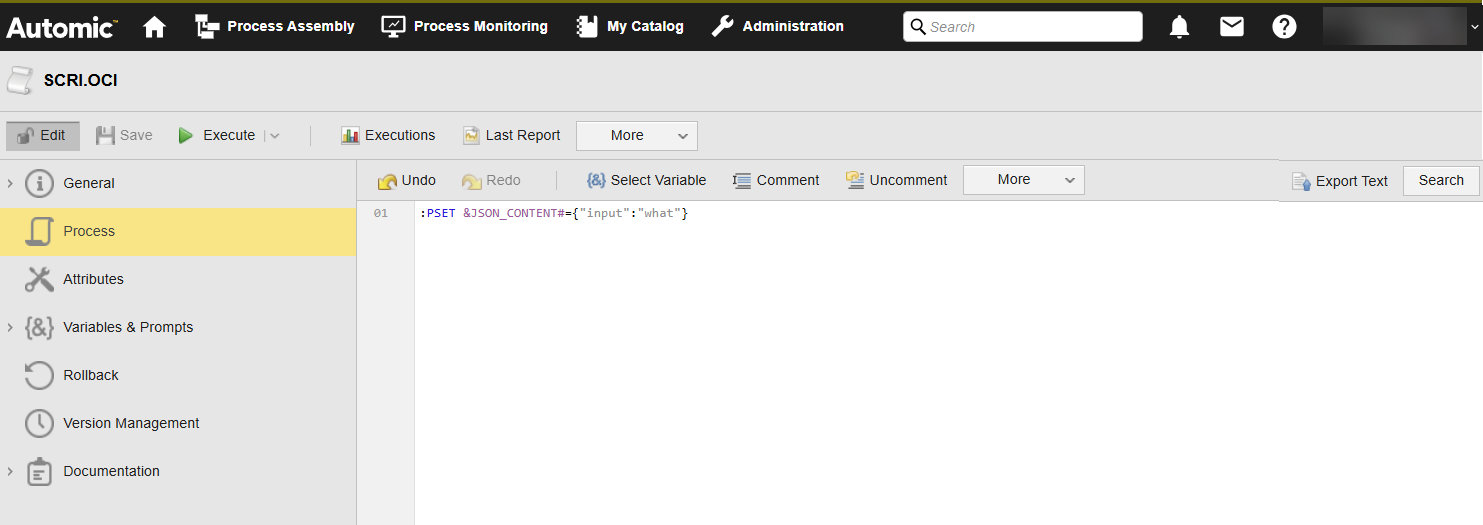
In the Start Integration Job, the JSON definition includes those variables:
(Click to expand)
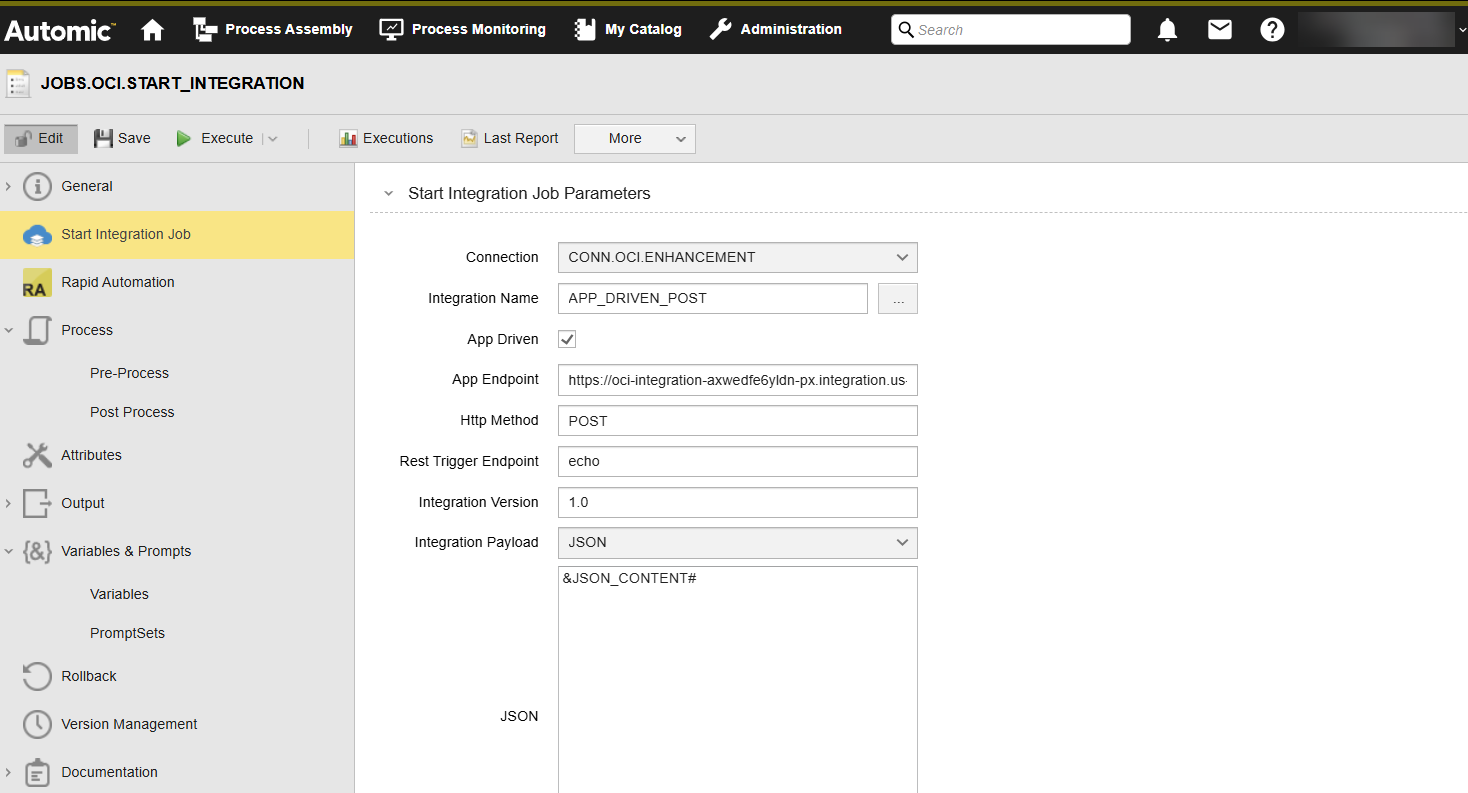
When the Job is executed, the variables will be replaced with the value you have just defined. This is visible in the Agent log (PLOG), see Monitoring OCI Start Integration Jobs.
See also: