SAP DI Jobs: Start Graphs
Automic Automation SAP DI Start Graph jobs start, stop and monitor SAP DI cloud jobs on SAP DI cloud systems. The Start Graph Job that you create in Automic Automation represents the cloud job on the SAP DI cloud system, not its tasks. When you execute the SAP DI Start Graph Job, you trigger a run of the job in the target SAP DI environment, when you cancel the job in the AWI, the graph is terminated in the SAP DI environment.
In SAP Data Intelligence systems, graphs, also known as pipelines, are a network of operators connected by typed input and output ports for data transfer where SAP DI provides built-in operators that you can use directly in a graph or as the basis for creating a custom operator. For details about SAP DI graphs, see https://help.sap.com/docs/SAP_DATA_INTELLIGENCE/1c1341f6911f4da5a35b191b40b426c8/aea42f8cf13740f8af59b8cb89939147.html
This page includes the following:
Defining SAP DI Start Graph Job Properties
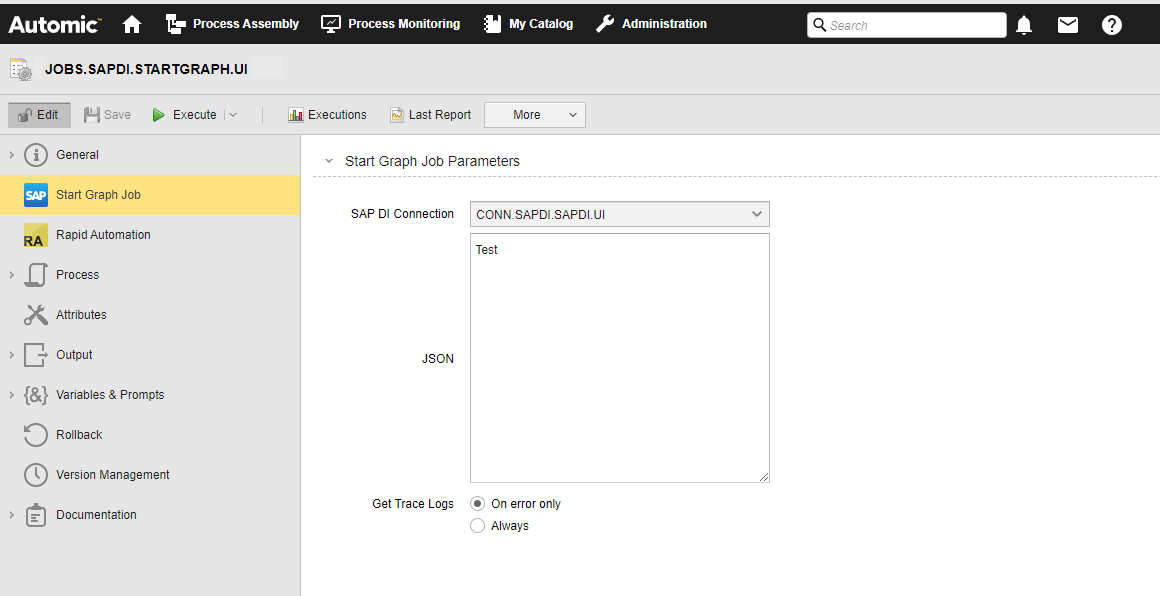
On the Start Graph Job page, you define the parameters relevant to start the graph on the SAP DI system.
(Click to expand)
-
SAP DI Connection
Select the SAP DI Connection object containing the relevant information to connect to the SAP DI system.
To search for a Connection object, start typing its name to limit the list of the objects that match your input.
-
JSON
Define the payload parameters you want to pass on in JSON format. Ensure you define the parameters required in your SAP DI environment such as the graph you want to start, the configuration parameters you want to pass while starting the graph etc.
Example:
{
"src": "com.sap.demo.counter",
"name": "com.sap.demo.counter",
"executionType": "",
"configurationSubstitutions": {},
"parameters": {},
"async": true,
"scheduleTimeoutSeconds": 0,
"autoRestartConfig": {
"maxRestartCount": 0,
"restartDelaySeconds": 0,
"resetTimeThreshold": ""
},
"snapshotConfig": {
"enabled": false,
"periodSeconds": 0
}
}-
For a detailed description of all parameters in the SAP DI Rest AP documentation, see https://help.sap.com/docs/SAP_DATA_INTELLIGENCE/1c1341f6911f4da5a35b191b40b426c8/f3caf1668ae54046ad7c3049a576d149.html
-
For details about the SAP DI documentation, see https://blogs.sap.com/2021/06/08/introduction-to-sap-data-intelligence/
-
-
Get Trace Logs
Here you can select when to get trace logs.
-
On error only (default)
A trace log is only written if the Job fails.Note: No log can be written if the Job cannot start successfully because of incorrect JSON payload parameters, for example. -
Always
A trace log is always written regardless of the Job status.Note: Enabling this parameter may increase the job's runtime.
-
-
You can decide how the JSON is created. For example, you can create it using a custom job or a script in Automic Automation. Regardless of how the file is created, ensure that it is available on the Agent machine (host).
-
To stop the Start Graph Job, you can cancel the running job in the Process Monitoring perspective, where you select your task and click Executions to see the Executions list of your job. Once you cancel the job, the Details pane provides information such as the
- task status (ENDED_CANCEL - manually canceled)
- remote status (stopping)
- runtime handle taken from the SAP DI system. It gives you a reference similar to the Run ID in Automic Automation.
-
If you restart a job, the runtime handle will change with every restarted execution.
The Pre-Process page allows you to define the settings the SAP DI Start Graph Job using script statements. These statements are processed before the Start Graph Job is executed; see SAP DI Jobs: Setting Job Properties Through Scripts.
Defining the JSON
This section gives you examples of how you could define the JSON field when defining a Start Graph Job. You have different options available.
Simple JSON Definition
The first option to define the JSON field is a simple payload definition. To do so, make sure you define the parameters required to define the job, such as the source, name or execution type.
Using Variables
You can also use variables in the payload definition.
Example
In the JSON field, enter the following:
&JSON#
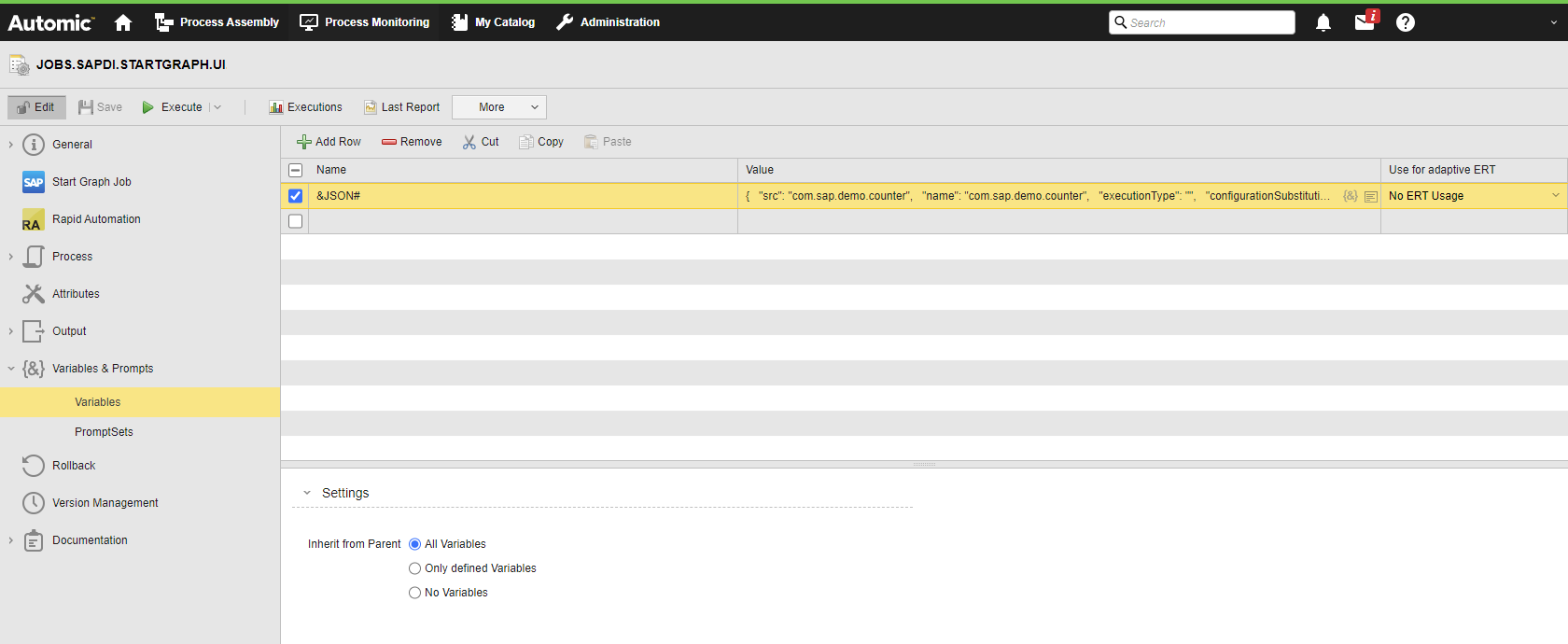
If the variable still needs to be defined, you must define it now. You do so on the Variables page of the Start Graph Job definition:
(Click to expand)
(Click to expand)
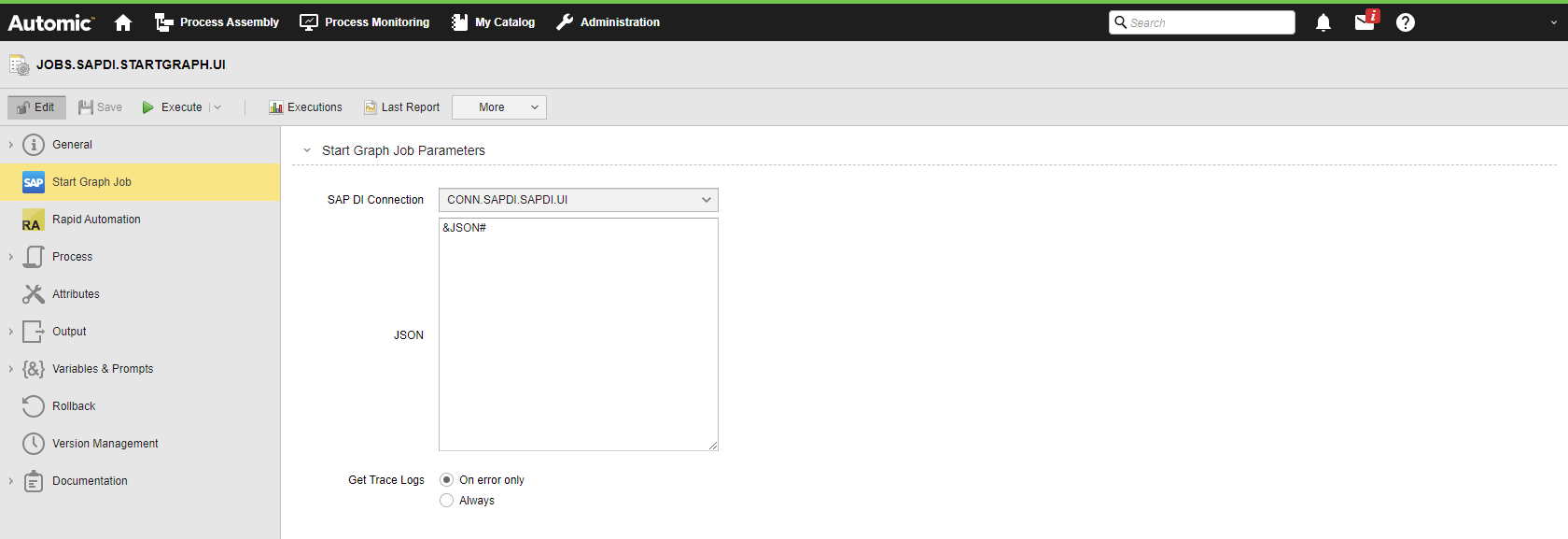
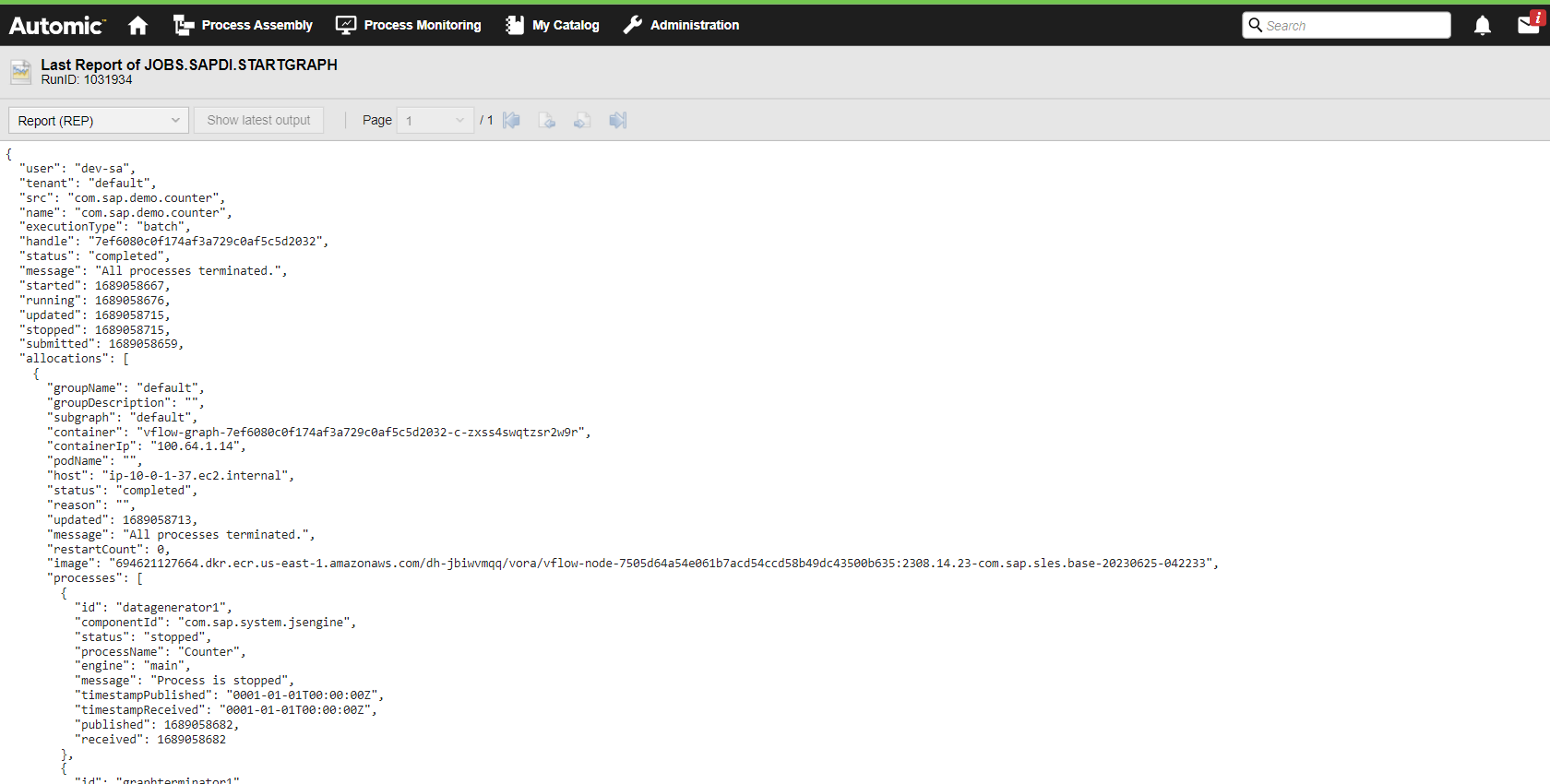
When you execute the Job, the variable will be replaced with the value you have just defined. This is visible in the Agent log (PLOG); see Monitoring SAP DI Jobs.
SAP DI Start Graph Job in a Workflow
You can also use the JSON field if you want to include a Start Graph Job in a Workflow and use Automation Engine variables in it.
Example
A Workflow includes a Script object (SCRI) with the variable definition for the JSON parameters and a Start Graph Job that includes the JSON variable:
(Click to expand)
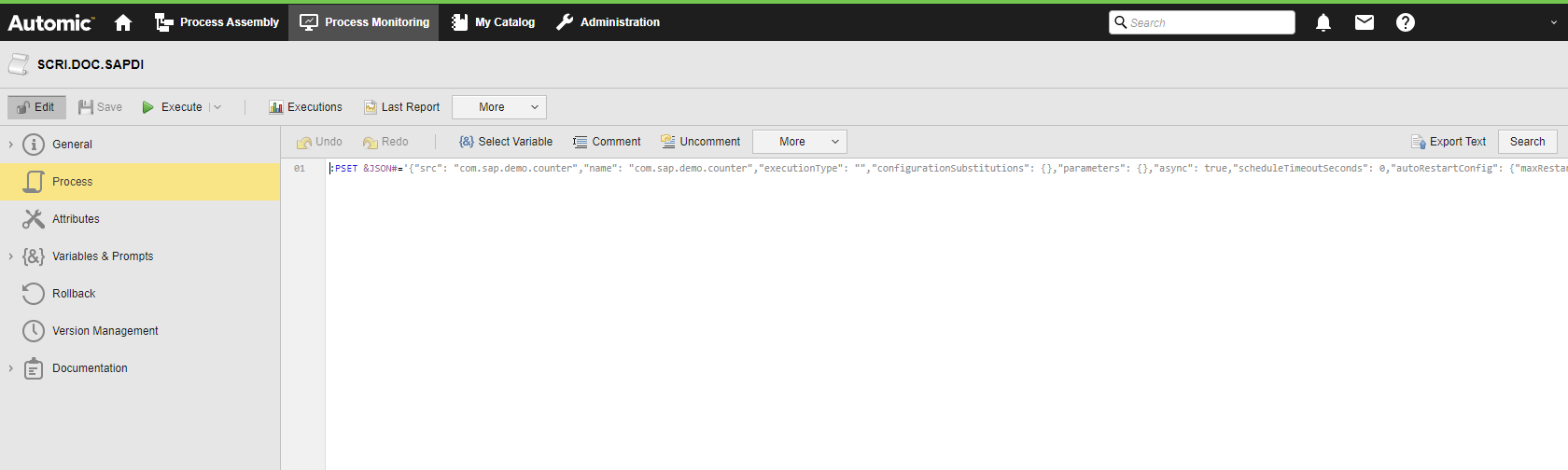
(Click to expand)
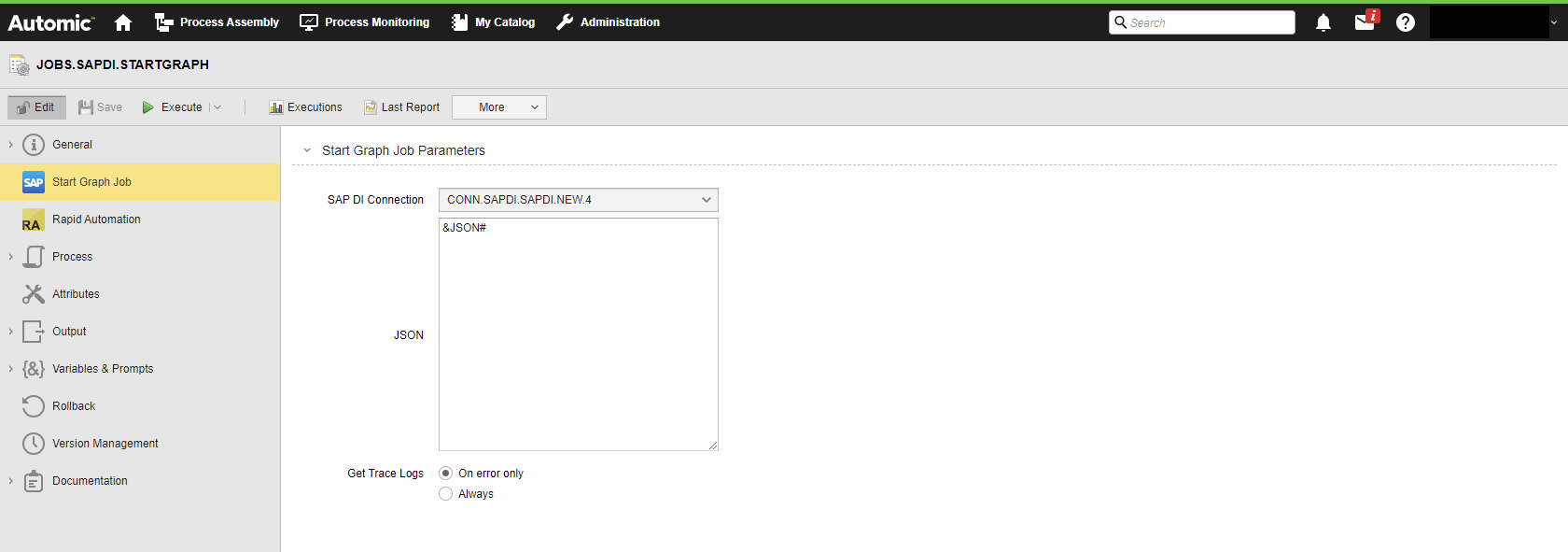
When the Job is executed, the variable will be replaced with the value you have just defined. This is visible in both the Job (REP) and Agent (PLOG) reports; see Monitoring SAP DI Jobs.
Example
(Click to expand)