Login (LOGIN)
As a designer, you define executable objects that need access to third-party applications and operating systems (target systems). Login objects store the login information that Agents need to execute the objects on those target systems. By using Login objects, you do not have to remember the passwords; you simply assign the appropriate Login object to the executable objects.
As an administrator, you define and manage passwords centrally and safely in Login objects.
Agents pass the login information defined in the Login object to the operating system or application in which the executable object is processed. This information is validated and the following happens:
- If it is correct, the task is processed using the operation system ID that is stored with the Login object.
- If it is not correct, the operating system or application rejects processing the task.
Note: Some operating systems allow deactivating the login validation. Your administrator can do so in the Agent INI file.
Object class: Passive object
Object type/Short name: LOGIN
This page includes the following:
Script Elements and Login Objects
You can also use the following script elements to handle Login objects:
Platform-Specific Features
Some platforms have special features:
-
Usually, you need to specify one password. However, if you use WebSphere version 6 with activated administrative security, you must specify three passwords, namely User password, Keystore password and Truststore password. This also applies when defining a Login object for JMX objects.
-
Oracle applications
In Login objects, you need to specify an internal OA user that is used for processing jobs. In addition, you must specify an OA database user in the
ERP_LOGINobject. -
Windows
You can specify "*OWN" as domain when logging in to Windows. The Windows job is then processed with a local login authorization.
Windows Agents require particular rights to process jobs that must be assigned to the user who starts the Agent.
-
UNIX
The length of the username is limited to 32 characters.
Defining a Login Object
A Login object definition is made up of the following pages:
- Standard pages common to all objects:
- The object-specific settings described here.
To Define the Login Information
-
On the Login page you assign the Login object to one of the following:
-
A specific Agent
In Agent/Name enter or select an Agent. The Type of the object is selected automatically.
-
All Agents of a type
In Agent/Name enter *. The Agent Type can be either an OS or an application.
Example
A Login object has been defined for VVIEINTEGRATE02A with type WINDOWS. A second Login object has been defined for type WINDOWS, but this time using the "*" wildcard character as Agent/Name.
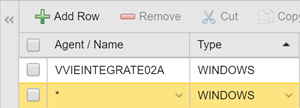
This means that the second one (with the wildcard) is applied in all logins of WINDOWS Agents EXCEPT in those for which you enter a specific Agent name. In our example, the VVIEINTEGRATE02A login is always applied to this Agent. For all other WINDOWS Agents, the definitions in * are applied.
-
Server processes for a password protected Service Manager:Enter * in the Agent/Name and in the Type field.
-
-
If you have selected a specific Agent, the Type is already populated. Otherwise, select one click the arrow icon to open the dropdown list and select the type of Agent to which this definition will apply. The following special types are available here:
- MAIL - used for e-mail connections via SMTP
- DB - for partitioning with Rapid Automation Agents. In this case, you must select the name of the solution
- JWP_KEYSTORE - used to provide the password for the Keystore. This password is necessary to establish the connection to the JWP through TLS.
-
Enter a Username/ID that complies with the format requirements of the target system.
-
UNIX
Format: User ID
Conversion to capital letters: None
-
Windows
Format: Domains\user ID
Conversion to capital letters: Domains only
-
-
Enter a Password.
Passwords can be stored in the database or in a password vault, see Password Vaults.In this case, the password is sent directly to the Agent.
In the Password Vault column, select one of the following options:
-
Automation Engine to store your password in the AE database.
Passwords stored in the database are unlimited in length, allow all characters (including commas) and are displayed as bullets.
-
The external vault that is configured to use a vault password
If the password come from an external password storage, the password field is disabled and indicates that a vault password is being used.
-
See also:
- Password Vaults
- Login Objects (Security chapters, for administrators)