User Management - Users Panel
This page includes the following:
Overview

Using the basic security features native to , only users defined as administrators will have the privileges that allow them to add, delete, or modify users, although users can change their own password from the File menu.
-
Name: User
-
Domain: Unless assigned to an LDAP, Kerberos, or eEM domain this field will display JAWS
-
Role: Admin or User
-
Last Saved Filter: Displays the last saved Business Area Filter. Both the administrator and the user can change this filter (under Preferences), but it does not restrict viewing of other business areas.
-
Last Logged In: Displays the date/time of the last time the user was logged into .
-
Active Sessions: Displays the number of sessions in which the user is actively involved.
-
Vision: Indicates if the user can use TermaVISION.
Add a New User
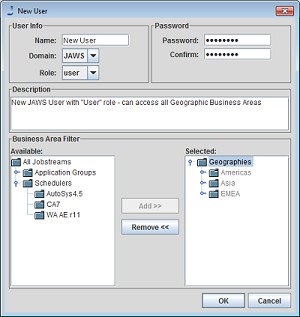
-
Name: User name
-
Domain: Unless assigned to an LDAP, Kerberos, or eEM domain this field will display .
-
Role:
-
admin: Administrators have the ability to perform all of the functions within the Automic Automation Intelligence client.
-
user: Users have limited ability to perform the functions in the Automic Automation Intelligence Client. The panels that are viewable (schedulers, business areas, jobstreams) do not have the add/edit/delete buttons, and some options that are available to administrator level users will not be available.
Note:Standard roles do not apply to eEm domains.
-
-
Password: Unique password. The password must be at least six characters, including at least one that is not a letter.
-
Description: Any user-supplied annotation to properly describe user.
-
Business Area Filter: In addition to filtering the views and options by role, the new user dialog allows initial filtering by the business areas. Regardless of the user’s role, they can change Business Area settings at any time in the File menu under Preferences>Business Areas Tab.
More About User Roles
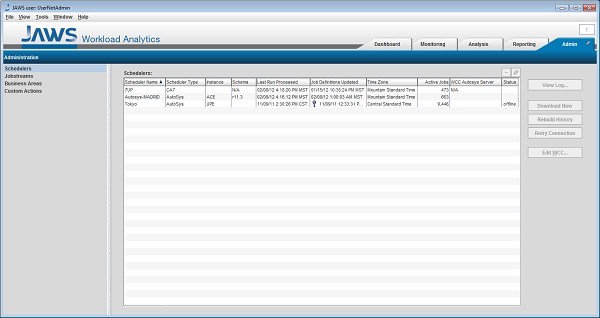
The following figures represent the different features available on the Administration tab in Automic Automation Intelligence when logged in with role of admin opposed to logging in with the role of user. Note the differences in the views and functionality between the two roles.
Admin Tab as Viewed When Logged in with Administrator Role

Admin Tab as Viewed When Logged in with User Role
More About Business Area Filters
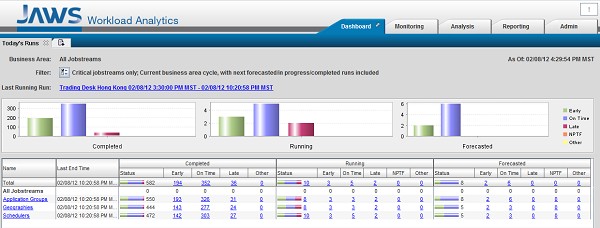
The figures below demonstrate how Automic Automation Intelligence appears in the Dashboard tab when a user is logged in with different Business Area filters applied.
The figure below shows how the initial Business Area Filter configuration changes what the user sees in the Dashboard panel. In this instance, the Business Area was initially configured to show only Geographies.
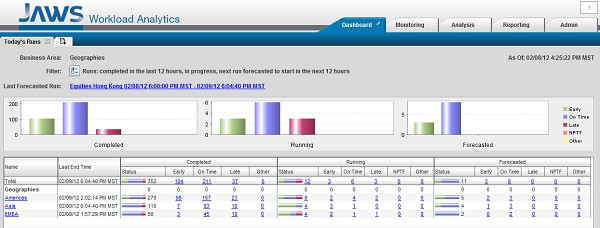
The figure below shows the Dashboard panel with no Business Area Filters applied.
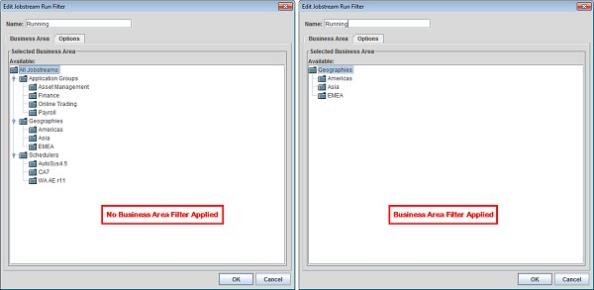
Business Area Filters will also be apparent in all other areas of . The figure below shows the Edit Jobstream Run Filter Dialog when Business Area Filters are (the pane on the right) and are not (the pane on the left) applied.