Machines Report
The Machines report provides information about the workload of your agents (machines).
The green area in Utilization shows executions in the past and in progress. The blue area is the orecast.
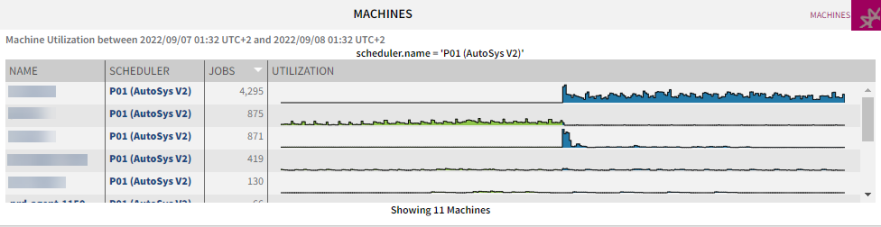
Some of this data are formatted in bold and blue indicating that they are links. Click them to open a pop up that contains detailed information about that particular item. The pop up also contains links with further information on that particular item.
Working with the Report
Click the icon on the top right corner of the panel to open a menu with the configuration options:
-
Edit
Opens the configuration dialog where you can edit the name, published status, and filter criteria used for the report. For each data source you can add as many criteria as you need to narrow down the scope of the report. Combinations of these criteria are evaluated as logical OR relationships.
-
Copy
Creates a copy of the panel that you can then re-configure and adapt to your needs.
-
Move
Moves the panel to a different page (dashboard).
-
Delete
Deletes the panel.
-
Shorter/Taller
Resizes the panel vertically.
-
Download
Downloads the report in the format you choose: PDF, XLSX, XLS, RTF, CSV, ODT, ODS, DOCX, or PPTX.
-
Get Link
Creates a link to the report that you can share with other users.
See also: