Securing Access to AWI
The connection between the Automation Engine (the JCP) and AWI is secured through TLS/SSL. To secure the communication between AWI and the application server you can also use TLS/SSL. TLS/SSL allows web browsers and REST API clients to communicate over a secured connection because data is encrypted. By enforcing authentication, TLS/SSL also ensures that the site origin is what it claims to be.
Important! Although enabling TLS/SSL for the communication between AWI and the application server is optional, we strongly recommend that you enable it.
This page includes the following:
Best Practices
Usually, the default installation comes with common security principles already in place. This set of best practices help you improve them:
-
Do not run the application server as a privileged user (root on UNIX or Administrator or Local System on Windows).
-
The application server should never expose running software and its version number.
-
Deploy applications only on the server that are required (i.e. no example applications).
-
Secure the administration panel using a strong password.
-
Restrict the file permissions of the application server.
-
Enable HTTPS - TLS/SSL and use it instead of plain HTTP
-
Plugins and backend services
-
If you are using plugins that implement HTTPS to establish a secure communication with the backend services, make sure that the AWI instance or the JVM you are using are configured to trust the certificates installed on the backend services
-
Use the certificates issued by a Certificate Authority that the JVM trusts by default
-
If you need to use self-signed certificates, configure the AWI instance or JVM to trust the certificates by adding them to one of the following truststores
-
Default JVM truststore
-
A different truststore
Configure the AWI instance to use a different truststore.
-
-
Overview
Follow these steps to secure AWI
-
Depending on the type of installation, whether you are using the bundled Jetty launcher or Tomcat, the steps to create the keystore, import the signed certificate and configure the connection vary.
For detailed instruction on how to secure the communication between AWI and the application server, see Securing Access to AWI via TLS/SSL.AWI
- Create/Request/Import Certificate for Automic Continuous Delivery Automation on IIS (Internet Information Services)
- Change Binding of the Default Website
- Access Automic Continuous Delivery Automation
- Export the Certificate
- Add the IIS Certificate to the Java Trust Store
- Update the AWI Plugin Configuration
- Modify the Endpoint Settings in the web.config File (if Necessary)
- Detect the CDA Server url and Set it Where Required
Create/Request/Import Certificate for Automic Continuous Delivery Automation on IIS (Internet Information Services)
- Open the Internet Information Services (IIS) Manager.
- Select your server in the explorer and double-click the Server Certificates icon.
Do one of the following:
-
If you do not have a certificate yet, create a self-signed certificate by clicking Create Self-Signed Certificate... in the Actions side panel.
Tip: Use localhost as friendly name and select Web Hosting as certificate store (if available).
-
If you already have a valid TLS/SSL certificate, click Import... in the Actions side panel.
- Create a certificate request by clicking Create Certificate Request in the Actions side panel.
Populate the fields on the Distinguished Name Properties page of the wizard.
Make sure the common name matches the server name.
- On the Cryptographic Service Provider Properties page, select one of the providers from the Cryptographic service provider drop-down list.
- From the Bit length drop-down list, select a bit length that can be used by the provider. (Default values: RSA = 1024, DH= 512), and click Next.
- On the File Name page, type or select a file name, and click Finish.
- Send the certificate request to a public CA.
- Download the certificate and import it (double-click the Server Certificates action and click the Import... action in the side panel).
- Right-click the certificate, set a friendly name and select the option Enable all purposes for this certificate.
- In the Actions menu, click Complete Certificate Request to open the Complete Request Certificate wizard.
- On the Specify Certificate Authority Response page, browse to the
.cercertificate file, select it and click Open. - Enter a friendly name and click OK.
Tip: Use localhost as friendly name and select Web Hosting as certificate store (if available).
Change Binding of the Default Website
- Go back to the IIS Manager Explorer and select the Web Site running the CDA application on your Server.
- Click Bindings... on the Edit Site section of the Actions side panel.
- Do one of the following:
- Select the https row and click Edit...
- If you do not see this row, create a new row by clicking Add....
Use the following configuration:
Type: https
IP address: all Unassigned
Port: 443 (or something else)
SSL certificate: Select your Self-Signed Certificate or imported certificate created during the previous steps.
-
Go to the TLS/SSL Settings of your website. Click the Require SSL checkbox and select the Ignore option for client certificates, and click Apply.
Access Automic Continuous Delivery Automation
-
You can now access the Automic Web Interface via a secure connection by using https://YOUR_DOMAIN:443/ara/.
Example:https://localhost:443/ara/) -
If you are using a self-signed certificate you may receive a warning that the connection is untrusted, because is not possible to verify the identity. You can only avoid this warning if you are using signed certificates by a trusted authority. However the connection is encrypted in the same way as using a signed certificate. You have to confirm that you want to use the self-signed certificate.
Export the Certificate
Export the currently used certificate:
- Open the Internet Information Services (IIS) Manager.
- Select your server and the Web Site running the CDA application.
- Open the Bindings... dialog again.
-
Select the https row and click Edit...
-
Click View... and navigate to the Details tab.
- Click Copy to File... . The Certificate Export Wizard is displayed.
- Click Next >
- Select No, do not export the private key and click Next.
- Select DER encoded binary X.509 (.CER) and click Next.
-
Enter a destination folder to store your certificate.
-
Click Finish to complete the wizard.
Add the IIS Certificate to the Java Trust Store
-
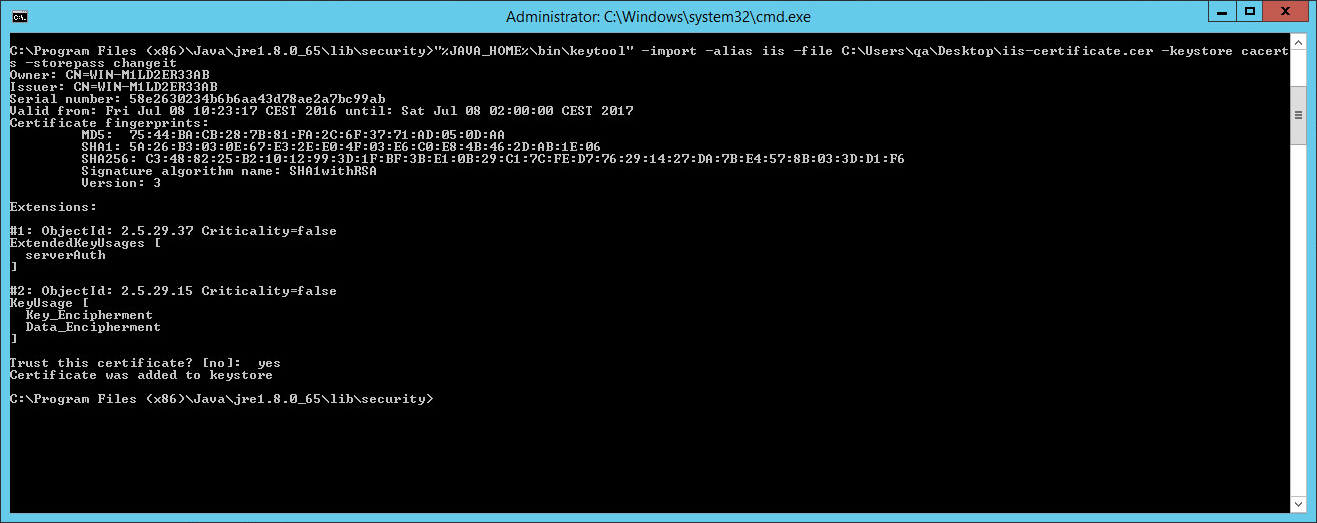
To ensure proper communication between AWI and CDA, import the certificate to the Java Trust Store. Your Java Trust Store is located in the /lib/security/ folder of your Java Runtime Installation.
-
Add the previously exported certificate to the cacerts Trust Store and trust it by using the following command as Administrator:
> "%JAVA_HOME%\bin\keytool" -import -v -trustcacerts -alias <hostname> -file <your_certificate.cer> -keystore cacerts -storepass changeit
Update the AWI Plugin Configuration
-
Currently AWI uses a non-encrypted connection to the CDA server. Update the connection properties to use a full-encrypted connection: open the connection.properties file which is located in the /config/webui-plugin-bond/ folder of your AWI installation (eg. TOMCAT_HOME/webapp/awi).
-
Update the url property to the new HTTPS URL and restart the tomcat web server.
Modify the Endpoint Settings in the web.config File (if Necessary)
Depending on your setup you may have to uncomment the following two sections in the web.config file (Automic\Release.Manager\WebUI\web.config):
<endpoint address="" binding="basicHttpBinding" contract="Ventum.Bond2.Services.Deployments.IDeploymentService"bindingConfiguration="DeploymentServiceBinding">
<identity>
<dns value="localhost"/>
</identity>
</endpoint>
and
<endpoint address="" binding="basicHttpBinding"contract="Ventum.Bond2.Services.Integrations.IIntegrationService" bindingConfiguration="DeploymentServiceBinding">
<identity>
<dns value="localhost"/>
</identity>
</endpoint>
For more information, see Configuring HTTPs Endpoints for CDA.
Detect the CDA Server url and Set it Where Required
You can retrieve the correct URL that the CDA server is working from the CDA DeploymentService page. Enter the path pointing to the DeploymentService in your browser.
Example: https://myARAServer/service/DeploymentService.svc.
A page resembling the screenshot below will be displayed:
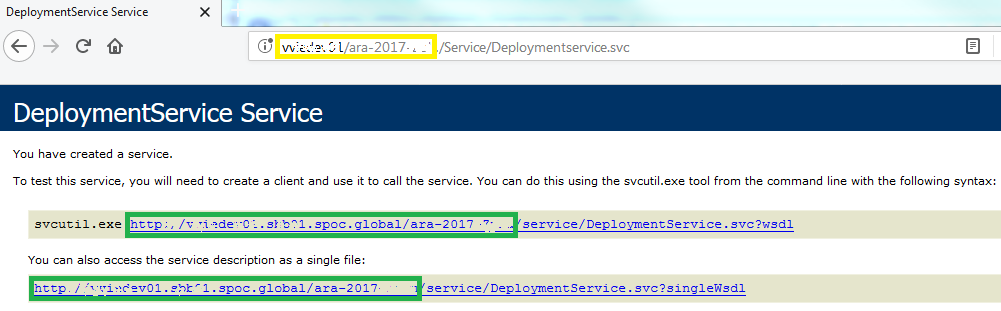
The yellow box marks the CDA sever URL you entered (as part of the complete URL for accessing the Deployment Service page). The green boxes highlight the part of the URL that must be set in the following configuration files:
-
customer.config(Automic\Release.Manager\WebUI\customer.config):UC4Deployment.CallbackUrlparameter. For more information, see Configuring CDA via Customer.Config File<add key="UC4Deployment.CallbackUrl" value="https://araServer.global.net:443/ARA" />If you are using ONE Installer, you can find the
customer.configfile inC:\Automic\Release.Manager\Utilities\DataMigrator. -
connection.properties: parameter urlurl=https://araServer.global.net:443/ARA
Example:C:\Program Files\Apache Software Foundation\Tomcat 7.0\webapps\AWI\WEB-INF\autoinstall).If you are using ONE Installer, you can find the
connection.propertiesfile inC:\Automic\External.Resources\apache-tomcat-7.0.81\webapps\awi\config\webui-plugin-bond\connection.properties.
For more information, see Deployment Service.
Important! Make sure that AWI / Automic Continuous Delivery Automation is always called with fully qualified URLs that match the certificate. Using different URLs (for example: a short well-known URL) might lead to errors due to security restrictions.
Common Errors
If Release Automation is not displayed in AWI anymore, you may find the following error message in your Tomcat log files:
com.uc4.ecc.plugins.bond.exception.BondNotAvaiableException: Check failed. cannot create sso token Error requesting Deployment Manager Single-Sign-On endpoint
at com.uc4.ecc.plugins.bond.entrypoint.BondPluginInstance.checkBondAvailability(BondPluginInstance.java:90) ~[na:na]
at com.uc4.ecc.plugins.bond.entrypoint.BondPluginInstance.start(BondPluginInstance.java:55) ~[na:na]
at com.uc4.ecc.framework.entrypoint.navigation.PluginInstantiator.startPluginInstance(PluginInstantiator.java:288) [ecc-framework-entrypoint.jar:na]
at com.uc4.ecc.framework.entrypoint.navigation.PluginInstantiator.createPluginsAndPerspectives(PluginInstantiator.java:163) [ecc-framework-entrypoint.jar:na]
at com.uc4.ecc.framework.entrypoint.navigation.PluginInstantiator.instantiatePlugins(PluginInstantiator.java:131) [ecc-framework-entrypoint.jar:na]
at com.uc4.ecc.framework.entrypoint.login.AE.AECredentialsPresenter.login(AECredentialsPresenter.java:219) [ecc-framework-entrypoint.jar:na]
at com.uc4.ecc.framework.entrypoint.login.AE.AECredentialsPresenter.access$200(AECredentialsPresenter.java:43) [ecc-framework-entrypoint.jar:na]
at com.uc4.ecc.framework.entrypoint.login.AE.AECredentialsPresenter$2.load(AECredentialsPresenter.java:162) [ecc-framework-entrypoint.jar:na]
at com.uc4.ecc.framework.entrypoint.login.AE.AECredentialsPresenter$2.load(AECredentialsPresenter.java:155) [ecc-framework-entrypoint.jar:na]
at com.uc4.ecc.framework.core.async.BaseRequestCoordinator$1$1.call(BaseRequestCoordinator.java:214) [ecc-framework-core.jar:na]
at com.uc4.ecc.framework.core.pool.ContextAwareExecutorService$CallableImplementation.call(ContextAwareExecutorService.java:72) [ecc-framework-core.jar:na]
at java.util.concurrent.FutureTask.run(FutureTask.java:266) [na:1.8.0_45]
at java.util.concurrent.ThreadPoolExecutor.runWorker(ThreadPoolExecutor.java:1142) [na:1.8.0_45]
at java.util.concurrent.ThreadPoolExecutor$Worker.run(ThreadPoolExecutor.java:617) [na:1.8.0_45]
at java.lang.Thread.run(Thread.java:745) [na:1.8.0_45]
Caused by: com.uc4.ecc.plugins.bond.exception.SsoException: Error requesting Deployment Manager Single-Sign-On endpoint
at com.uc4.ecc.plugins.bond.backend.sso.BondSsoService.createToken(BondSsoService.java:76) ~[na:na]
at com.uc4.ecc.plugins.bond.entrypoint.BondPluginInstance.checkBondAvailability(BondPluginInstance.java:82) ~[na:na]
... 14 common frames omitted
Caused by: javax.net.ssl.SSLHandshakeException: sun.security.validator.ValidatorException: PKIX path building failed: sun.security.provider.certpath.SunCertPathBuilderException: unable to find valid certification path to requested target
at sun.security.ssl.Alerts.getSSLException(Alerts.java:192) ~[na:1.8.0_45]
at sun.security.ssl.SSLSocketImpl.fatal(SSLSocketImpl.java:1937) ~[na:1.8.0_45]
at sun.security.ssl.Handshaker.fatalSE(Handshaker.java:302) ~[na:1.8.0_45]
at sun.security.ssl.Handshaker.fatalSE(Handshaker.java:296) ~[na:1.8.0_45]
at sun.security.ssl.ClientHandshaker.serverCertificate(ClientHandshaker.java:1478) ~[na:1.8.0_45]
at sun.security.ssl.ClientHandshaker.processMessage(ClientHandshaker.java:212) ~[na:1.8.0_45]
at sun.security.ssl.Handshaker.processLoop(Handshaker.java:979) ~[na:1.8.0_45]
at sun.security.ssl.Handshaker.process_record(Handshaker.java:914) ~[na:1.8.0_45]
at sun.security.ssl.SSLSocketImpl.readRecord(SSLSocketImpl.java:1050) ~[na:1.8.0_45]
at sun.security.ssl.SSLSocketImpl.performInitialHandshake(SSLSocketImpl.java:1363) ~[na:1.8.0_45]
at sun.security.ssl.SSLSocketImpl.startHandshake(SSLSocketImpl.java:1391) ~[na:1.8.0_45]
at sun.security.ssl.SSLSocketImpl.startHandshake(SSLSocketImpl.java:1375) ~[na:1.8.0_45]
at org.apache.http.conn.ssl.SSLSocketFactory.connectSocket(SSLSocketFactory.java:535) ~[na:na]
at org.apache.http.conn.ssl.SSLSocketFactory.connectSocket(SSLSocketFactory.java:403) ~[na:na]
at org.apache.http.impl.conn.DefaultClientConnectionOperator.openConnection(DefaultClientConnectionOperator.java:177) ~[na:na]
at org.apache.http.impl.conn.ManagedClientConnectionImpl.open(ManagedClientConnectionImpl.java:304) ~[na:na]
at org.apache.http.impl.client.DefaultRequestDirector.tryConnect(DefaultRequestDirector.java:611) ~[na:na]
at org.apache.http.impl.client.DefaultRequestDirector.execute(DefaultRequestDirector.java:446) ~[na:na]
at org.apache.http.impl.client.AbstractHttpClient.doExecute(AbstractHttpClient.java:863) ~[na:na]
at org.apache.http.impl.client.CloseableHttpClient.execute(CloseableHttpClient.java:82) ~[na:na]
at org.apache.http.impl.client.CloseableHttpClient.execute(CloseableHttpClient.java:106) ~[na:na]
at org.apache.http.impl.client.CloseableHttpClient.execute(CloseableHttpClient.java:57) ~[na:na]
at com.uc4.ecc.plugins.bond.backend.sso.BondSsoService.createToken(BondSsoService.java:74) ~[na:na]
... 15 common frames omitted
Caused by: sun.security.validator.ValidatorException: PKIX path building failed: sun.security.provider.certpath.SunCertPathBuilderException: unable to find valid certification path to requested target
at sun.security.validator.PKIXValidator.doBuild(PKIXValidator.java:387) ~[na:1.8.0_45]
at sun.security.validator.PKIXValidator.engineValidate(PKIXValidator.java:292) ~[na:1.8.0_45]
at sun.security.validator.Validator.validate(Validator.java:260) ~[na:1.8.0_45]
at sun.security.ssl.X509TrustManagerImpl.validate(X509TrustManagerImpl.java:324) ~[na:1.8.0_45]
at sun.security.ssl.X509TrustManagerImpl.checkTrusted(X509TrustManagerImpl.java:229) ~[na:1.8.0_45]
at sun.security.ssl.X509TrustManagerImpl.checkServerTrusted(X509TrustManagerImpl.java:124) ~[na:1.8.0_45]
at sun.security.ssl.ClientHandshaker.serverCertificate(ClientHandshaker.java:1460) ~[na:1.8.0_45]
... 33 common frames omitted
Caused by: sun.security.provider.certpath.SunCertPathBuilderException: unable to find valid certification path to requested target
at sun.security.provider.certpath.SunCertPathBuilder.build(SunCertPathBuilder.java:145) ~[na:1.8.0_45]
at sun.security.provider.certpath.SunCertPathBuilder.engineBuild(SunCertPathBuilder.java:131) ~[na:1.8.0_45]
at java.security.cert.CertPathBuilder.build(CertPathBuilder.java:280) ~[na:1.8.0_45]
at sun.security.validator.PKIXValidator.doBuild(PKIXValidator.java:382) ~[na:1.8.0_45]
... 39 common frames omitted
Check that you have added the self-signed IIS certificate correctly and that you have used the right Java trust store.
See also: