Configuring AWI Login and User Authentication
Automic offers different user authentication configurations which result in different user login options. As an administrator, you can configure to support the authentication and login approach that you want. Sometimes prerequisite setup in is needed. This topic describes the authentication and login options and how you set them up.
By default, when users log into AWI, the entire authentication process is handled by the Automation Engine that the instance is connected to. AE confirms whether the user credentials match the values in the related user object (USER).
There are two options to make logging into AWI simpler for your users:
- Enabling single sign-on, which would allow users to log into AWI without entering their user name and password.
- Enabling auto-login, which provides the additional log-in parameters so users do not have to enter them at each login.
The login options that you can setup are described below:
In all cases, a user can only log into to AWI, when a user definition exists in the client exists. For information, see User Definitions.
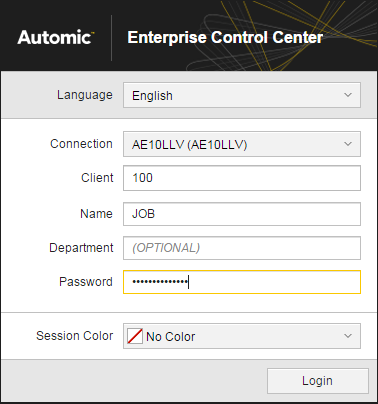
By default the AWI users have to provide the following login information when they open the AWI:
|
|
- Language
English (default), Deutsch, Français
- Connection
Depending on how the automationEngine.index parameter in configuration.properties is defined, either one or all defined connections to the backend Automation Engine are listed.
- Client
The number of the user client.
- Name
Automic user name in the user definition.
- Department (optional)
The user's department in the user definition.
- Password
If the LDAP option is selected in the user definition, this is the user's domain password, which she uses when logging into the computer at startup. Without LDAP, this is the password that is entered in the Automic user definition.
- Session Color (optional)
An accent color for the process strip at the top of the AWI browser page and for highlighted selections. When users open more than one session, having different session colors helps users distinguish which session they are in.
|
Your browser stores your login entries (except password) for your next login.
Note: You can always change the session color from the session menu in the main menu bar.
When users log into AWI, usually the login is authenticated by the Automation Engine that the instance is connected to. If single sign-on (SSO) is set up in the Automation Engine for the connection, you can enable SSO for users in AWI. Single sign-on allows users log into AWI without having to enter their user details or password because their authentication information is taken from their user profile in the Windows .
- First, make sure SSO has been configured in the connected AE system.
For information about the prerequisite AE setup, see the topic "Setting Up Single Sign-On" under "Installation Procedure" in the Automation Engine webhelp on docs.automic.com. Also, define the UC_KDC_SETTINGS as described under "Settings in Variables" in the same webhelp.
-
In your AWI instance, set the sso.enabled property to "true" in the configuration.properties.
- In each user definition, select LDAP Connection on the General > User Information page.
See User Definition: The User Information Page for information.
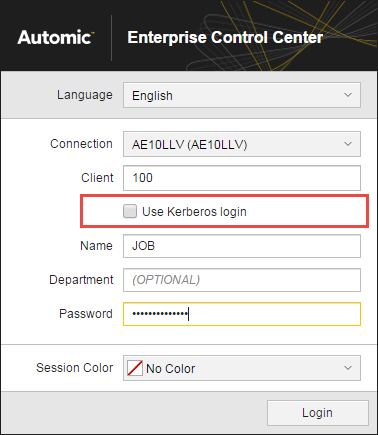
When you, or any user, logs in the first time, the login window will have an additional Use Kerberos login option.
- If you do not select this option, you will need to log in with your AE user information (Name, Department, and Password).
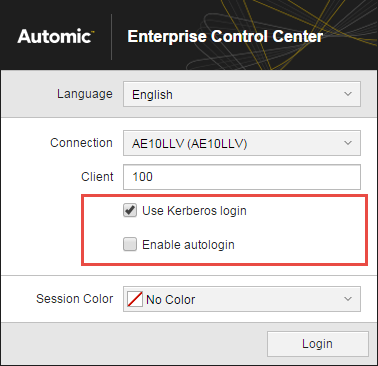
- If you select the Use Kerberos login option, then the Name, Department, and Password fields disappear, and an additional Enable autologin option appears.
|
SSO (Kerberos) Enabled
|
Kerberos Selected |
|
|
|
If you lose Kerberos connection, the login page will appear, regardless of your previous choices, and you will see the following warning message on the login page:

This can happen if you log in from a computer or server that is not in the Windows domain where Kerberos is installed or if there is a problem in the configuration or Kerberos. In the meantime, you can log in with your Automic user name and password.
Reason: When an AWI instance is set up for SSO, authentication is passed onto Kerberos. If Kerberos is not in the Windows domain, then Windows tries to authenticate with Windows NT LAN manager (NTLM) which cannot process the Kerberos authentication information. The login defaults to the standard Automic login, which is described previously in Using the Default AWI Login.
Another convenience feature is enabling parametrized login, which you do by appending the login parameters in the URL that you use to start AWI. This is helpful if you or users use several connections and/or clients. You can just bookmark the various login combinations. When you open the bookmarked URL, you have to enter only your password.
-
In your AWI instance, set the parameter_login.enabled property to "true" in the configuration.properties.
- In your AWI startup URL append the login information that you want to have already entered in the login window, so that the URL looks like this:
https://<AWI >/#&system=ConnectionName&client=9999&name=MyUserName&department=Dept
Note: If your browser is not accessing AWI over an SSL protocol, your URL will start with http://.
As an administrator, you might want to send individualized URLs to your new users.