Prepare Configuration for AE Database
Click the image to expand it.

 To Prepare the Automation Engine Database (MS SQL Server)
Please note that MS SQL Server is not supported when the Automation Engine is running on Linux. Take a look at the Automic Compatibility Matrix to know more about compatible applications, platforms & databases.
Database administration rights are necessary to perform this step.
Refer to the reference section of the AE database in order to optimize performance. See:MS SQL Server and the list of supported database versions.
Do no activate the option "autoshrink" in the database. This can occasionally cause an Automation Engine standstill.
Do not limit resource consumption. Aborting transactions due to limitations specified in the database can impede processing in the AE system. Additionally, inconsistent database contents can result, which can cause subsequent errors or endless loops.
Note that it is important to set the SQL cursor (1st digit=S) or to activate MarsConnection in the INI-file parameter for the ODBC access (SQLDRIVERCONNECT= ) in the particular component (Automation Engine, utility). Otherwise, the SQL Server database can only process one command at the time which results in the following error:
U0003590 DB error: 'SQLExecDirect', 'ERROR ', 'HY000', 'Connection is busy with results for another command'
You can maintain the AE database by using partitioning with ILM (Information Lifecycle Management). Automic recommends reading the document about maintaining the data records before you set up the database.
Disk Space Required
See also: AWA System Requirements and Sizing
|
Size required for the initial installation of an AE database |
|
|---|---|
|
Test systems: |
1 GB |
|
Production systems: |
|
|
Small systems |
5 - 20 GB |
|
Medium systems |
20 - 50 GB |
|
Large system |
more than 50 GB |
Other Requirements
Installation settings for SQL Server (to be configured on the DB computer, i.e. the computer where the database is installed):
- 64-bit client must be installed.
- 64-bit client must be installed.
- 64-bit client must be installed.
Prerequisites for ILM
You can partition your database with ILM to guarantee the optimum performance of your Automation Enginesystem. MS SQL requires additional permissions to work with ILM:
- SQL Server requires the VIEW SERVER STATE permission
- SQL Database requires the VIEW DATABASE STATE permission in the database
To set up an MS SQL database
-
Create a a new database (DB computer).
- Start SQL Server if it has not already been started (ServiceManager).
- Launch SQL Server Management Studio.
- Create a new database (right-click Databases > New Database).
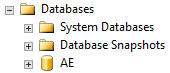
Automic recommends to name the database "AE" to better identify it at a later stage.
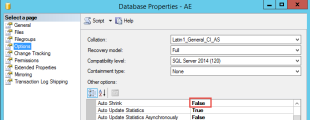
The size of the transaction log should be about 25% of the data-file size (for test systems with truncate log). To change the size go to Database Properties > Files.
Do not activate the Auto Shrink option in the database. This can occasionally cause an Automation Engine standstill.
- Create a new database (right-click Databases > New Database).
-
Create a new login (DB computer).
-
Navigate to the Security > Logins folder.
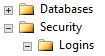
- Right-click the Logins folder and select New Login...
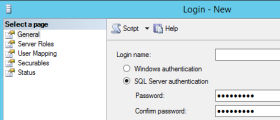
- Enter a login name.
- Select the authentication.
 Automic recommends using SQL Server Authentication.
 The database password cannot include the special characters [ ] { } ( ) , ; ? * = ! @ \. Otherwise, the components cannot access the database.
-
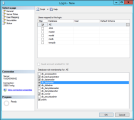
Click the User Mapping page and select the AE database.
-
Select the following roles:
- db_backupoperator
- db_datareader
- db_datawriter
- db_ddladmin
- db_owner
- public
- Click OK.
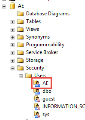
A new user is automatically created. The user is available in the Security > Users folder of the database.
-
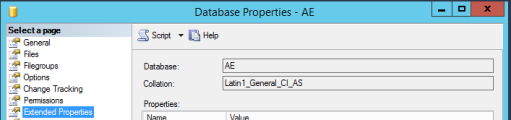
- Click the Extended Properties page and use one of the following code pages:
- "Latin1_General_CI_AS"
- "SQL_Latin1_General_CP1_CI_AS" (CP 1252)
-
Make sure the database is running with versioning. If not run:
alter database xxxx set read_committed_snapshot on
-
Click OK.
-
-
Set up the data source on the Admin computer (computer used by an administrator) for ODBC access:
Note that it is important to set the SQL cursor (1st digit=S) or to activate MarsConnection in the INI-file parameter for the ODBC access (SQLDRIVERCONNECT= ) in the particular component (Automation Engine, utility). Otherwise, the SQL Server database can only process one command at at time, which results in the following error:
U0003590 DB error: 'SQLExecDirect', 'ERROR ', 'HY000', 'Connection is busy with results for another command'-
Decide whether you want to create the data source as a User DSN (user specific) or as a System DSN (once for all users of this computer).
Automic recommends using the System DSN.
A System DSN must be set up if the Automation Engine should be run as a service on this computer.
-
Click the System DSN tab.
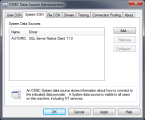
- Click Add... to add a new data source.
- Select SQL Server.
Note that the SQL native client is required in order to use the AE database with MARS. You can download it from the Microsoft homepage, if it is not yet installed on your computer.
-
Some basic settings are required in the following dialog box:
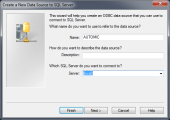
- Enter the name and description of the data source.
- Select local if the SQL Server is on the same computer, otherwise enter the name of the DB computer.
- Click Next >.
-
Select "SQL Server authentication" and enter the login ID and password in the following dialog box.
Automic recommends creating a separate database user for AE.
Do not use the user "sa" (system administrator).
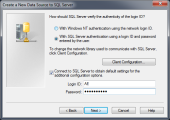
- Click Next >.
- Now select the database.
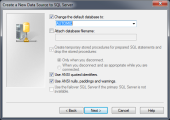
-
Select the required options in the last dialog box.
Note that the third check box "Perform translation for character data" must not be selected.
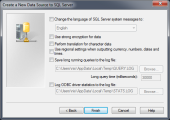
- Click Finish.
- Click TestData Source to check the configuration,
- Click OK.
Potential Problems
- 32-Bit ODBC is used instead of 64-Bit ODBC.
- The check box "Use ANSI nulls, paddings and warnings" is not activated.
-


To Prepare the Automation Engine Database (Oracle)
Database administration rights are necessary to perform this step.
Refer to the reference section of the AE database in order to optimize performance. See: Oracle and the list of supported database versions.
Modifications in database contents result in an inconsistent database.
You can maintain the AE database by using partitioning with ILM (Information Lifecycle Management). Automic recommends reading the document about maintaining the data records before you set up the database.
Disk Space Required
See also: AWA System Requirements and Sizing
|
Size required for the initial installation of an AE database |
|
|---|---|
|
Test systems: |
1 GB |
|
Production systems: |
|
|
Small systems |
5 - 20 GB |
|
Medium systems |
20 - 50 GB |
|
Large system |
more than 50 GB |
The code-page setting of the DB client must comply with the database settings.
You can choose from either of the following three code pages, whichever fits your needs best:
WE8ISO8859P1, WE8ISO8859P15 and WE8MSWIN1252.
Which one you choose depends on the characters you need to store in the database. Therefore, ensure that the character set defined in XML_ENCODING in the variable UC_SYSTEM_SETTINGS corresponds to the character set of the database.
WE8ISO8859P15 seems the better choice as WE8ISO8859P1 does not support the Euro sign (€),
WE8MSWIN1252 supports the Euro sign plus several additional characters. Automic recommends using this code page if you are newly setting up your database.
For further details, see also ORACLE's support document no. 264294.1.
It is not necessary to convert your database to a new character set f you have your database already set up using WE8ISO8859P1 and you do not need any of the additional characters.
When using 8-bit character sets you can use the same code set for the database and the database client. In this case there is no data conversion. However, the user interface, the server and the utilities also need to be compatible with the 8-bit character set.
You can query your database settings with the following command:
SELECT * FROM NLS_DATABASE_PARAMETERS
Specifying your code-page setting:
On Windows:
Set HKEY_LOCAL_MACHINE\SOFTWARE\ORACLE\...\NLS_LANG in the registry according to your database setting.
On UNIX:
You can set the environment variable NLS_LANG as shown below:
NLS_LANG =<NLS_LANGUAGE>_<NLS_TERRITORY>.<CHARACTER SET>;export NLS_LANG
For example:
NLS_LANG=AMERICAN_AMERICA.WE8ISO8859P15;export NLS_LANG
You can also define the code-page settings in the INI files of the relevant components ( [ODBC] section).
Oracle UTF-8 and the Automation Engine
-
The Automation Engine uses ANSI/ASCII. The DB client needs to be configured properly using a 8-bit character set; otherwise, data cannot be converted correctly.
The user interface uses UTF-8 and converts data to ANSI/ASCII according to the specified code page before it is transported to the Server (see key XML_ENCODING in the variable UC_SYSTEM_SETTINGS). Only use other character sets in close cooperation with Automic Support.
If you need your database to operate in UTF-8 you need to ensure that the data is converted correctly, otherwise the database will not work properly. Therefore, it is imperative that the code pages of the DB client and the user interface correspond to each other. In the connect string, set the third digit to "1" so that the string data is not checked (otherwise the Automation Engine cannot boot). In the log files, you can see the characters that Oracle has converted to ?, which are therefore not available.
- The following requirements are critical:
- If the database needs to be set with UTF-8 define NLS_LENGTH_SEMANTICS = CHAR.
- The database client must use a 8-bit character set (WE8ISO8859P15 or similar) and you need to define NLS_LENGTH_SEMANTICS = CHAR.
- In the variable UC_SYSTEM_SETTINGS, key XML_ENCODING, specify the same code page as is used by the database client.
- In the INI-file parameter SQLDRIVERCONNECT= (section [ODBC], use the same settings for the Automation Engine and the utilities, also with the same character set).
General Installation Requirements
Hardware/Infrastructure
- Automic recommends using an external disk subsystem with a connection via Fibre Channel for the data files. Under no circumstances should local disks with software RAID be used, as this could negatively affect the performance of the database and thereby that of the entire AE system.
- Latency periods should not be too long when the AutomationEngine (server) accesses the database (ping response with 8 K packet size < 1 ms). The same requirement applies when using RAC or Data Guard for the communication between database nodes.
- The database server must have sufficient RAM and a suitable swap area on the local disk.
- o < 2 GB => SWAP = RAM;
- o > 2 GB => SWAP = RAM x 0.75
- o No swap-in (SI) may take place.
- The database system(s) must have enough CPUs appropriate to the load. The run queue length of the available processors under high load can serve as a guideline here. If the run queue is frequently longer than 1, you may need to employ more CPUs.
- RUN QUEUE LENGTH <= COUNT of CORES
- The number of active components such as routers, switches or firewalls on the path between the AutomationEngine and the database should be minimized so as not to slow down access and to avoid single points of failure.
On the Database computer
A 64-bit client must be installed.
- Install the appropriate ORACLE client software on the Automation Engine computer in order to enable access to the database.
- Enter the database name in the file TNSNAMES.ORA.
- Change the block size to 8192 bytes when you install the database, and use your preferred character set as described dabove.
- Install the package DBMS_LOB.
The ORACLE-client version must correspond to the ORACLE version in use.
Prerequisites for ILM
You can partition your database with ILM to guarantee the optimum performance of your Automation Engine system. Oracle requires the permission on USER_OBJECTS to work with ILM.
Oracle RAC
- In the file INIT.ORA, set the parameter _lm_dd_interval to <= 10 seconds. You can also use the value "0" to identify deadlocks earlier.
- You require a database User ID for the Automation Engine with sufficient rights.
- All Automation Engine processes must only connect to one node. Use Oracle services to make sure only one node is taken and service is only available on one node at a time.
- Automation Engine supports Oracle RAC in an Automation Engine active/active configuration, but will only work with one node. Oracle services must be used and setup so that only one node is used.
- The Automation Engine has a built in software cluster; therefore putting the Automation Engine on multiple boxes for high availability (HA) requires no additional manual steps.
- DATA GUARD is not HA, so it does require manual steps. Depending on the mode that is used, you may experience a performance decrease (SYNC commit,…).
To Set Up an Oracle Database
1. Define Tablespaces (DB computer)
- Automic recommends facilitating unlimited extents (MAXEXTENTS) instead of limiting them.
- Tablespace sizes can be adjusted individually (minimum 1 GB UC4_DATA, 500 MB UC4_INDEX for a test environment).
- Tablespace administration by ASSM (Automatic Segment Space Management): SEGEMENT_SPACE_MANAGEMENT=AUTO.
- Log on to the ORACLE database using a user ID that has DBA rights, and define the tablespaces:
CREATE TABLESPACE UC4_DATA
DATAFILE 'Path to uc4_data.ora'
SIZE 1024M
AUTOEXTEND ON NEXT 1024M MAXSIZE 2048M
DEFAULT STORAGE (INITIAL 512K NEXT 2048K MAXEXTENTS UNLIMITED);
CREATE TABLESPACE UC4_INDEX
DATAFILE 'Path to uc4_index.ora'
SIZE 512M
AUTOEXTEND ON NEXT 512M MAXSIZE 1024M
DEFAULT STORAGE (INITIAL 512K NEXT 512K MAXEXTENTS UNLIMITED);
Changing the name of the tablespaces (UC4_DATA or UC4_INDEX) requires the names to be changed also in the installation file UC_DDL.SQL and the database table UC_DBSYN. The same applies for every AE update.
Automic strongly recommends using the tablespaces UC4_INDEX and UC4_DATA only, as otherwise you would have to manually adjust all SQL files during the upgrade process.
2. Create a Database User (DB computer)
It is recommended to create an additional database user for AE. This user must have the required privileges.
3. Change the Storage Parameters for Large Tables (DB computer)
- Increase the initial values as required for productive environments and large tables. This applies to the following tables:
- To increase the values, you need to change the installation file UC_DDL.SQL for the following tables:
INI, MELD, ODOC, OT, AH, AJPP, AJPPA, RH and RT.
CREATE TABLE MELD (
MELD_Idnr INTEGER NOT NULL,
MELD_USR_Idnr INTEGER NOT NULL,
MELD_Seen SMALLINT NULL,
MELD_TimeStamp DATE NULL,
MELD_MsgNr INTEGER NULL,
MELD_MsgInsert VARCHAR2 (255) NULL,
MELD_DeleteFlag SMALLINT NULL,
MELD_Client SMALLINT NULL,
MELD_Source INTEGER NULL,
MELD_Category INTEGER NULL,
MELD_Type INTEGER NULL,
MELD_Host VARCHAR2 (200) NULL,
MELD_ArchiveFlag SMALLINT NULL,
CONSTRAINT PK_MELD PRIMARY KEY
(
MELD_Idnr
) USING INDEX TABLESPACE UC4_INDEX
) TABLESPACE UC4_DATA
STORAGE (INITIAL 51200K NEXT 7168K MAXEXTENTS UNLIMITED);
4. Define the Rollback Segment
(DB computer)
Automic recommends defining a large roll-back segment for the Automation Engine. The size should be 10-25% of the Automation Engine data.
Scenarios
The Automation Engine is not fully RAC enabled, as it only benefits from the increased availability of an RAC system. Its performance, however, does not improve by using RAC technology. On the contrary, you need to make sure that your system only communicates with one node of the RAC system in order to minimize data traffic through the Cluster Interconnect and administrative workload. In doing so, you also reduce the likelihood of deadlocks that might occur in the database because of database nodes that try to access the database concurrently.
Within an RAC node, Oracle generally uses row-level locking. However, block-level transfer and resource locking is used between the RAC nodes.To make sure that the AE is always only connected to one node, Automic recommends using Cluster Managed Services. You need to configure them in a way that the service only runs on one node and that the cluster software moves it to the second node if required.
Example for setting up a cluster service:
srvctl add service –d <DB NAME> -s <SERVICE NAME> -r <Node 1> -a <Node 2>
srvctl start service –d <DB NAME> -s <SERVICE NAME>
Similarly, in TNSNAMES.ORA under CONNECT_DATA=(SERVICE-NAME=<SERVICENAME<) the service name created with srvctl must be used.
Make sure that the following database parameters are set when you are using an RAC system with the AE:
- INIT.ORA
active_instance_count = 1
This parameter is only relevant if an RAC system with exactly two nodes is used and ensures that all database sessions are always only connected at one node. It is not required if Cluster Managed Services are being used. - TNSNAMES.ORA
LOAD_BALANCE=ON (valid for the database client)
The effect is that the CONNECT load is tequally distributed across all listeners in the RAC.
_lm_dd_interval <= 10
This parameter determines the interval for the recognition or removal of deadlocks in the database.
Filesystemio_options = SETALL
This parameter ensures that the database instance uses both ASYNC I/O and DIRECTIO. This enables you to achieve the optimal level of performance at a sensible buffer cache size.
local_listener
This parameter ensures that the database instance registers with the local listener.
remote_listener – only in RAC
This parameter ensures that the database instance registers with the other listener in the RAC.
FAILOVER=ON (valid for the database client)
This parameter ensures that a failover of the database sessions takes place when the primary RAC node is no longer available.
Example of a corresponding tnsnames.ora for RAC entry:
UC4P =
(DESCRIPTION =
(ENABLE=BROKEN)
(ADDRESS = (PROTOCOL = TCP)(HOST = knoten1-VIP)(PORT = 1521))
(ADDRESS = (PROTOCOL = TCP)(HOST = knoten2-VIP)(PORT = 1521))
(LOAD_BALANCE = on
(FAILOVER = on)
(CONNECT_DATA =
(SERVER = DEDICATED)
(SERVICE_NAME = UC4P) ### Cluster Managed Service Name
)
)

The characteristics of Oracle Data Guard configuration that are relevant for use with the AE are described below. The configuration that you will use depends on the available infrastructure and your requirements.
Configuration 1 (Maximum Protection - Guaranteed Protection Mode)
The primary database will only register a transaction as committed when this transaction was also committed to at least one standby database. If the transaction could not be committed to a standby database, the primary database stops.
The advantage of this configuration is that production can continue immediately after a short manual intervention when the primary database has failed. Check whether the standby database was synchronized with the primary database at the time it failed. If so, you can activate the standby database and continue.
Maximum Protection - Stops the primary database when the last standby database is no longer available:

Configuration 2 (Maximum Availability - Instant/Rapid Protection Mode)
This configuration ensures that the standby database(s) is/are synchronized in a timely manner. However, the primary database starts processing the next transaction even it has not yet been confirmed that the previous transaction was also committed to at least one standby database. Therefore, the primary database does not stop when no standby database is available anymore. Changes made in the primary database are automatically updated in the standby database as soon as it is available again. In this configuration, you must always check manually whether the standby database was synchronized with the primary database at the time of failure.
Maximum Availability - Switching to delayed mode is possible when the standby database is not available:

Configuration 3 (Maximum Performance)
In this configuration, changes will only be transferred to the standby database when the online redo log is changed. Therefore, you cannot expect that the standby database includes up-to-date data when the primary database fails. You always need to manually check all the AE activities that have taken place since the log has been changed the last time.
Maximum Performance - Changes are propagated when the online log is filled:

Comparison of Data Guard Configurations
As a general rule, all the configurations require the same quantity of user data to be transferred between primary and standby databases. The required workload when the primary database fails is always different. The lower the workload during a failure, the higher the load in the form of longer response times during day-to-day operation.
For the reasons mentioned above, it must be calculated for each case how the demand on availability can be realized with the infrastructure that is currently available.
| Data Guard Mode | Failover Effort | Demands on Infrastructure | Performance |
|---|---|---|---|
| Maximum protection |
Medium
|
High | Behaves similarly towards the AE as in a single instance but the demands on database hardware and infrastructure (network) are considerably higher. |
| Maximum availability |
Low
|
Very high | Only suitable for systems with low throughput |
| Maximum performance |
Low
|
Very high | Only suitable for systems with low throughput |
The illustration shown below demonstrates the connection between performance and availability of the Data Guard configurations compared to a single instance (without hardware cluster). For a single instance, the availability is always minimal compared to a Data Guard solution. However, performance is almost not affected. On the contrary, for Data Guard in maximum availability mode, the availability is very high but the negative effect on performance is also at the maximum level. When you intend to install AE Data Guard ,Automic recommends focusing on your available infrastructure in order to ensure that you won't have to deal with performance bottlenecks.

Preparation Steps Progress
Next steps:
Configuring the ARA Database Server
Security Setup for Super Users
Previous steps: