Attributes Page
The Attributes page is object-specific and only available for Workflow objects.
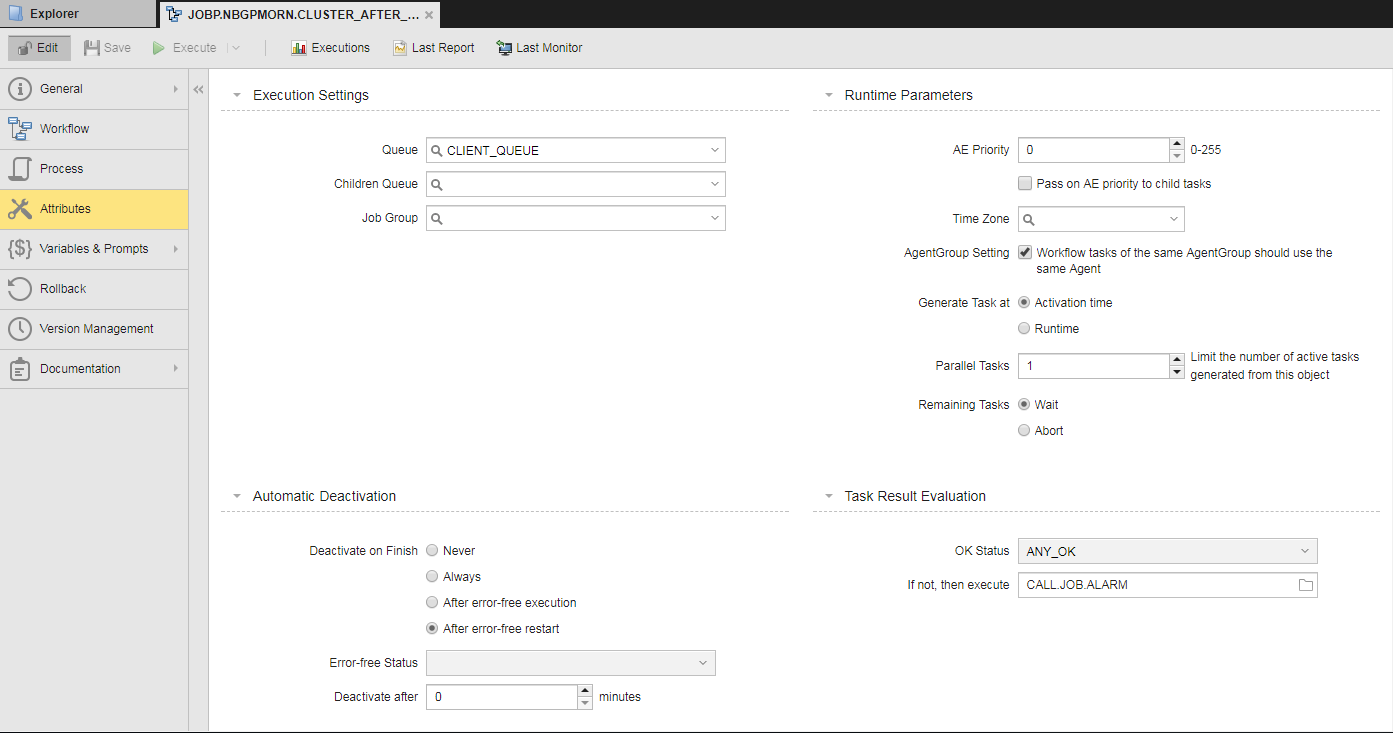
Execution Settings Section
| Option Name | Description |
|---|---|
| Queue |
Queue in which the object is going to be executed. If you do not select a queue here, the object starts in the In the Agent and Queue fields, it is not possible to use { } expressions combined with script-variables like {VARIABLE.STATIC,&SCRIPTVAR#,1}. It is possible to use either { } expressions or script-variables, but only the combination is not valid. A possible workaround is to use GET_ATT and :PUT_ATT in statements in pre-process scripts. |
| Children Queue |
Queue in which the object is going to be executed. For all three job types, the queue of the subordinate tasks is replaced by the value specified here when the group is processed. If no value is specified, the queue defined for the parent task is used. If you specify *OWN here, also the queue defined for the parent task is used. |
| Job Group |
If you want to include this object in a Job Group (JOBG), select the group from this drop-down list. If nothing is specified here, the object is activated immediately. This option is ignored if the object is started by a workflow (JOBP), a schedule (JSCH) or a recurring task. |
Runtime Parameters Section
| Option Name | Description |
|---|---|
| AE Priority |
Objects are processed in queues based on their priority. A Client variable that can be set by administrator users defines the default priority for tasks within in a Client ( Here you specify the priority you assign to this object, which overrides the default set by your administrator in the Client variable.
If no default priority is specified, or if the variable is not available in the Client, the priority is 200. See also Automation Engine Priority and UC_CLIENT_SETTINGS - Various Client Settings. |
| Pass on AE priority to child tasks |
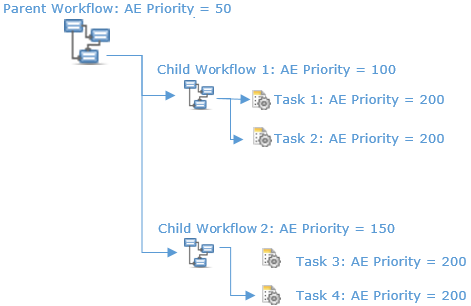
If you activate this checkbox, the priority assigned to the tasks included in a workflow is ignored. They inherit the priority defined for the workflow instead. The same applies to child workflows; they inherit the priority defined in the parent workflow. This function gives you the chance to control when tasks and child workflows are processed and, if so desired, avoid that they run in parallel. Example: You have designed a workflow that contains two children workflows, each with two tasks:
If you leave this checkbox deactivated, although the workflows have different priorities, the tasks will be processed with the same priority, probably in parallel, considering the available resources only. If you activate this checkbox for the children workflows (Child Workflow 1 and 2) but NOT for the parent workflow, their tasks will inherit the respective priorities. Therefore, Task 1 and 2 will be processed before Task 3 and 4. If you activate this checkbox for the parent workflow, all of them will inherit priority 50 and will be processed with the same priority again. |
| Time Zone |
You can select a time zone ( Time Zone Object (TZ)) here. This will be applied to runtime calculations, see Runtime Page.
|
|
AgentGroup Setting Assign same Agent |
Activate this option if workflow tasks that use the same agent group should also use the same agents. For details on how the agent is determined see Setting the Agent Group for Workflows. If this option is not activated, the system determines an arbitrary agent in the group and enters it in the task. |
| Generate Job at |
The activation and the start time of an object can be different, for example when an object is executed by a workflow in which an earliest start time has been defined. With this setting you define when the script is processed. This setting also affects the way the system decides which agent in an agent group will process the task.
See 2. Generation for details of what happens when selecting the one or the other option. |
| Max. Parallel Tasks |
You can define how many tasks can be processed simultaneously. You will have to consider this when you assign single objects to a group and decide whether they should be executed simultaneously or not. If you are defining this attribute for a Job Group, this field refers to the number of jobs that can be executed simultaneously within the group. The default is Unlimited, the allowed values are 0 to 999 (for Jobs within a Job Group) or 99999 for all other object types. Note: Changes to these settings are active only after the first generation and do not apply to Jobs that are already running. Remaining Task: If you enter a value in Maximum ExecutionsAllow <x> simultaneous executions, two additional options are displayed where you can define what happens with the tasks exceeding this limit:
|
Automatic Deactivation Section
This section is available for workflows (JOBP), notifications (CALL), events (EVNT), file transfers (JOBF) and job objects (JOBS).
Large installations may have an enormous amount of tasks. If you keep many active tasks in your system, performance might be negatively impacted and troubleshooting in case of errors becomes virtually impossible. To avoid this situation you can specify here when a task should be deactivated automatically; deactivated tasks are not displayed on any lists.
The Always option is selected by default, which means that tasks are deactivated and removed from the User Interface as soon as their execution is finished.
When changing this option take into account that the deactivation settings in a workflow overrule the object settings, no matter if it is a parent or a child task.
| Option Name | Description |
|---|---|
| Never | The task remains active after it has finished successfully. They are available on the Tasks window as long as you do not remove them. |
| Always |
The task is always deactivated after its execution. It is available on the Tasks window as long as it is active; once finished, it is removed from it. You can still access it from the Process Monitoring perspective if you filter the list of tasks to be displayed activating the Include deactivate tasks checkbox. |
| After error-free execution |
The task is only deactivated if it has been executed without errors and its successful status is confirmed. If no status is selected, the system return codes 1900 to 1999 ( Workflows: An interrupted workflow including its tasks remain the Tasks window. To deactivate and remove them from the list. |
| After error-free restart | The task is automatically deactivated after a successful restart. |
| Deactivate after <X> minutes |
You can define a time span in minutes after which the task is automatically deactivated. You can still deactivate the object manually within the given time span. The default value is 0. This means that the value that the system administrator has defined in the |
Considerations for Workflows (JOBP)
The automatic deactivation settings apply to the tasks that run in the workflows. Also, the settings define in parent workflows do not override the settings in sub-workflows; if the parent has been deactivated, whether manually or automatically, all its children are also deactivated and, therefore, removed from the Tasks window.
Task Result Evaluation Section
| Option Name | Description |
|---|---|
| OK Status |
Selection field for the end status that is expected for the subordinated tasks. |
| If not, then execute |
Optionally browse to an executable object to run if the status in the OK Status field is not returned. |