Conditions are a powerful tool for controlling task execution.
Conditions control the execution of jobs, process flows, or process flow components. Conditions can be evaluated before, during, and after a task executes, or after a task is deleted. You can add, update, or delete conditions for the particular running of a task from the Backlog.
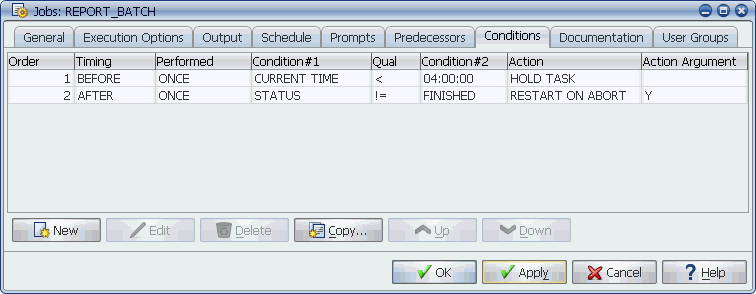
Conditions are a powerful tool for controlling the execution of tasks. A job with two conditions is shown below.
Conditions are a powerful tool for controlling task execution.
Using conditions, you can do such things as:
Conditions can apply to jobs, process flows, or process flow components. By adding conditions to process flow components, you can use a job differently in several process flows, or even the same process flow. You can also add, edit, or delete conditions for non-running tasks in the Backlog. When you do this, the changes are particular only to that running of the task.
Applications Manager can evaluate the conditions assigned to a job before, during, and after the job executes, and after a job is deleted, depending on the timing in the condition's definition. Conditions are not evaluated until the job is submitted and displayed in the Backlog. This includes conditions that are evaluated before a job executes. This means all components in a process flow are displayed in the Backlog regardless of the conditions assigned to them.
When a test defined in a condition is met, Applications Manager takes the action defined by the condition. Applications Manager includes a number of actions. If you want to take more than one action based on an event, you create multiple conditions, each with the same test but different actions.
Several example conditions are included at the conclusion of this chapter. For more information, see Using Conditions to Accomplish Common Tasks.
Using Your Corporate Database to Control Operations
One of the more powerful features of Applications Manager is the ability to control operations based on the content of your corporate database. By using dynamic substitution variables in conditions, you can make decisions based on such data as:
For information on including substitution variables in conditions, see Adding Subvars and Replacement Values to Applications Manager Objects.
Using Job/Process Flow Conditions for Process Flow Components
You can use the conditions defined for jobs or process flows when adding them to a process flow. To do this, select the Use Job Conditions option for the process flow components. For more information, see Setting Execution Options.
Bad Conditions
If Applications Manager evaluates a bad condition (for example a condition with a bad SQL statement), it will ignore the condition and report it to the automation engine's log file. The job's status will be set to BAD CONDITN.
Copying Condition Information from Tables
To copy condition text from a table in an Applications Manager window, click one or more rows and enter CTRL+C. You must select the entire row. You can then paste the text into an email, word processor, etc.