Defining AI Jobs
This documentation uses terms and concepts that are common in the generative AI ecosystem. For definitions of terms such as LLM, MCP Server, and tools, see Key Concepts: AI Integration in Automic Automation.
Automic Automation provides two main options for integrating AI into your processes: the ASK_AI script function and the AI Job. Both automate tasks that previously required human decision-making, summarize complex information, and trigger follow-up actions. The AI Job offers an intuitive, object‑oriented, no‑code approach. AI Jobs act as advanced interfaces between Workflows and the Automation.AI component, the AI-platform-agnostic service that connects Automic Automation to the LLM backends over REST.
When you define an AI Job, you provide the User Prompt (the task) and, optionally, the System Prompt (persona or rules) in natural language. You can use script variables in both prompts. At runtime, the AI Job sends the prompts and any selected tools to the model specified in the assigned AI Connection object. The model response is written to the Job report and can also be stored in variables for downstream use, for example with the :PSET statement.
You can explore a detailed end-to-end example of these capabilities in action here:
-
Use Case: AI-Powered Incident Analysis and Resolution with Automic Automation
-
Watch the Video: AI-Powered Incident Analysis and Resolution
Important! You need the Enable the Automation Assistant privilege to be able to execute AI Jobs.
Technical Details of AI Jobs
AI Jobs communicate with the AI service (the Automation.AI component) using REST APIs. They can dynamically source data from both external and internal repositories, including those configured for Retrieval-Augmented Generation (RAG), which improves the relevance and accuracy of responses.
Beyond basic execution, AI Jobs support the AE scripting language and variable handling to ensure seamless integration with existing Workflows:
-
Scripting Support
You can use GET_ATT and :PUT_ATT to modify Job attributes (such as the prompt) dynamically during the Pre-Process.
-
Post Processing
The response variable can be analyzed in the Post-Process page.
-
Error Handling
If the Automation.AI component is not configured or unreachable, the Job ends and an error message is logged.
-
AI Jobs are executed on the JWP.
Defining AI Jobs
This section explains how to define AI Jobs in AWI. You can also use the Automation Engine REST API to create, read, update and delete AI objects. Click here to open the Automation Engine REST API documentation..
An AI Job definition consists of several pages:
- Standard pages, available for all object types:
- Additional pages that are always available for executable objects:
- The AI and AI Prompt pages for Job-specific attributes.
Prerequisites
For AI Jobs to execute successfully:
-
The Automation.AI component must be configured so that it can provide the list of available LLMs and MCP servers.
-
An AI Connection object must be available and configured. It connects the AI Job to the LLM and the MCP server(s) that are available. You must assign an AI Connection object to the AI Job.
To Define an AI Job
-
On the AI page, you link the Job to the AI stack and select the capabilities required for the task.
-
In Connection select the AI Connection object that grants access to the Large Language Models (LLMs), Model Context Protocol (MCP) Servers and tools as specified in the AI Connection object definition. For more information, see Defining AI Connection Objects.
-
The Tools list displays all the MCPs and tools exposed by the selected AI Connection object. You can refine the behavior of the AI Job by enabling or disabling specific MCPs and tools.
-
Unlike other Jobs, AI Jobs do not use an Agent and therefore do not have a target system for storing the Job report. For this reason, the Job report for AI Jobs is always stored in the database. For general information about Job reports, see Job Reports.
-
-
On the AI Prompt page, you define what the AI Job should do and how it should behave in conversations.
-
Configure the prompts using natural, conversational language.
-
In User Prompt enter the specific task that this Job should execute.
-
Optionally, in System Prompt define the persona or context for the AI.
Important! Script variables are supported in both prompts. For more information, see Script Variables.
Example 1 - Intelligent Error Handling (Self-Healing)
Goal: Determine if a failed Job should be restarted or if it requires human intervention.
-
System prompt
You are a senior Site Reliability Engineer.
-
User prompt
The database backup Job &JOB_NAME# just failed with return code &RET_CODE#. Based on the attached error log excerpt: &ERR_LOG#, should we attempt an immediate restart? If yes, respond with 'RESTART'. If the error suggests a disk space or permission issue, respond with 'MANUAL' and provide a brief summary.
Example 2 - Data Summarization & Reporting
Goal: Turn a messy CSV or log file into a clean executive summary.
-
System prompt
You are a data analyst specializing in infrastructure performance.
-
User prompt
Analyze the attached CSV data containing system metrics from the last 24 hours (&CSV_DATA#). Identify the top three peaks in CPU usage and correlate them with any scheduled tasks listed in the &SCHEDULE_NAME#. Format the output as a Markdown table.
Example 3 - Dynamic Script Generation
Goal: Use the AI to write a specific CLI command based on environmental context.
-
System prompt
You are a PowerShell and Bash expert.
-
User prompt
I need to move all files from &SOURCE_DIR# to &TARGET_DIR#, but only if they were modified in the last 48 hours and exceed 100MB. The target OS is &OS_TYPE#. Provide only the single-line command to execute this, using the variables provided. Do not include any conversational text.
-
-
In Conversation Settings, you define how the AI Job participates in a conversation. A conversation is a Workflow‑level interaction that links multiple AI Jobs through a shared conversation ID.
In Treat as, determine how the Job handles the conversation history:
-
Select Standalone request to send an isolated request to the LLM, without maintaining context for later Jobs. The output of this request cannot be referenced anywhere.
-
Select Start of a new conversation if you want the Job to start a new conversation with the LLM. Choose this to be able to reuse the output of this request in subsequent Jobs and share the context with them.
Each interaction with the LLM has a unique ID, the conversation ID. To be able to keep the context of this new conversation, you must store the conversation ID in an object variable. This is why, when you select this option, the Save Conversation ID as Variable field is displayed. Enter the name of the object variable that stores the conversation ID here, for example CONV_ID#.
Important!
-
This variable is local to the AI Job and not visible to other objects. It cannot be passed on to other objects. To share it, you must explicitly publish it as described under Keeping the Context in Workflows.
-
Since this is the start of a conversation, this variable is an output variable, that is, its resolved value is passed on to subsequent objects. The name of output variables MUST NOT start with a leading ampersand (&). This is because the ampersand is used to reference a variable's value, not to define the value itself. In the context of Automic Automation, the leading ampersand in variable names is not a standard convention. It's used to access the value of a variable, not when the variable is being created or assigned a value as an output.
-
-
Select Continuation of an existing conversation if the Job should build on prior context.
The Read Conversation ID from Variable field becomes available. Here you must enter the published variable that contains the conversation ID. See Keeping the Context in Workflows.
Since this is the continuation of a conversation, this is an input variable, that is, its resolved value is taken over from a previous object. The name of input variables MUST start with a leading ampersand (&).
-
-
You can store the LLM's response to the prompt in a variable. In AI Output: Save as AI Response as Variable enter the variable name should contain the generated answer. You can reuse this variable in subsequent Jobs, for example through :PSET in Post Process pages.
Examples of AI Jobs
SAP Job Root Cause Analysis
AI Jobs can automate the diagnosis and resolution of SAP Job failures.
-
Configuration
An AI Connection object uses GPT-4o and the Automic MCP Server. The AI Job includes tools like listExecutions and executeObject. The System Prompt defines it as a root cause analysis assistant (You're a root cause analysis assistant for SAP Jobs...), and the User Prompt asks Why did the JOB SAP.ABAP.INVOICE fail today?
-
Outcome
The AI Job returns the conversation ID and a response indicating the execution of a remediation Workflow, such as I have executed the RCA.SAP.JOBP Workflow, stored in a variable.
CSV Data Processing and Summarization
AI Jobs can intelligently process and summarize data within files.
-
Configuration
An AI Connection object utilizes Gemini and the csv-editor-mcp. The User Prompt instructs the AI to Filter for all strategic accounts in this csv file {data} and save it as a new file called {query} in the same folder as the original file with specific file paths for data and query variables. On the Post-Process page, the ASK_AI script function can be used with the conversation ID to ask follow-up questions, like Summarize how many RFEs have been submitted for each account in RFE Dashboard_Automic_strategic.csv.
-
Outcome
The job returns a conversation ID, the confirmation of the new file creation, and the summary from the post-process question is included in the report
See also:
-
Keeping the Context in Workflows
When using AI Jobs in Workflows, it is important to control how conversation context flows between Jobs. Each AI Job receives a conversation ID at runtime, but that ID is Job‑local unless you explicitly publish it. To reuse the same conversation ID in subsequent AI Jobs, you must define and propagate it at Workflow level.
Example with two AI Jobs in a Workflow: AI_JOB_1 and AI_JOB_2.
-
Configure AI_JOB_1 as the start of the conversation:
-
On the AI Prompt page, set Treat as to Start of a new conversation.
-
In Save Conversation ID as Variable specify a local object variable such as Conv_ID#. This variable is only available inside AI_JOB_1.
-
-
Make the conversation ID available to the Workflow and other Jobs. You have two options:
-
Using Post Process with :PSET in AI_JOB_1.
In the Post Process page of AI_JOB_1, use the :PSET statement to publish the local variable to a Workflow-level variable:
:PSET &Conv_ID_Workflow# = &Conv_ID#
Here, &Conv_ID_Workflow# is a new variable that will be available at the Workflow level that holds the value of the local variable &Conv_ID#.
-
Using Workflow Variables
Define &Conv_ID_Workflow# on the Workflow Variables page and assign it the value of the local variable from AI_JOB_1 (Conv_ID#).
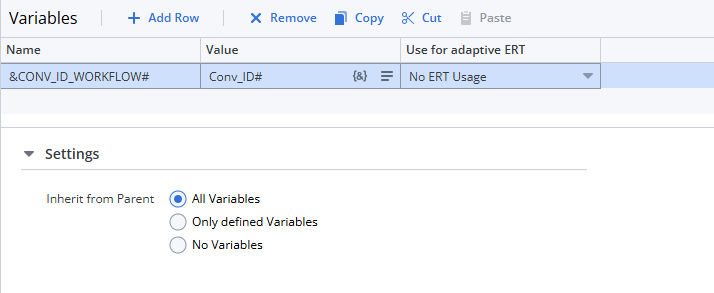
Ensure that Inherit from Parent: All variables is selected.
-
-
Configure AI_JOB_2 to the conversation:
-
On the AI Prompt page, set Treat as to Continuation of an existing conversation.
-
In Read Conversation ID from Variable, enter &Conv_ID_Workflow#. This allows AI_JOB_2 to use the same conversation context as AI_JOB_1.
-
Analyzing the Last Execution of a Job with Gen AI
As a developer and object designer, after configuring an executable object, you execute it to make sure that it behaves as you expect. Every time that you execute the object, a runID is generated that identifies that execution. If the execution fails or if the outcome is not what you expect, you use the reports and Executions lists to investigate the reasons for the failure. Automic Automation's Gen AI simplifies this process substantially. You can open the Automation AI Assistant as follows:
-
From the Explorer list in the Process Assembly perspective, right-click the object and select Monitoring > Analyze Last Execution.
-
On the object-specific definition page, click the Analyze Last Execution button.
Automic Automation's Gen AI crawls all the reports and logs available for the last execution of the object, it summarizes what happened, analyzes the automation outcome and provides suggestions to solve any existing or potential issues. It also provides a link to the execution itself in the list of Executions (Process Monitoring) and to the report. You can start a conversation in the Ask Automation AI Assistant field at the bottom of the pane.
For more information, see Analyzing with the Automation Assistant.
See also: