


How the Banner Agent Integration Works
The images below show how job capture and job submission work in Banner.
When a job is submitted via the Automation Engine, it includes parameters and calls UC4gjajobs.shl which processes the job just as a Banner client submission would.
When a job is submitted via Banner and job capture is enabled it calls the job capture script which determines whether the job should be captured. If the job should be captured, a job is submitted to the Automation Engine scheduler. When that job is run by the agent, it calls UC4gjajobs.shl just as an Automation Engine Banner submission would.
By default, Automation Engine initiated programs that exit with non-0 exit codes cause their Automation Engine tasks to fail. To change this behavior so the Automation Engine tasks do not fail, add a noErrorExit=true line in the environment source file used by the task.
| To set the environment source file for: | Specify a file location: |
|---|---|
|
All tasks that run on an agent |
In the Environment Source File field in the agent definition. |
|
Individual job definitions |
In the Source File Override field in a job’s definition. |
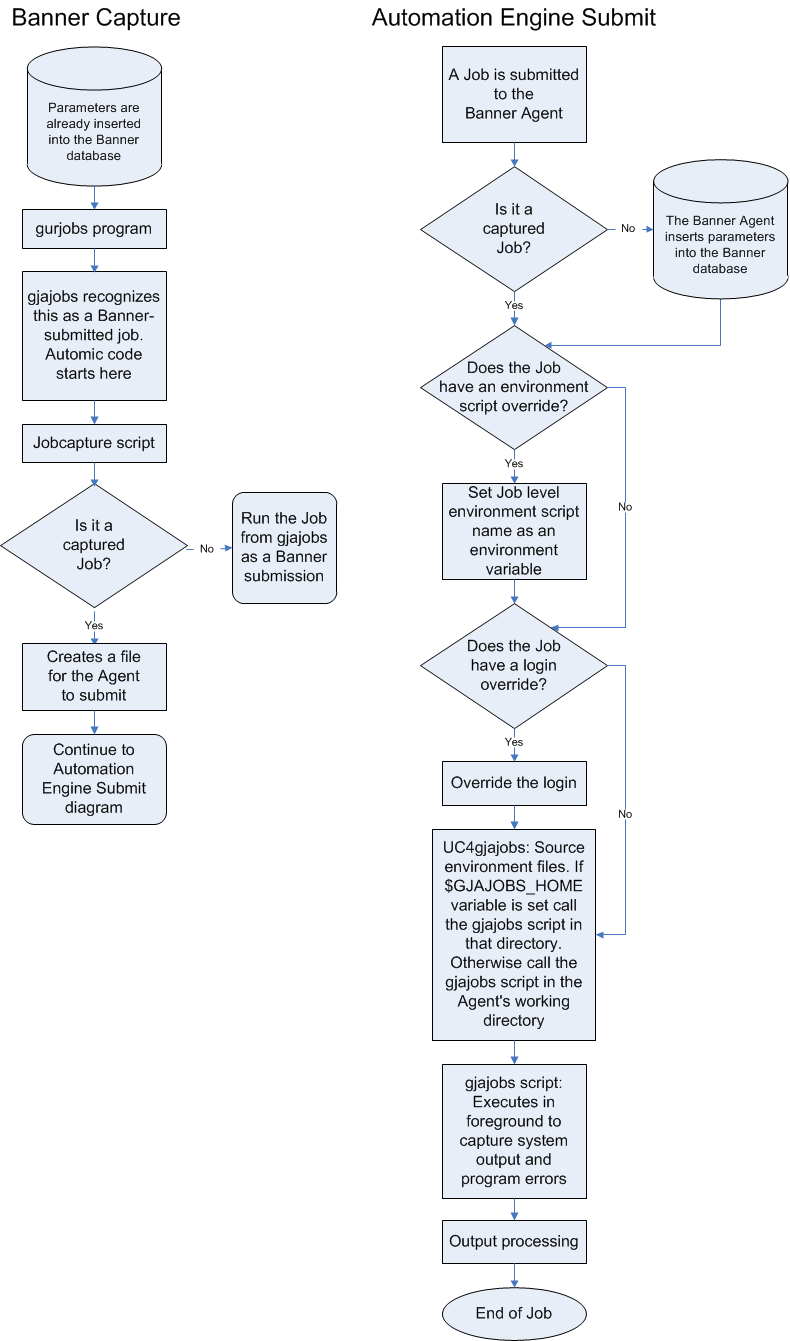
How Job Capture Works
Job capture works by:
- A request is made from the Banner client calling gjajobs.
- With the Banner agent solution configured, gjajobs is modified to call <workDir>/capture/jobcapture.
- Automation Engine v9/10 trace, see topic Setting RA Trace for Automation Engine v9/v10.
- Applications Manager debug, see topic Setting Debug in Applications Manager v8.0.
- The jobcapture.groovy script reads parameters from the parameter file created by the agent.
- The jobcapture.groovy checks whether capture is enabled:
- If not exit 1, then gjajobs will run the program.
- If capture is enabled check the match.lst file to see if there is an exact job match for capture:
- If no exact match is found grep matchi.lst for wildcard includes.
- Check matche.lst to see if job should be excluded.
- If it’s a captured job, jobcapture.groovy creates a .tmp file with the job parameters and the password encrypted unless noEncrypt=true is set. Setting the variable noEncrypt=true in the Banner environment script disables the encryption of the password which allows for less security but slightly greater performance.
- If the agent is stopped, see the How the Agent Processes Captured Jobs section below.
- Loop for <timeout> seconds waiting for .tmp file to get renamed.
- If it is not renamed in <timeout> seconds, then go to How Agent Down Processing Works section below.
- The agent processes the .tmp file and renames it to .fin. Once the captured job has been submitted to the Automation Engine (see the How the Agent Processes Captured Jobs section below).
- The jobcapture.groovy will delete the .fin file and exit with a 0 return code.
If a task is an Automation Engin submit, and trace/debug is on, you will see the following line:
UC4 submit
Otherwise it will call the jobcapture.groovy and show that output.
For information on setting:
How Agent Down Processing Works
If noCaptureWhenDown = true exit 3. In this case run the job immediately.
Else exit 0 (agent will process the .tmp file when agent capture resumes). In this case there will be a left over .fin file after the agent has processed it because there is no script to remove it. On agent startup, the agent will remove .fin files that are older than two days. For information on setting:
- Automation Engine v9/10 trace, see topic Setting RA Trace for Automation Engine v9/v10.
- Applications Manager debug, see topic Setting Debug in Applications Manager v8.0.
How the Agent Processes Captured Jobs
The Banner agent processes captured jobs by:
- An agent thread monitors the <workDir>/capture based on the number of seconds specified in the Monitor Seconds set in the job Capture criteria.
- Agent reads the values from the .tmp file and it gets the program name.
- If Always Use Default Template is selected, it will always use the default template job. If Always Use Include Template is selected, it will always use the include template job. Otherwise it looks for an Automation Engine job matching the program name:
- If found, then that template job is submitted.
- If no existing job is found with that program name, the Banner agent checks for a template job that was specified on the capture include.
- Otherwise it uses default template job.
- Renames the file to .fin.
- Submits the job to the Automation Engine.
- Requests job with the same values as the template job except:
- Look-up captured job’s parameters and request with the same parameters.
- Request job with the same user/pass as the capture.
- Request job with a requestor that is the same as the Banner submit user.
- For Applications Manager only, if user is not defined in Applications Manager, it will be automatically created.
- For Applications Manager only, the new user will be created with no password (so no users can log in until a password has been specified) and the role of NEW_USER.
- Automation Engine processes submitted task and passes it to the agent.
- See the How the Agent Processes All Jobs section below for additional steps.
How the Agent Processes All Jobs
The Banner agent processes jobs by:
- For non-captured jobs, the Banner agent inserts parameters into database.
- Source job level environment file if defined
- Sets variable UC4=true to indicate that it's an Automation Engine submitted job
- Calls UC4gjajobs.shl script to execute the Banner code.
- Checks and logs the return code once the task finishes.
- Does output processing.
