Understanding the Automation Assistant
The Automation Assistant is an intelligent service that incorporates state-of-the-art AI technology to augment user productivity and operational insight. It is integrated directly into AWI and the AE scripting environment. It seamlessly connects LLMs with your automation processes through the Model Context Protocol (MCP), enabling users across roles to create, understand, analyze, and enhance objects and execution results without leaving their familiar tools. Its multilingual, conversational interface supports contextual queries and interactive guidance, empowering both experienced and less-technical users to interact with Automic Automation in a more intuitive and productive way. Users can interact with the assistant by asking questions and, if needed, refine their queries through follow-up questions within the ongoing conversation.
The Automic MCP Server serves as the standardized communication bridge between the Automation Assistant and your live system data. It provides the "context" the assistant needs to understand the specific state of your environment, such as agent availability, task statuses, or object configurations.
Why This Matters
Enabling the Automic MCP Server transforms the Automation Assistant from a general AI into a domain-specific expert for your environment. With this integration, you can:
-
Query live system states: Ask direct questions about your data (Which jobs failed in the last hour?) and receive answers based on real-time statuses.
-
Accelerate development: Generate complex objects, including Workflows and Variables, simply by describing your business logic in plain text.
-
Streamline troubleshooting: Perform instant root-cause analysis by allowing the Automation Assistant to parse execution logs and system messages via secure REST endpoints.
Customizable Prompts
The Automation Assistant provides default prompts to query your LLM in the multiple areas where AI is enabled. These prompts are stored in a system-wide variable called UC_AI_PROMPTS. System administrators can customize and fine-tune these prompts to adapt them to the use cases that are relevant to your company and to the LLM that you are using. By customizing the prompts, you can get the best possible results from your LLM. See UC_AI_PROMPTS - Customizing AI Prompts.
The Automation Assistant Capabilities in a Nutshell
This list outlines the key capabilities of the Automation Assistant:
-
Create and configure Workflows using natural language, see Creating Workflows with Gen AI.
Note: The AI Augmented Workflow Creation feature is only supported by the Google Gemini LLM. If you plan to use this capability, ensure you select Gemini as your provider during configuration.
For instructions on how to set up this scenario, see:
-
Build AI Agents by integrating AI capabilities into Workflows in a user friendly, intuitive way. See:
-
Write, analyze, explain and troubleshoot scripts, see Generating and Analyzing Code Using AI
-
Embed generative AI in AE scripting, enabling automated, context-aware queries and direct processing of AI results without user input, see ASK_AI
-
Analyze and diagnose automation outputs, including reports and execution results, see Analyzing with the Automation Assistant.
-
Troubleshoot issues and identify root causes, see Troubleshooting, Root-Cause Analysis and Remediation
-
Recommend potential solutions
-
Filter and sort lists using natural language, see Intelligent Filtering and Sorting.
-
Maintain smart conversations, since the Automation Assistant is context-aware and provides relevant answers to your questions.
-
Answer general questions and even execute tasks via MCP server calls. For example, you can ask the assistant how to restart a Job or even request it to restart a specific task.
Accessing the Automation Assistant
You can open the Automation Assistant from various areas in AWI.
-
Main Menu Bar
Click the bot icon to open the Intelligent Assistant panel. This panel provides access to the Automation Assistant and to the Documentation Assistant.

-
Report Window
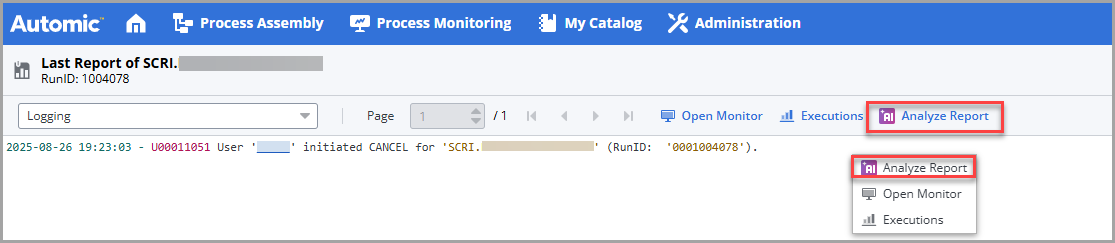
Within any report, either right-click to select Analyze Report or click the Analyze Report button in the toolbar.
-
Everywhere in AWI where there is a runID:
-
List of Tasks
-
Any Executions list
-
List of Clients
-
List of Agents
-
Server Processes
-
List of Queues
-
RunIDs in reports
-
Global Search
-
SLO objects
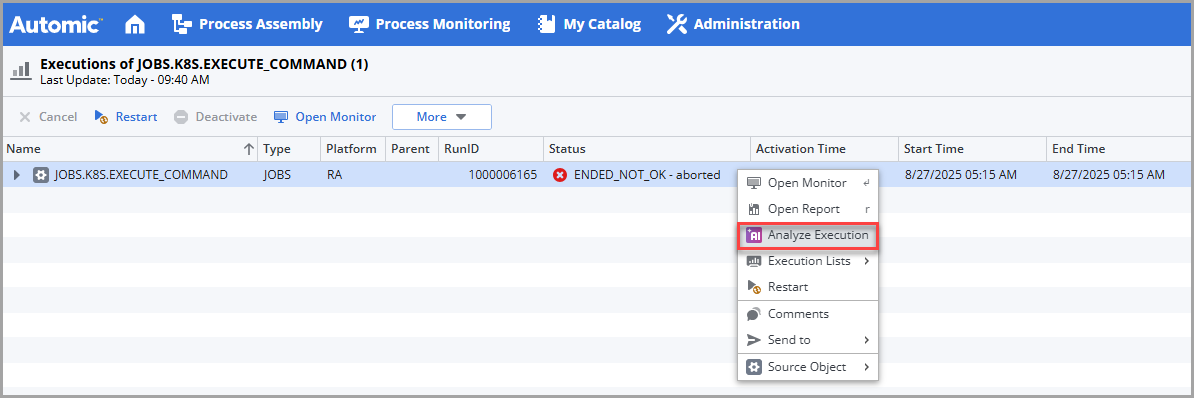
For example, in an Executions list, select an execution and either right-click to select Analyze Execution or select More > Analyze Execution. See Analyzing Executions with the Automation Assistant
-
-
Script Editor
The script editor provides two ways of accessing the Automation Assistant for script-specific operations.
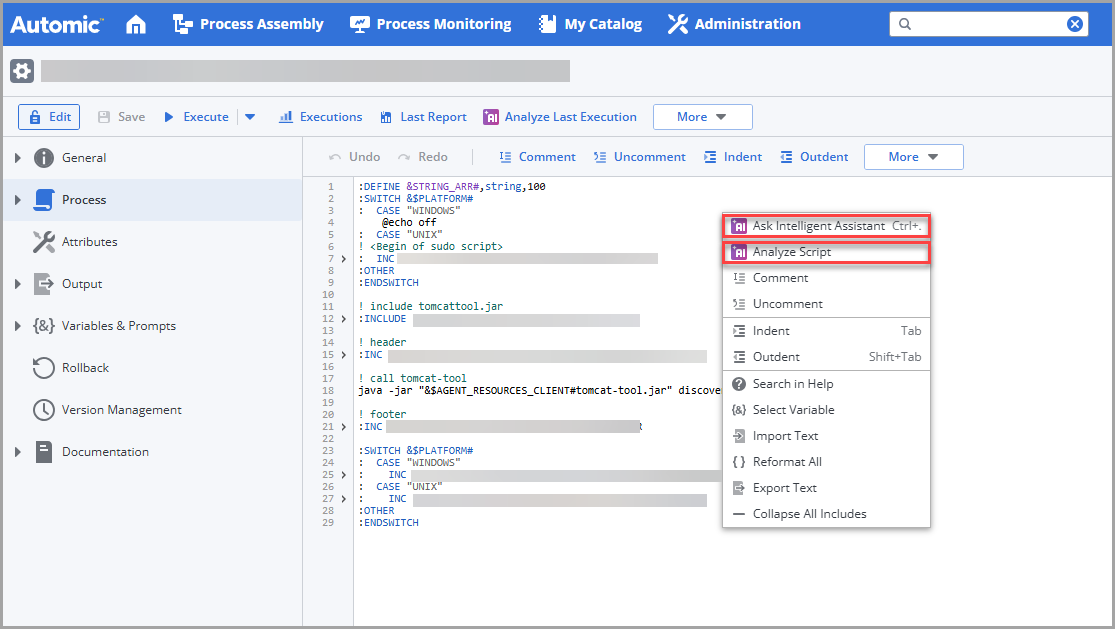
In the script editor, either right-click to open the context-menu or expand the More button and select one of the following:
-
Ask Intelligent Assistant, see Using the Automation Assistant to Generate, Modify and Analyze Scripts
-
Analyze Script, see Generating and Analyzing Code Using AI
-
-
ASK_AI Function
Script function that lets developers and object designers introduce AI capabilities at runtime in their scripts, see ASK_AI.
-
Lists with Filters (tasks, objects (in the object search), Agents and SLOs
(Tasks, objects in the object search, Agents and SLOs) The AI Filter Assistant lets you easily and comfortably configure your lists using conversational language in your prompts.
See also: Watch the Videos: Automic Automation's Generative AI Capabilities.
What Does the Automation Assistant Look Like?
The Intelligent Assistant panel opens on the right-hand side of your screen:
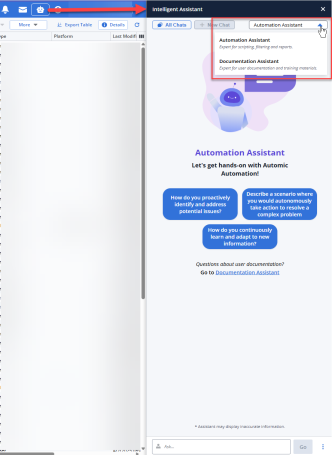
The panel gives you access to the following new functions:
-
All Chats
Opens the Conversation History, where all your questions and answers are displayed. It contains all the conversations available in a session.
-
New
Puts the focus in the Ask field at the bottom of the panel, where you can enter your next question.
-
Automation Assistant/Documentation Assistant dropdown list to select the Agent you want to answer your questions depending on their nature.
-
The Automation Assistant, your automation expert.
-
The Documentation Assistant, your product documentation expert. A beta version of this powerful assistant was introduced in previous versions and it is enhanced now.
-
-
Predefined prompts that are context-sensitive. This means that depending on the AWI area from which you have opened the assistant, the suggested prompts change. For example, if you open it from the list of Users in the Administration perspective, the suggested prompts are Which users are locked?, Show only active users, Sort users by name descending. If you open it from the list of tasks in the Process Monitoring perspective, the prompts are Show blocked workflows, Show aborted tasks from last night, Show tasks waiting for agents, and so forth.
-
Ask input field at the bottom, where you can have your conversation in natural language about all things automation with the Intelligent Assistant. The three dots beside the Go button open a menu where you can also open a new chat, access all already available chats and close the assistant.
Monitoring Token Consumption
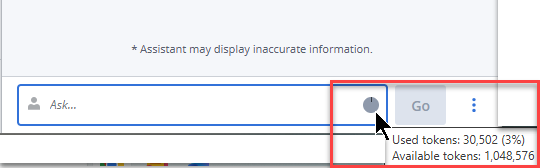
At the bottom of the Intelligent Assistant panel, a pie chart provides a real-time visual representation of your token usage for the current prompt. This indicator helps you monitor how much of the LLM capacity or your allocated quota is being utilized with each prompt. By monitoring this, you can optimize your queries.
Every time you enter a prompt and click Go, the request is sent to the LLM. Once the Assistant generates a response, the pie chart automatically updates to reflect the token consumption for that specific prompt.
How Token Consumption Works
Behind the scenes, the Intelligent Assistant translates your conversational language into a format the LLM can process. This process involves the following technical concepts:
-
What are Tokens?
Unlike standard word counts, LLMs break down text into "tokens." A token can be a single character, a sequence of characters or a whole word. On average, 1,000 tokens equate to approximately 750 words.
-
Input and Output
Your consumption is the sum of both the Input (the prompt you write, including any background context the Assistant provides to the model and the chat history) and the Output (the response generated by the AI).
-
Contextual Awareness
To provide accurate follow-up answers, the Assistant sends parts of your previous conversation in each new prompt. This ensures the AI "remembers" the topic, but it also means that token consumption can increase as the conversation grows longer.
-
Thresholds and Limits
The pie chart displays your usage relative to a maximum limit. This limit is typically determined by the specific LLM’s context window (the maximum amount of data it can process at once) or the administrative quotas set within your Automation.AI configuration.
Tip: To conserve tokens, use the New Chat button to clear history when switching topics, preventing the Assistant from sending irrelevant previous context.
What Answers Can You Expect?
The quality and depth of the answers depend on the LLM model and version that you use with the Automation.AI component. Automic SaaS environments use Gemini configured by Broadcom. For on-premises and AAKE environments, your company is responsible for configuring the model.
You can enhance and broaden the scope of the LLMs by enabling them to interact with the Automation Engine REST API, which allows them to query the Automation Engine for data and receive real-time data, resulting in improved and accurate responses about your Automic Automation system.
Disclaimer
You are interacting with a generative AI service (the "AI Service"). AI-generated output may contain errors and unexpected results. By submitting data to the AI Service, you agree to the following:
-
Prohibited Content: Not to use the AI Service to create content that is illegal, harmful, misleading, that violates third-party rights or privacy, or make decisions that call for human judgment, including uses that may have health or safety consequences.
-
Data Awareness: That you are aware that the data submitted may contain confidential or personal data.
-
Automic SaaS: To allow Broadcom to collect and analyze the data you submit with an AI model of Broadcom or Broadcom's generative AI service provider.
-
Automic Automation On-Premises: The use of the AI Service is subject to the terms of your AI service provider or AI model and Broadcom bears no responsibility or liability for your use of your AI service provider or AI model.
-
No Warranties: Broadcom makes no representations and provides no warranties about the completeness, reliability, or accuracy of AI-generated output.
See also: