Designing Remediation Workflows
This section of the documentation is relevant for designers. As a designer, you create and configure remediation Workflows. You execute and monitor those Workflows to make sure that they behave as expected. When you are satisfied with the results, you make them available to the operators, who can then trigger them directly from DX Operational Intelligence. You do most of your work in the Process Assembly and in the Process Monitoring perspectives.
This topic outlines the process of creating a remediation Workflow and provides links to the chapters in this documentation that describe how to do it in detail.
This page includes the following:
Access Automic Automation for AIOps
You create remediation Workflows and modify existing ones in Automic Automation for AIOps, in the Process Assembly perspective. To access it, click the App Launcher in the DX Operational Intelligence menu bar and select Automic Automation for AIOps:

Process Assembly Default Setup
When you first open the Process Assembly perspective, this is what you see:
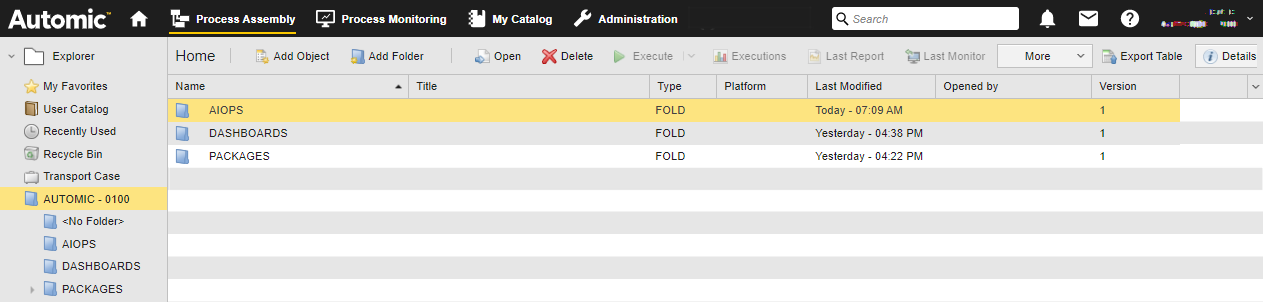
The AIOPS folder is always available; it is the connection point between Automic Automation for AIOps and DX Operational Intelligence.
The PACKAGES folder is also available by default. It contains pre-configured sample remediation Workflows that you can reuse, modify and adapt to your needs.
You add your own folders to the Process AssemblyExplorer and create and configure your Workflows in those folders.
Create a Remediation Workflow
A remediation Workflow is a type of object in Automic Automation for AIOps. Workflows orchestrate the execution of the objects that they contain. There are many types of objects that you can add to a Workflow. Each object is a step or a group of steps in the processing logic that solves an incident.
You have two options to create a remediation Workflow:
-
Modify a sample Workflow
-
Modify an Action Pack
-
Create from scratch
You create remediation Workflows based on the AIOPS Workflow template. This template already contains the first task in the Workflow. It is a pre-configured embedded Workflow that parses the incident data provided by alarm so that the Workflow can consume it. You add the tasks you need after this first Workflow.
For more information, see:
- Sample Remediation Workflows
- Creating a Remediation Workflow
- Remediation Workflow Template
- Workflows (JOBP)
- Object Types
- Adding Objects
- Jobs (JOBS)
- Scripts (SCRI)
- Includes (INCL)
- PromptSets (PRPT)
- Variables and VARA Objects
- Notifications (CALL)
- Storage (STORE)
- Sync (SYNC)
Configure the Workflow and its Tasks
After adding the tasks to the Workflow, you connect them to establish the sequence in which they will be executed. In addition to the execution order, you can further configure the Workflow logic by specifying the properties of its tasks.
For more information, see:
Test the Workflow
To test whether the Workflow behaves as you expect, you execute and monitor it.
For more information, see:
Make the Workflow Available for DX Operational Intelligence
When a remediation Workflow is ready for operators to consume it, you copy it to the AIOPS folder.
The AIOPS folder is synchronized with the alarm list in DX Operational Intelligence. The Workflows that you store here are immediately visible and available as remediation Workflows in DX Operational Intelligence. This applies also if you add sub folders with Workflows within those sub folders.
See also: